
Wishlist Items reminder email — how to set it up and customize it
Overview
The Wishlist Items reminder email helps bring shoppers back to products they already saved. When this email is enabled, customers automatically receive a reminder after a set number of days, making it easier for them to return and complete their purchase while interest is still high.
This is one of the most effective automated emails you can turn on if you want to recover intent from visitors who were close to buying but were not ready yet.
What this email does
After a customer adds one or more products to their wishlist, the app can automatically send a reminder email based on the schedule you choose.
The email can include:
Saved product names
Product images
Current prices
Direct product links
Your store branding and message
This gives customers a simple way to return to the exact products they were considering, without needing to search for them again.
How to set it up
Go to Apps → WC Wishlist & Back in Stock → Settings → Email Customization → Email Notifications → Wishlist Items.
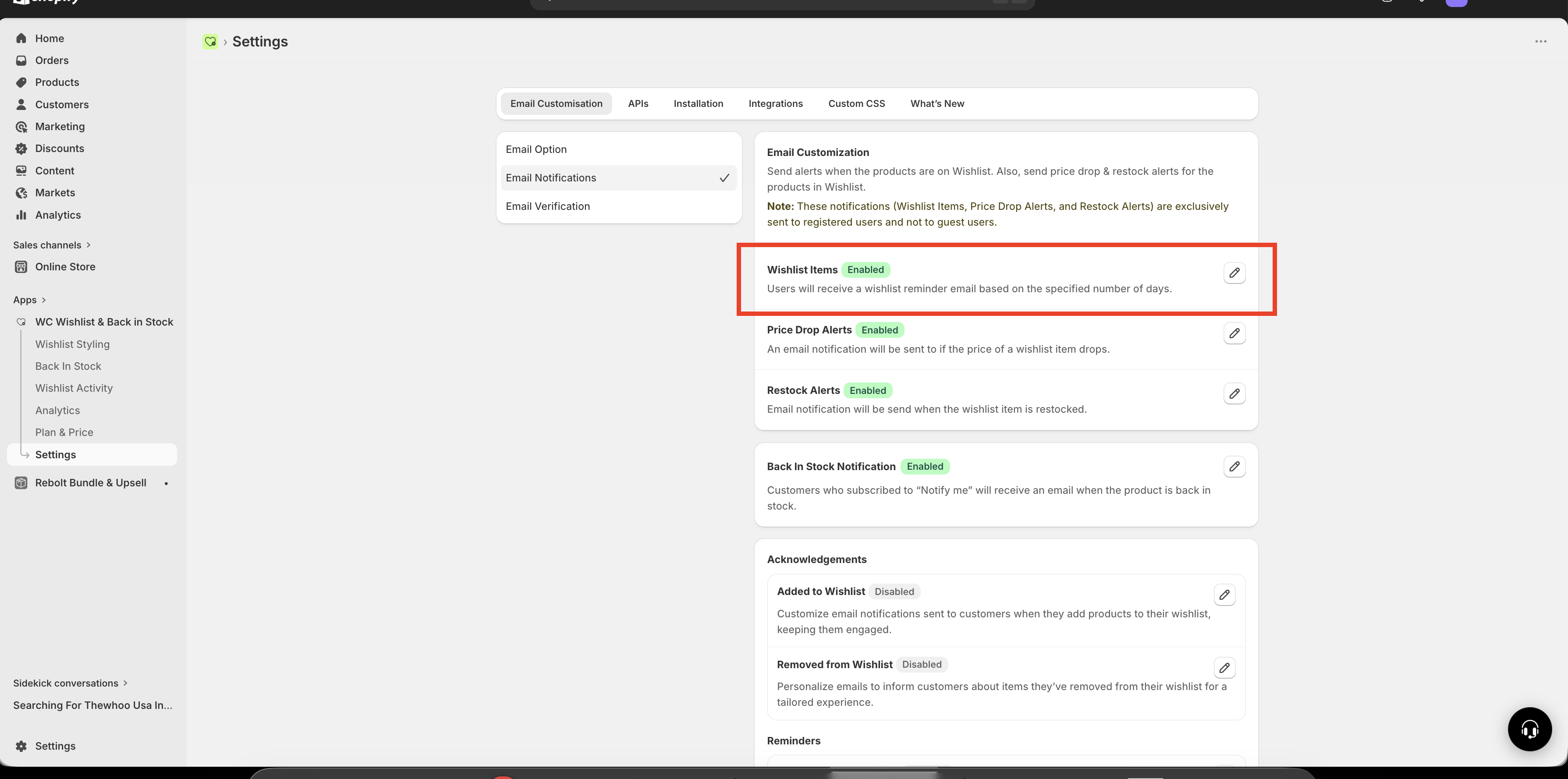
Enable the Wishlist Items reminder so the automation can send emails to customers with saved products.
Enter a clear, compelling subject line that encourages customers to open the email.
Choose when the email should be sent after a product is added to a wishlist: 1 day, 3 days, 7 days, or 15 days.
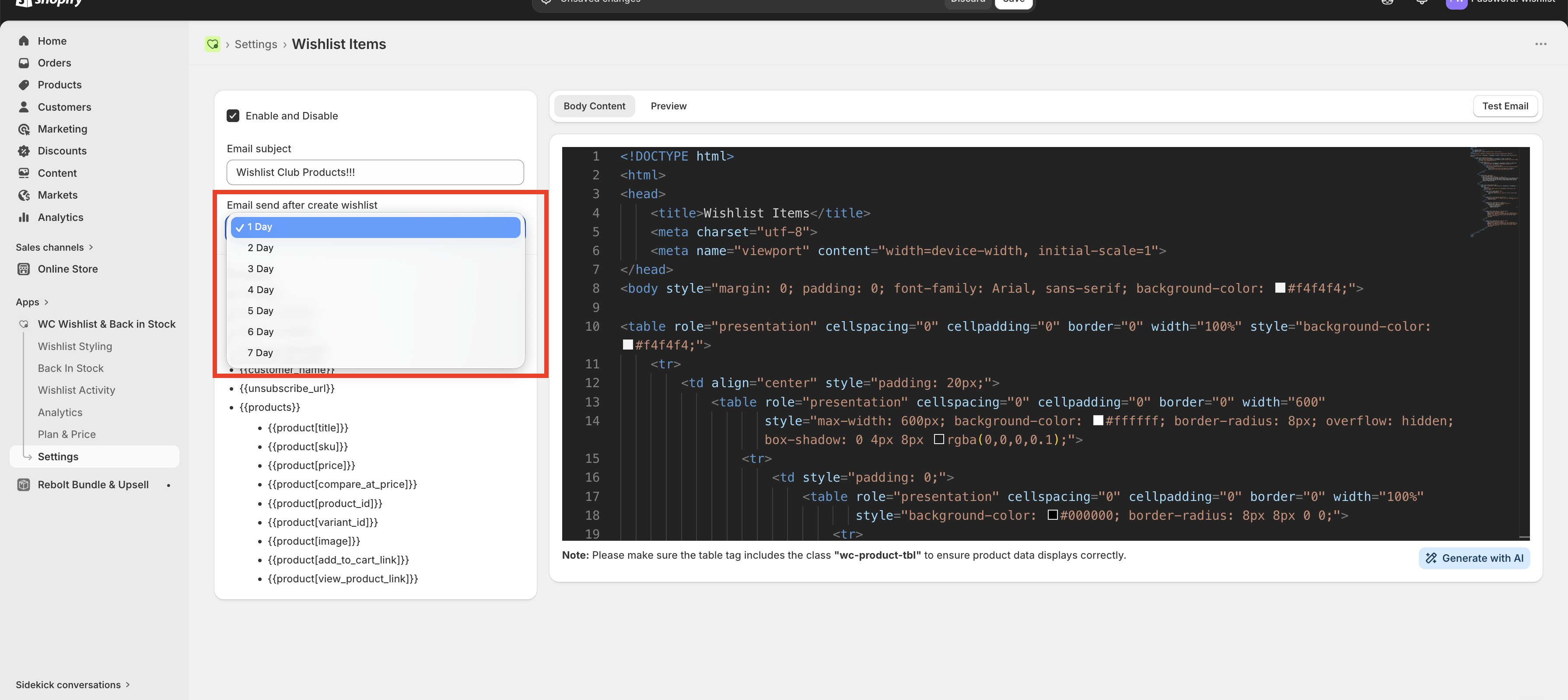
Add your message and use the available variables to personalize the email automatically.
Save the settings so the reminder email starts working for future wishlist activity.
Settings explained
Enable / Disable
Use this setting to turn the reminder email on or off.
Enabled: customers receive reminder emails based on your selected timing.
Disabled: no wishlist reminder emails are sent, even if customers continue adding products to their wishlist.
Email Subject
This is the subject line customers see in their inbox. It has a major impact on open rate, so keep it short, clear, and relevant to the products they saved.
Strong subject line examples:
Your wishlist items are waiting 🛍️
Products you loved are still available
Still thinking about it? Your saved items are here
Complete your wishlist purchase today
You saved these for later — ready to come back?
The best subject lines feel helpful, not pushy. Mentioning saved items or reminding customers they left something behind usually works better than overly promotional wording.
Send After (Days)
Choose how long the app should wait before sending the reminder after a customer adds products to their wishlist.
Available options: 1 day, 3 days, 7 days, 15 days
1 day: works well for fast-purchase products, but can feel too soon for some stores.
3 days: a strong default for most stores.
7 days: useful if shoppers typically take longer to decide.
15 days: best for longer buying cycles, but may reduce urgency.
For most stores, 3 to 7 days is the best starting point. It keeps the product fresh in the customer’s mind without making the reminder feel immediate or repetitive.
Best practices for higher conversions
Keep the message focused: remind customers what they saved and make it easy to return to those items.
Use a clear subject line: avoid vague subjects that do not mention the wishlist.
Do not over-wait: if the reminder goes out too late, purchase intent may already be gone.
Use the customer’s name when possible: personalization can increase engagement.
Make the call to action obvious: encourage the customer to view their saved items or complete their purchase.
Review your store branding: make sure the tone and wording match the rest of your emails.
Recommended email structure
A strong wishlist reminder email usually includes:
A subject line that references saved items
A short opening message
The customer’s saved products
A clear button or link back to the product page
An unsubscribe link for compliance
Example opening message:
Hi {{customer_name}},

You saved some great picks in your wishlist and they’re still waiting for you.
Come back anytime to review your items and complete your order.
Keep your message short. The products themselves should do most of the selling.
Available email variables
Use dynamic variables to automatically insert store, customer, and product information into each email.
Store variables
Variable | What it inserts |
|---|---|
| Your shop domain |
| Your store name |
| Your store email address |
| Your store’s currency format |
Customer variables
Variable | What it inserts |
|---|---|
| The customer’s name |
| The unsubscribe link |
Product variables
Use product variables inside the {{products}} loop so the email can list each saved item automatically.
Variable | What it inserts |
|---|---|
| Product name |
| Product price |
| Product page link |
| Product image |
Example product loop:
{{products}}
  <div>
    <a href="{{product[url]}}">{{product[title]}}</a>
    <p>{{product[price]}}</p>
    {{product[image]}}
  </div>
{{/products}}
Always include {{unsubscribe_url}} in your email template. This is important for email compliance and customer trust.
Example email copy
Subject: Your wishlist items are waiting 🛍️

Hi {{customer_name}},

You recently saved some items to your wishlist at {{store_name}}.

Good news — they’re still available. Take another look and complete your purchase whenever you're ready.

{{products}}
  <div>
    <a href="{{product[url]}}">{{product[title]}}</a>
    <p>{{product[price]}}</p>
    {{product[image]}}
  </div>
{{/products}}

If you'd prefer not to receive these reminders, you can unsubscribe here:
{{unsubscribe_url}}
How to make this email perform better
Test a few subject lines over time and keep the one with the strongest open rate.
Use 3 days as your starting point if you are unsure when to send.
Make sure product titles and prices are accurate in your store so the email content looks clean.
Write in the same voice as your brand so the reminder feels natural.
Avoid overly long text blocks that push product links too far down the email.
Troubleshooting
First, confirm the Wishlist Items email is turned on and saved. Then check that customers are actually adding products to their wishlist and that the selected send delay has already passed.
If the email was enabled after wishlist activity happened, only new eligible activity may be included depending on your current configuration.
Make sure product variables are placed inside the {{products}} loop. If product fields are used outside that loop, the email may not render the saved items correctly.
Try changing the send timing from 1 day to 3 days or 7 days, and use a softer subject line focused on reminding rather than pushing for an immediate sale.
Include {{unsubscribe_url}} in every version of the email so customers can manage their preferences easily.
Quick recommendations
Best default delay: 3 days
Best tone: helpful and reminder-based
Best use of personalization: customer name + saved products
Must-have variable:
{{unsubscribe_url}}
If you are setting this up for the first time, start simple: use a clear subject line, a 3-day send delay, a short message, and the saved product list. You can refine performance later based on opens and clicks.
Need help?
If you are not sure which file to edit, or you would rather have us handle the installation, contact our support team:
Email: [email protected]
Live chat: available from the app admin
Free onboarding 1:1 call