
Wishlist Report emails — get weekly or monthly performance insights
Overview
Wishlist Report Setting sends you a scheduled email with a summary of wishlist activity in your store. Instead of checking the app manually, you receive key performance insights in your inbox every week or month.
This report helps you quickly understand which products customers are saving, how wishlist interest is changing over time, and where you may have opportunities to improve inventory, promotions, and conversions.
The report is sent to the merchant email connected to your store settings or app setup, depending on your configuration.
What the report includes
Your report may vary based on your store activity, but it typically includes:
Total wishlist additions for the selected reporting period
Most wishlisted products so you can see what shoppers want most
Wishlist engagement trends to help you spot changes in customer interest
Trending products based on recent wishlist saves
Wishlist growth over time for a broader performance view
Conversion-related insights to help you compare wishlist activity with purchases
If your store has low wishlist activity during a reporting period, the email may include fewer insights.
Available settings
Enable or disable reports
Use the report toggle to turn automated wishlist reports on or off.
Enabled: reports are sent automatically on your selected schedule
Disabled: no wishlist report emails are sent
Choose a report frequency
Select how often you want to receive the report:
Weekly — best for active stores, campaign monitoring, and frequent performance reviews
Monthly — best for long-term trend analysis, management reporting, and monthly planning
Start with weekly reports if you are actively running promotions, launching products, or tracking fast-moving inventory. Switch to monthly if you want a higher-level view of customer interest over time.
How to set up Wishlist Report emails
In the app, go to Settings → Email Customization → Wishlist Report Setting.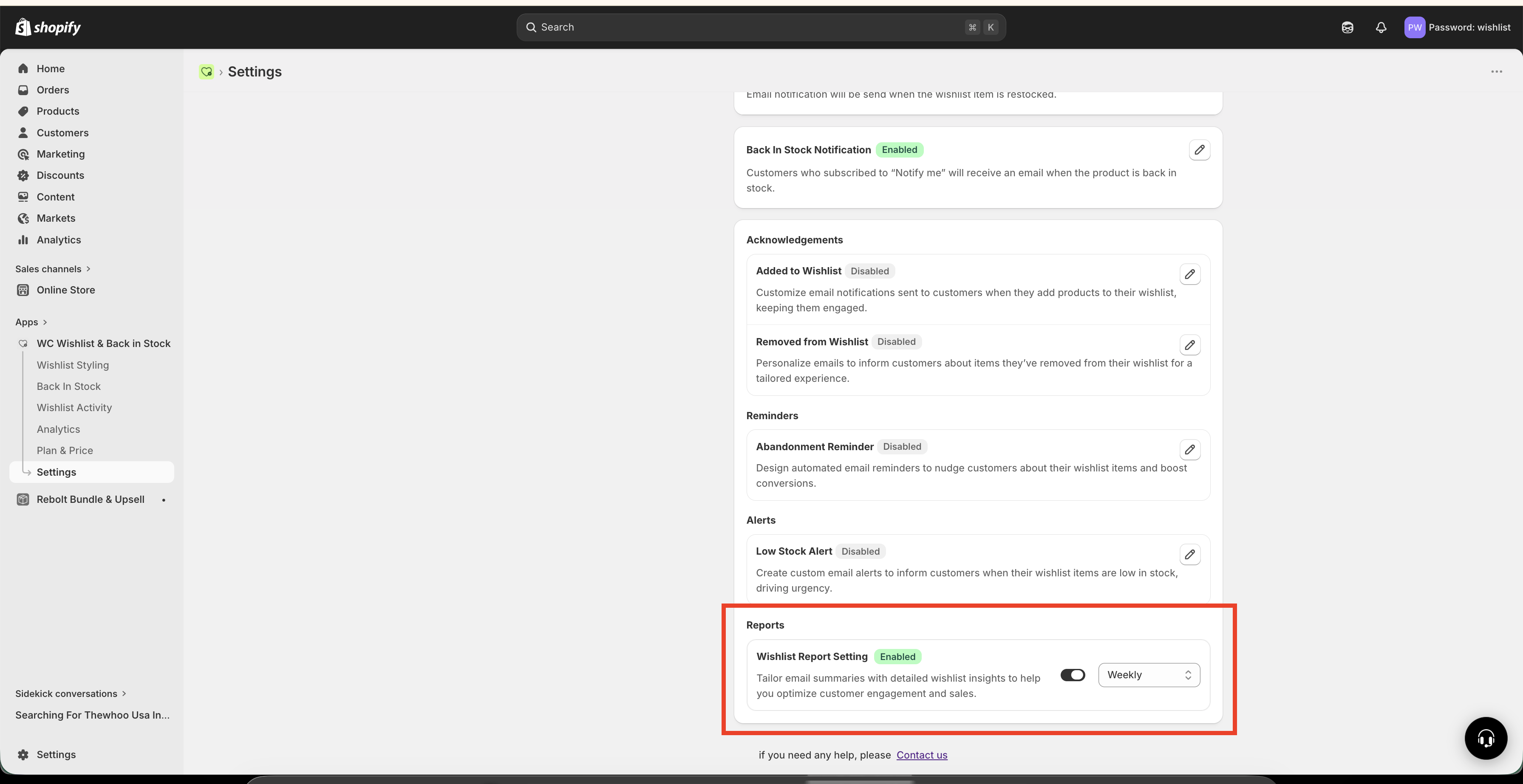
Enable the report toggle so the app knows to send automated wishlist summary emails.
Choose the schedule that matches how often you want to review wishlist performance.
Save the setting so your report schedule is applied.
The next report will arrive automatically based on the frequency you selected.
How to use the report data
The report is most useful when you turn the insights into decisions. Here are the main ways merchants use it:
Inventory planning
Your most wishlisted products often reflect the items customers want most. Use this data to:
Prioritize restocking for high-interest products
Spot products that may sell out soon
Plan inventory around demand, not just past purchases
Marketing campaigns
Products with strong wishlist activity are good candidates for promotion. You can:
Feature popular wishlist products in email campaigns
Build promotions around high-interest collections
Use customer interest data to guide seasonal campaigns
Retargeting and paid ads
Wishlist activity shows purchase intent. Use the report to identify products or categories worth promoting in retargeting campaigns on platforms like Facebook or Google.
Pricing decisions
If a product gets a lot of wishlist saves but few purchases, pricing may be a factor. This can help you decide when to:
Run a limited-time discount
Test a price adjustment
Pair the product with a Price Drop Alert campaign
Product development and merchandising
Repeated wishlist activity across similar items can reveal what customers want more of. Use this insight to:
Expand popular styles, colors, or categories
Adjust merchandising based on demand trends
Plan future product launches with more confidence
Best practices
Review reports consistently. Weekly review works best if you are actively changing inventory or running campaigns.
Compare wishlist interest with sales. High interest with low conversion usually points to a pricing, stock, or product-page issue.
Watch for sudden spikes. A product that suddenly appears in top wishlist activity may need more stock or immediate promotion.
Use reports alongside your campaigns. Check whether featured products also gain more wishlist saves after an email, ad, or promotion.
Look for patterns, not just one-time wins. Monthly trends are especially useful for planning larger inventory and marketing decisions.
Wishlist data is especially powerful for products customers consider before buying, such as seasonal items, gifts, fashion, furniture, or higher-priced products.
When to choose Weekly vs Monthly
You run promotions often
You update inventory frequently
You want to react quickly to customer interest
You review store performance every week
You prefer a broader trend view
You report performance monthly to your team or management
You do not need frequent updates
You want to evaluate long-term changes in demand
Troubleshooting
Make sure the report setting is saved and give it time until the next scheduled send window. If you selected monthly delivery, the first report may not arrive immediately.
This usually means there was low wishlist activity during the selected period. As your store collects more wishlist interactions, the report becomes more detailed.
If you are still building traffic, keep the feature enabled and review it over time. Wishlist reporting becomes more valuable as more shoppers interact with your products.
Need help?
If you are not sure which file to edit, or you would rather have us handle the installation, contact our support team:
Email: [email protected]
Live chat: available from the app admin
Free onboarding 1:1 call