
Add the wishlist icon to collection pages (non-2.0 themes)
Overview
Adding the wishlist icon to your collection pages lets customers save products while browsing, without opening each product page first. This is one of the most effective ways to increase wishlist usage because shoppers can save items the moment they discover them.
If you already tried the block-based setup and did not see a Wishlist Product Block option in the theme editor, your theme is most likely a non-2.0 theme.
Before editing your theme code, duplicate your live theme so you have a backup to restore if needed.
Who this guide is for
Use this guide if your store is using a non-2.0 Shopify theme and you need to add the wishlist icon by editing your theme code.
If you're using an Online Store 2.0 theme, use the 2.0 theme setup instructions instead. This page only covers older themes that do not support app blocks in collection cards.
Before you start
Make sure the app is already installed and enabled in your store.
You should be comfortable making small edits to your Shopify theme files.
It's a good idea to duplicate your live theme before making changes.
Theme files vary from store to store. The file names in this guide are common examples, but your theme may use different names or a different structure.
How to add the wishlist icon to collection pages
You'll add a small code snippet to the file that controls each product card in your collection grid.
In Shopify Admin, go to Online Store → Themes.
On your current theme, click Actions (or the three-dot menu), then select Edit code.
Look for the file that renders products on collection pages. Common file names include:
card-product.liquidproduct-card-grid.liquidproduct-card-list.liquidproduct-card.liquidproduct-grid-item.liquid
This file is often located in Snippets or sometimes in Sections.
Inside that file, find the area where each product card displays its main content.
The best placement is usually:
near the product image, or
near the product price or title
If you want the icon to be highly visible, placing it close to the product image usually works best.
Add this code where you want the wishlist icon to appear:
<div class="th_wl_col_btn"
  data-product_id="{{product.id}}"
  data-variant_id="{{product.selected_or_first_available_variant.id}}">
</div>
Click Save.
Then open one of your collection pages in your storefront and confirm that the wishlist icon appears on each product card.
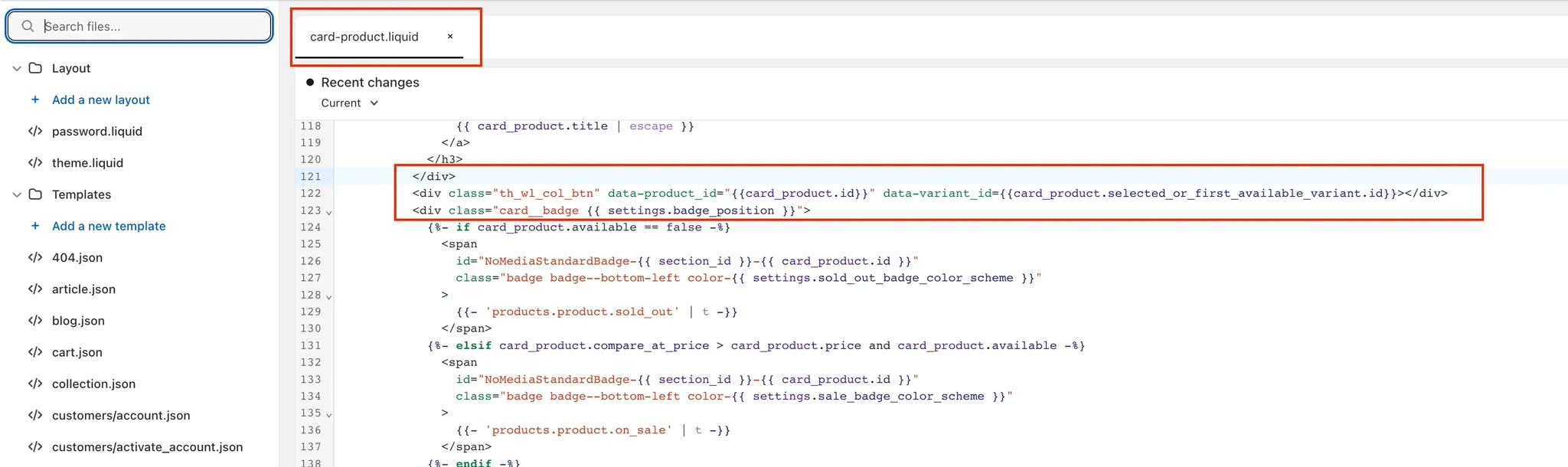
Recommended placement
If your theme allows it, place the icon somewhere customers can notice immediately without covering important product details.
Best for visibility: over or beside the product image
Best for a cleaner layout: near the product price
Avoid: placing it too low in the card where it may be missed on mobile
After adding the snippet, test both desktop and mobile collection pages. A placement that looks good on desktop can feel crowded on smaller screens.
What happens after setup
Once the snippet is placed correctly, the wishlist icon will appear on product cards across your collection pages. Customers can then save items directly from collection views instead of opening each product individually.
This typically leads to:
more wishlist activity
faster product saving for shoppers
better engagement on collection pages
Troubleshooting
Not all themes use the same file names. Search your theme code for keywords such as product-card, card-product, grid-item, or part of the product title or price markup shown on collection pages.
If your theme uses a custom structure, you may need to identify the file by previewing the storefront layout and matching it to the relevant snippet or section.
Check the following:
The snippet was added to the file used by your collection product cards, not a product page file.
The code was pasted inside the markup for each product card.
You saved the file after editing.
You're viewing a collection page that uses that product card layout.
Move the snippet higher or lower inside the product card markup and save again. Small placement changes can make a big difference depending on your theme layout.
Some themes have tightly spaced product cards. Try placing the snippet near a different element, such as the image instead of the price area, or vice versa.
Replace this placeholder with your final screenshot if you have one available from your documentation assets.
Important notes
Each Shopify theme is built differently, so the exact file name may not match the examples above.
The snippet must be added to the collection product card markup to display on collection pages.
Once installed correctly, the icon should appear on all product cards that use that same theme file.
If you're unsure which file controls your collection cards, avoid editing multiple files at random. Make a theme backup first, then update only the file tied to your collection layout.
Need help?
If you are not sure which file to edit, or you would rather have us handle the installation, contact our support team:
Email: [email protected]
Live chat: available from the app admin
Free onboarding 1:1 call