
Sharing wishlists — social sharing and direct links
Overview
Wishlist sharing lets customers send their wishlist to friends and family using a direct link or social sharing options. It is useful for birthday lists, wedding registries, holiday gift ideas, baby showers, and any occasion where someone wants to share products they would love to receive.
For your store, every shared wishlist can bring in new shoppers. Instead of browsing from scratch, recipients land on a curated list of products chosen by someone they know, which makes it easier for them to buy.
Shared wishlists can be viewed by anyone who has the link. Recipients do not need a Wishlist Club account to open the wishlist and shop from it.
How wishlist sharing works
When wishlist sharing is enabled, customers see a Share Wishlist button on their wishlist page.
They can then share their wishlist in a few simple ways:
Copy a direct link and send it by email, text message, or any messaging app
Share through supported social channels such as WhatsApp or Facebook
Send the wishlist to friends and family so they can view products and buy gifts more easily
When someone opens a shared wishlist, they can view the listed products and add items to their cart directly from the wishlist page.
Why this matters for your store
Wishlist sharing turns customer intent into word-of-mouth traffic. A shared wishlist is more than a saved list of products — it is a personal recommendation from an existing customer.
Brings in new visitors: Friends and family visit your store through the shared link
Improves purchase intent: Recipients see products the customer actually wants
Supports gifting occasions: Shoppers can buy with more confidence for events and celebrations
Creates referral-like traffic: You gain additional exposure without extra ad spend
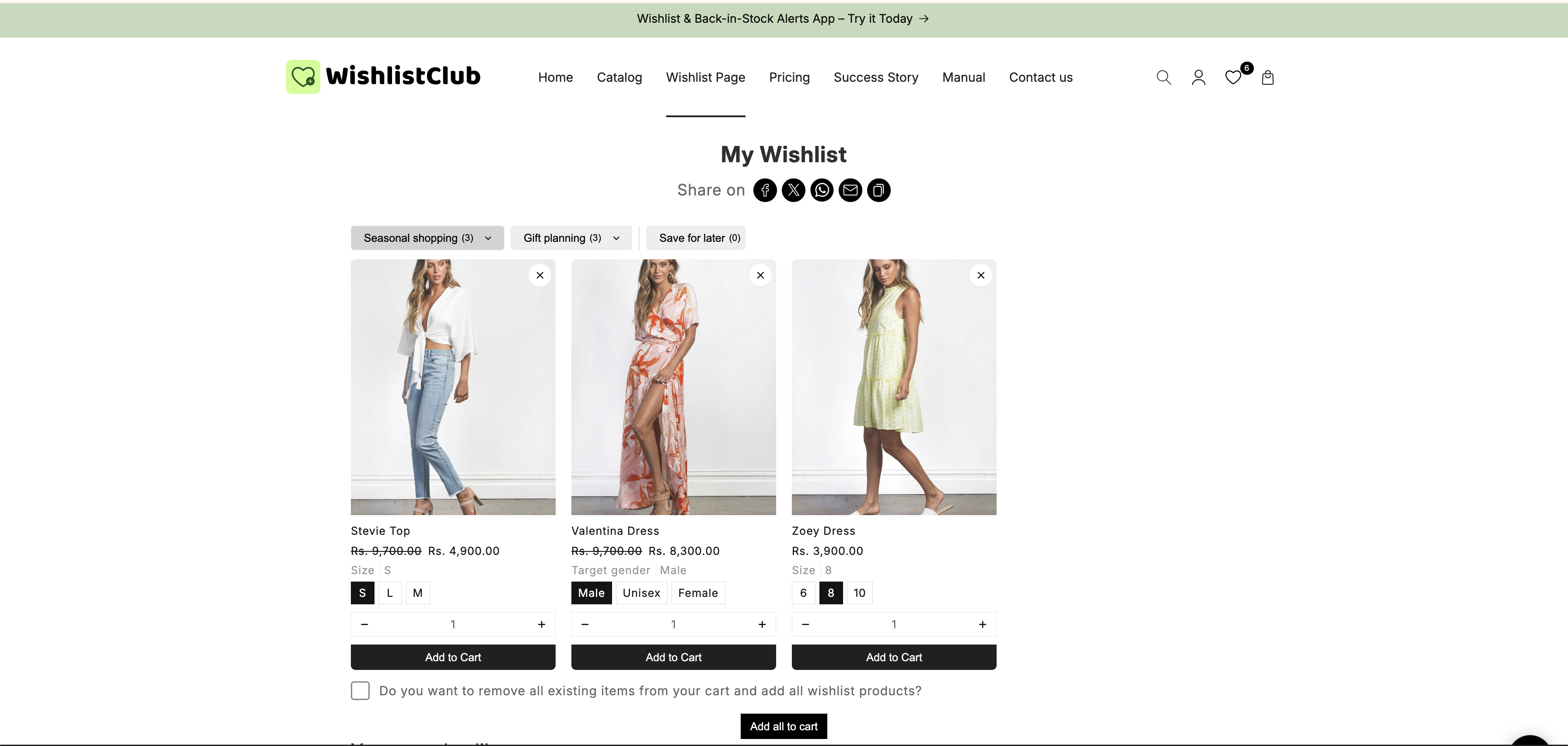
Wishlist sharing is especially effective during gift-focused seasons such as Christmas, Valentine’s Day, Mother’s Day, wedding season, baby showers, birthdays, and back-to-school shopping.
How to enable wishlist sharing
In your Shopify admin, go to Apps and open WC Wishlist & Back in Stock.
Open Wishlist Styling, then select Wishlist Page.
Scroll to the Share Wishlist section.
Toggle the setting ON and save your changes.
Visit a customer wishlist page on your store and check that the Share Wishlist button is visible.
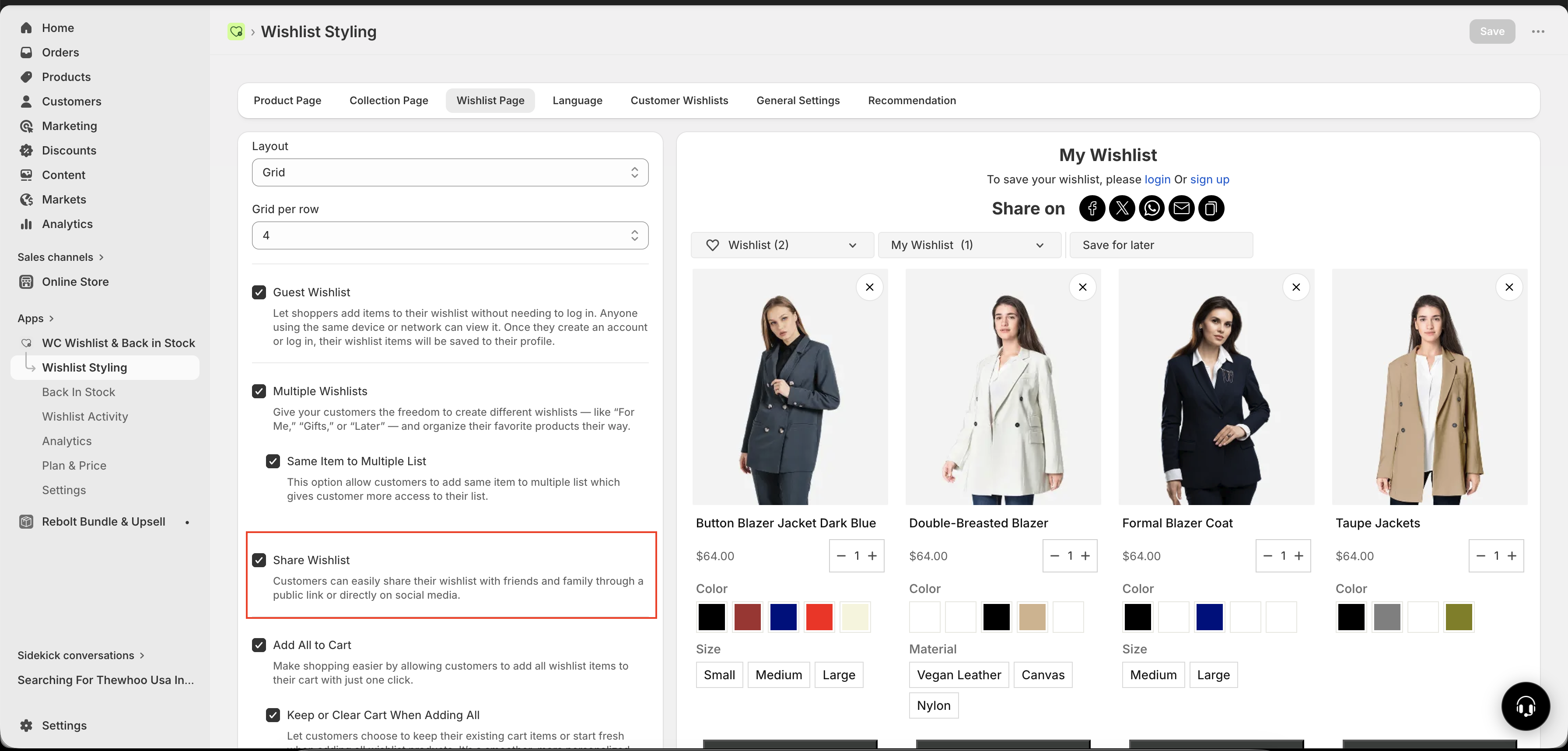
Once enabled, the share button appears automatically on the customer wishlist page. No extra setup is needed on the storefront.
What customers can share
After the feature is enabled, customers can share the wishlist they have already created on your store. Depending on the sharing options available in their browser or device, they may be able to:
Copy the wishlist URL
Share through social apps
Send the link directly to friends or family
This makes it easy for customers to distribute their list wherever they already communicate.
What the recipient sees
When someone opens a shared wishlist link, they can see the wishlist contents in a shopping-friendly format. This usually includes:
Product images
Product names
Prices
Buttons or actions to add items to cart
Recipients do not need to sign in just to view the shared wishlist. This lowers friction and makes gifting faster.
If you want the best experience for gift buyers, make sure your product titles, images, and pricing are clear and up to date. Shared wishlist pages are often viewed by first-time visitors.
Best practices
Enable sharing before major gifting periods: Turn it on ahead of holidays and seasonal promotions
Keep product pages polished: Shared wishlist traffic often includes new customers who may be discovering your brand for the first time
Promote wishlist creation: The more customers create wishlists, the more opportunities they have to share them
Use gift-friendly messaging: Consider mentioning wishlist sharing in banners, emails, or seasonal campaigns
When shoppers commonly use shared wishlists
Birthdays and anniversaries
Christmas and other holiday shopping
Valentine’s Day
Weddings and engagement celebrations
Baby showers
Graduation gifts
Back-to-school shopping
Frequently asked questions
No. Anyone with the shared link can open the wishlist and view its items.
Yes. Recipients can add items from the shared wishlist to their cart directly from the wishlist page.
Go to Apps → WC Wishlist & Back in Stock → Wishlist Styling → Wishlist Page, then enable Share Wishlist.
It helps customers share products they want while bringing new visitors to your store. It is especially valuable for gifting and seasonal shopping.
Need help?
If you are not sure which file to edit, or you would rather have us handle the installation, contact our support team:
Email: [email protected]
Live chat: available from the app admin
Free onboarding 1:1 call