
Automatically tag customers who subscribe for Back in Stock alerts
Overview
Back in Stock subscribers are some of your highest-intent shoppers. When someone signs up for a restock alert, they are telling you exactly which product they want to buy.
The Tag Workflow automatically adds a Shopify customer tag when someone subscribes for a Back in Stock alert. You can then use that tag to build customer segments, trigger email flows, create retargeting audiences, and track product interest across your store.
This workflow works with Shopify customer profiles. If the shopper already exists as a customer, the tag is added to their existing profile. If they do not exist yet, the app creates a customer profile in Shopify and then applies the tag.
What happens when a customer subscribes
A shopper clicks Notify Me on an out-of-stock product.
They submit the Back in Stock form.
The app checks whether that shopper already has a customer profile in Shopify.
If the customer already exists, the selected tag is added to that profile.
If the customer does not exist, Shopify creates a new customer profile and the tag is added automatically.
You can then use that tag in Shopify and any connected marketing tools that sync customer tags.
Why use automatic tags
Find high-intent shoppers quickly: Identify people who have shown direct interest in sold-out products.
Create more targeted campaigns: Send better-timed emails, promotions, and follow-ups.
Build cleaner segments: Group subscribers by behavior instead of treating all customers the same.
Understand demand: See which products or collections are generating the most restock interest.
How to set up the Tag Workflow
Use these steps to choose the tag that should be added to every new Back in Stock subscriber.
In Shopify, go to Apps → WC Wishlist & Back in Stock → Back In Stock → Tag Workflow.
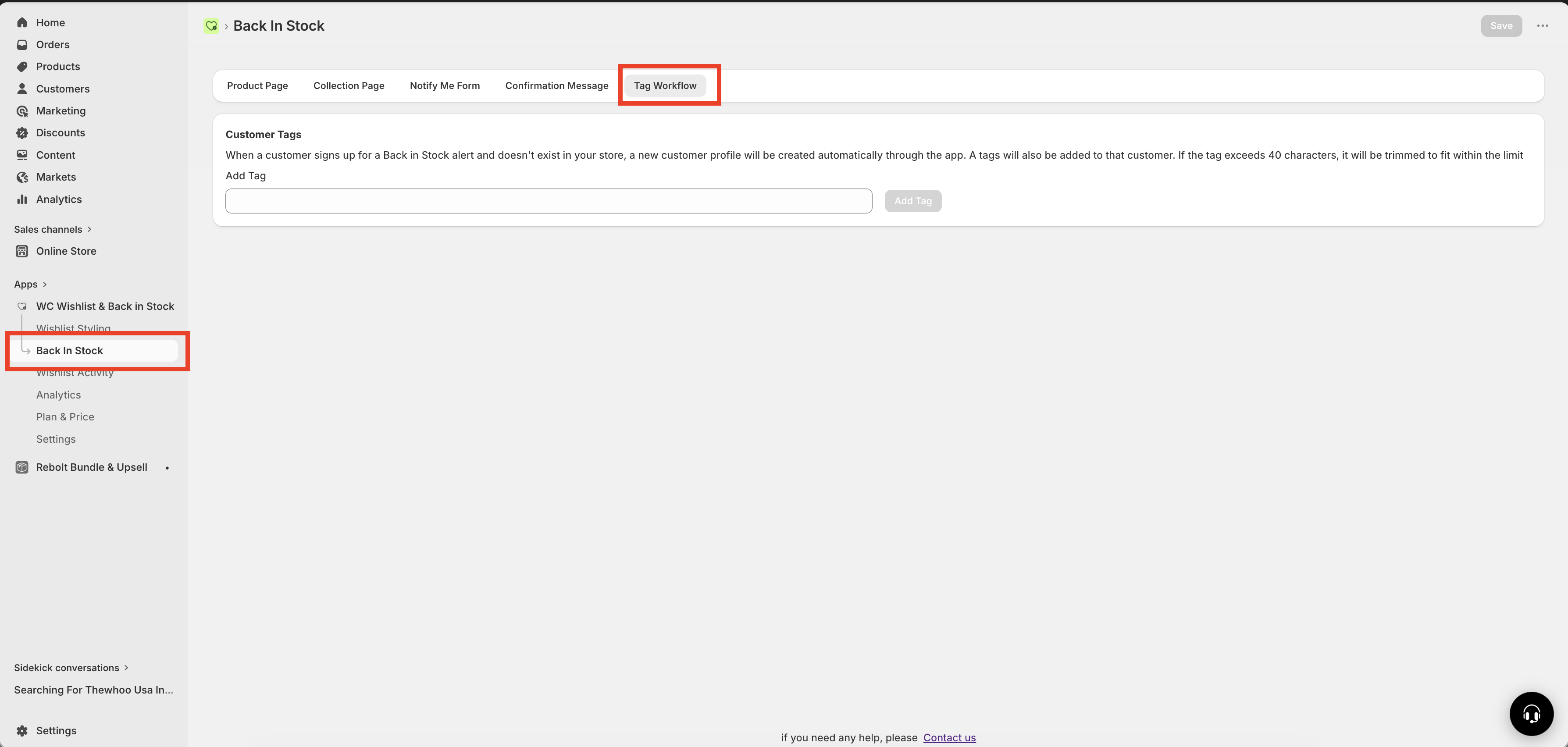
In the Add Tag field, type the customer tag you want the app to add automatically. Examples: back-in-stock, high-intent, or restock-alert.
Click Add Tag to confirm the tag.
Save the workflow. From this point on, every new Back in Stock subscriber will receive that tag on their Shopify customer profile.
Choose a tag name that is easy to recognize later in Shopify, Klaviyo, and your ad platforms. Short, consistent tags are easier to work with when building segments and automations.
Recommended tag formats
A clear naming system makes your customer data easier to use over time.
Use lowercase letters
Use hyphens instead of spaces
Keep tags short and consistent
Use names that clearly describe customer intent
Good examples
back-in-stockrestock-alerthigh-intentbis-subscriber
Avoid
Back In Stock— inconsistent formattingtag1— unclear meaningcustomer— too broad to be useful
If you frequently change your tag name, your subscriber data can become fragmented across multiple customer tags. Pick a naming convention you can keep using long term.
Best practices
Use one primary tag for this workflow
For most stores, a single standard tag such as back-in-stock is the easiest option. It creates one clean audience of all Back in Stock subscribers.
Keep your tags marketing-ready
If you plan to use the tag in email, SMS, or advertising, make sure the tag is clear enough that anyone on your team can understand its purpose immediately.
Review your Shopify customer records
After setup, test the workflow by subscribing to a Back in Stock alert with a test email address. Then check the customer profile in Shopify to confirm the tag appears as expected.
Use tags as the starting point, not the full strategy
The tag tells you who expressed interest. For stronger targeting, combine that audience with other data such as purchase history, order count, location, or engagement status in your marketing platform.
Ways to use the tag
Shopify customer segments
Create a segment of customers tagged for Back in Stock alerts and use it for store campaigns, customer analysis, or export workflows. This is useful for identifying shoppers who are actively waiting for products to return.
Email marketing flows
Sync tagged customers into your email platform and create automations for people who subscribed but have not purchased yet. You can use this audience for restock reminders, urgency campaigns, or follow-up promotions.
Retargeting audiences
Use tagged customer lists in ad platforms such as Meta or Google to retarget shoppers who already showed interest in specific products. These audiences often perform better than broad prospecting audiences.
Internal reporting and merchandising
Track how many customers are subscribing for alerts and compare those trends across products, brands, or collections. This helps you identify demand and restocking opportunities.
The exact way tags appear in external tools depends on how your Shopify customer data syncs with those tools. If a platform supports Shopify customer tags, you can usually use this tag there for filtering, segmentation, or automation.
Example use cases
Send a “Still interested?” campaign: Target customers tagged
back-in-stockwho have not ordered yet.Create a high-intent audience: Build an ad audience from customers who subscribed for stock alerts.
Measure demand: Track how many shoppers requested notifications for fast-selling items.
Support launch planning: Use subscription activity to spot products that may need larger reorder quantities.
How to test your setup
Go to an out-of-stock product on your storefront and submit the Back in Stock form using a test email address.
In Shopify admin, search for that customer email address.
Check that the customer record includes the tag you configured in the Tag Workflow.
If you use Klaviyo or another marketing tool, confirm that the customer and tag sync into the segment or flow you expect.
Troubleshooting
First, confirm that the Tag Workflow was saved after adding the tag. Then submit a new test subscription and check the matching Shopify customer profile again.
If the subscriber did not already exist in Shopify, the app should create a new customer profile automatically before applying the tag.
Make sure the subscription was completed successfully and that you are checking the correct customer record in Shopify. Testing with a unique email address can help confirm whether the workflow is working as expected.
Check whether your marketing platform syncs Shopify customer tags. If it does, confirm that the Shopify integration is active and that customer data has had time to sync.
This workflow is best suited for a broad customer tag that identifies Back in Stock subscribers. If you need more detailed product-level targeting, keep your main subscriber tag simple and use your marketing platform to build more advanced segments when possible.
Need more help?
If you need help getting the wishlist button to appear correctly, contact our team:
Email: [email protected]
Live chat: available from the app admin
Onboarding: book a free 1:1 onboarding call