
Back in Stock Notification email — set up and customize
Overview
The Back in Stock Notification email is sent automatically to customers who clicked Notify Me on a sold-out product and confirmed their email address. When that product is available again, the app sends them a message with the product details and a direct link back to your store.
This is often one of the highest-converting automated emails in e-commerce because it reaches shoppers who already asked to be notified.
This email is only sent to customers who subscribed through the Notify Me button and completed any required email verification.
How to access this email
In the app, go to:
Apps → WC Wishlist & Back in Stock → Settings → Email Customization → Back In Stock Notification
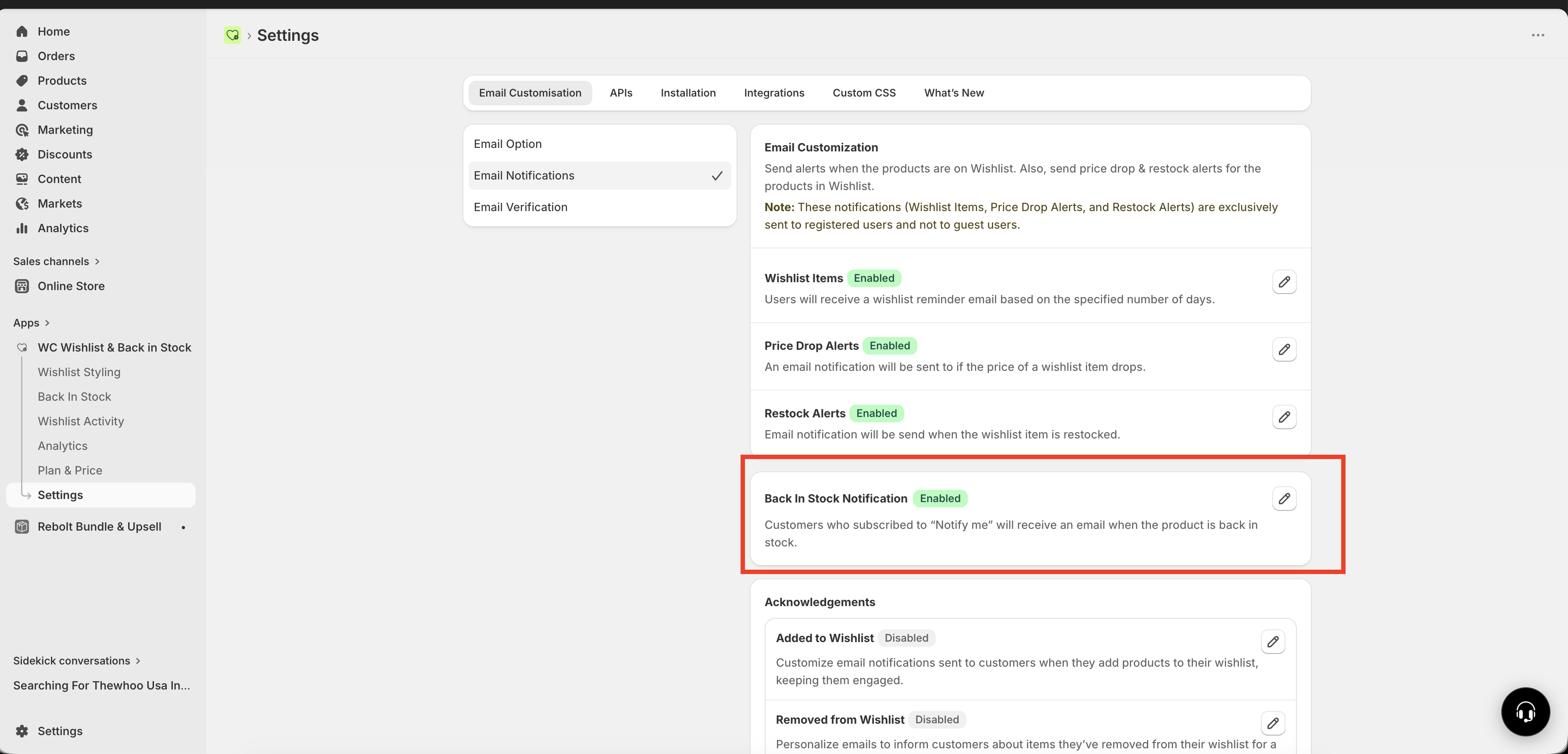
How it works
Once a customer subscribes to a sold-out product, they are added to the notification list for that item. The app monitors the product's inventory in Shopify. As soon as the stock level reaches your configured threshold, the email is sent automatically.
A shopper clicks Notify Me on a sold-out product and submits their email address.
After verification, the customer is saved as a subscriber for that specific product.
When you restock the product and the stock level reaches your chosen threshold, the app prepares the email.
The customer receives the Back in Stock Notification email with the product information and a link to buy.
Settings on this page
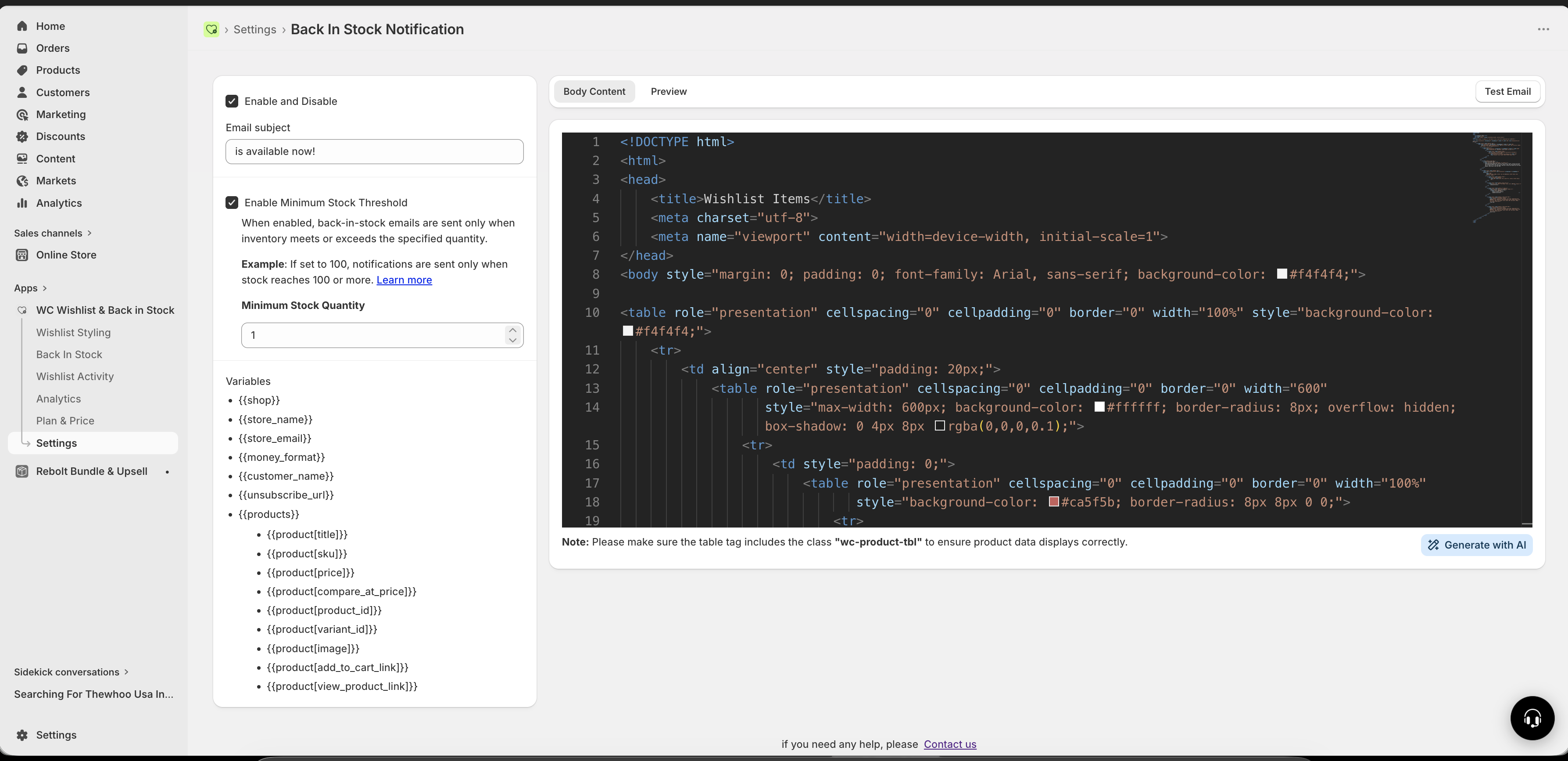
Enable / Disable
Use this setting to turn the Back in Stock Notification email on or off.
Enabled: Subscribers will receive the email when the product is restocked.
Disabled: No back-in-stock emails will be sent, even if customers are subscribed.
If this email is disabled, customers can still subscribe through Notify Me, but they will not receive a restock message until you turn the email back on.
Email Subject
This is the subject line customers see in their inbox. A strong subject line makes it easier for shoppers to notice the email and return to your store.
Example subject lines:
Your favorite product is back in stock 🔥Good news! It's available againThe product you requested is back{{customer_name}}, it's back — get it before it sells out
Keep your subject line short, clear, and urgent. The best-performing subjects usually mention that the item is back and encourage the customer to act quickly.
Minimum Stock Threshold
This setting controls when the app sends the email based on the product's available inventory.
Threshold | When the email sends |
|---|---|
| As soon as at least 1 unit is available |
| Only when stock reaches 50 or more units |
| Only when stock reaches 100 or more units |
This setting is especially important if you have many subscribers waiting for the same product.
If you usually restock in small quantities, set a higher threshold to avoid sending hundreds of notifications for only a few available units.
Multiple Restock Notifications
This setting decides whether the same customer can receive more than one restock email for the same product.
Enabled: A customer can be notified each time the product is restocked.
Disabled: A customer receives only one notification per product subscription.
Choose the setting that best matches how often you restock and how much inventory you typically add.
Enable this option for products that sell out and return often in meaningful quantities. Disable it if you restock in very small batches and want to avoid sending repeated emails for limited availability.
Available email variables
You can personalize the email subject and content using supported variables. These are replaced automatically with the customer's and store's information when the email is sent.
Variable | What it inserts |
|---|---|
| The customer's name |
| Your store name |
| The product name |
| The product price |
| A direct link to the product page |
| The product image, where supported in the email template |
Available variables may depend on the email editor or template area you are customizing. If a variable does not render as expected, send a test email and confirm that it is supported in that section.
Best practices for higher conversions
Use a clear, urgency-driven subject line
Your customer already showed buying intent. Remind them that the product is available again and that stock may not last.
Match your threshold to your real inventory
If a product has a long waiting list, avoid sending notifications too early. A low threshold can create a poor customer experience when most recipients click through after the item sells out again.
Restock before high-traffic periods
If possible, update inventory before your busiest shopping windows so customers receive the email when they are most likely to purchase.
Keep repeated alerts under control
If you enable multiple restock notifications, monitor customer response and unsubscribe behavior. Repeated alerts can work well for fast-moving products, but too many can feel repetitive.
For products with high demand, combine a strong subject line with a realistic stock threshold. This usually produces better results than sending immediately at very low stock.
Recommended setup
If you are not sure where to start, this is a reliable default setup for most stores:
Email enabled: On
Subject line: Clear and direct, such as
Your item is back in stockMinimum stock threshold: Set high enough to match your average restock quantity
Multiple restock notifications: Off, unless the product is replenished often and in larger batches
Test before going live
Before relying on this automation, review your settings carefully and make sure the email reflects your brand and product details.
Make sure it is easy to understand and clearly tells the customer the product is available again.
Confirm that any personalization variables are spelled correctly and placed where you want them.
Choose a number that fits how many units you usually restock.
Subscribe to a test product, restock it, and confirm that the message arrives with the correct product details and link.
Troubleshooting
Check these common causes:
The email is disabled in Email Customization.
The customer did not complete email verification.
The product stock has not reached the Minimum Stock Threshold.
The customer already received a notification and Multiple Restock Notifications is turned off.
The most common reason is the stock threshold. If your threshold is set higher than the current available inventory, the app waits until that number is reached before sending.
This can happen when only verified subscribers are eligible, when some customers have already been notified previously, or when multiple restock alerts are disabled.
Enable it if a product regularly returns to stock and customers benefit from repeated updates. Leave it off if you want to limit each subscriber to one notification per product.
Need help?
If you are not sure which file to edit, or you would rather have us handle the installation, contact our support team:
Email: [email protected]
Live chat: available from the app admin
Free onboarding 1:1 call