
Abandonment Reminder email — bring customers back to their wishlist
Overview
The Abandonment Reminder email helps you bring shoppers back to the products they already wanted. When a customer adds items to their wishlist and then goes inactive for a set number of days, the app automatically sends a reminder email with their saved products and direct links back to your store.
This is one of the most effective wishlist recovery emails because it reaches customers when interest already exists—they saved the products, but didn’t come back to buy.
Use the Abandonment Reminder together with the Wishlist Items Reminder to create a simple recovery sequence: first remind customers they saved products, then follow up if they still haven’t returned.
What this email does
After a customer’s wishlist has been inactive for the number of days you choose, the app sends an automatic reminder email. The message can include the customer’s name, saved products, product images, current prices, and direct product links so they can return to shopping with as little friction as possible.
This email is designed to re-engage customers who have gone quiet—not customers who just created a wishlist a few minutes ago.
How it differs from the Wishlist Items Reminder
Feature | Wishlist Items Reminder | Abandonment Reminder |
|---|---|---|
Trigger | Wishlist creation or initial save activity | Wishlist inactivity |
Main goal | Remind customers that they saved items | Win back customers who stopped engaging |
Best tone | Friendly and informative | Re-engagement focused and slightly more urgent |
Best timing | Usually within 3–7 days | Usually after 3–7 days of inactivity |
Can both be enabled? | Yes | Yes |
Both reminders can run at the same time. Many stores use them together to create multiple chances for a customer to return and purchase.
How to set up the Abandonment Reminder
Go to Apps → WC Wishlist & Back in Stock → Settings → Email Customization → Abandonment Reminder.
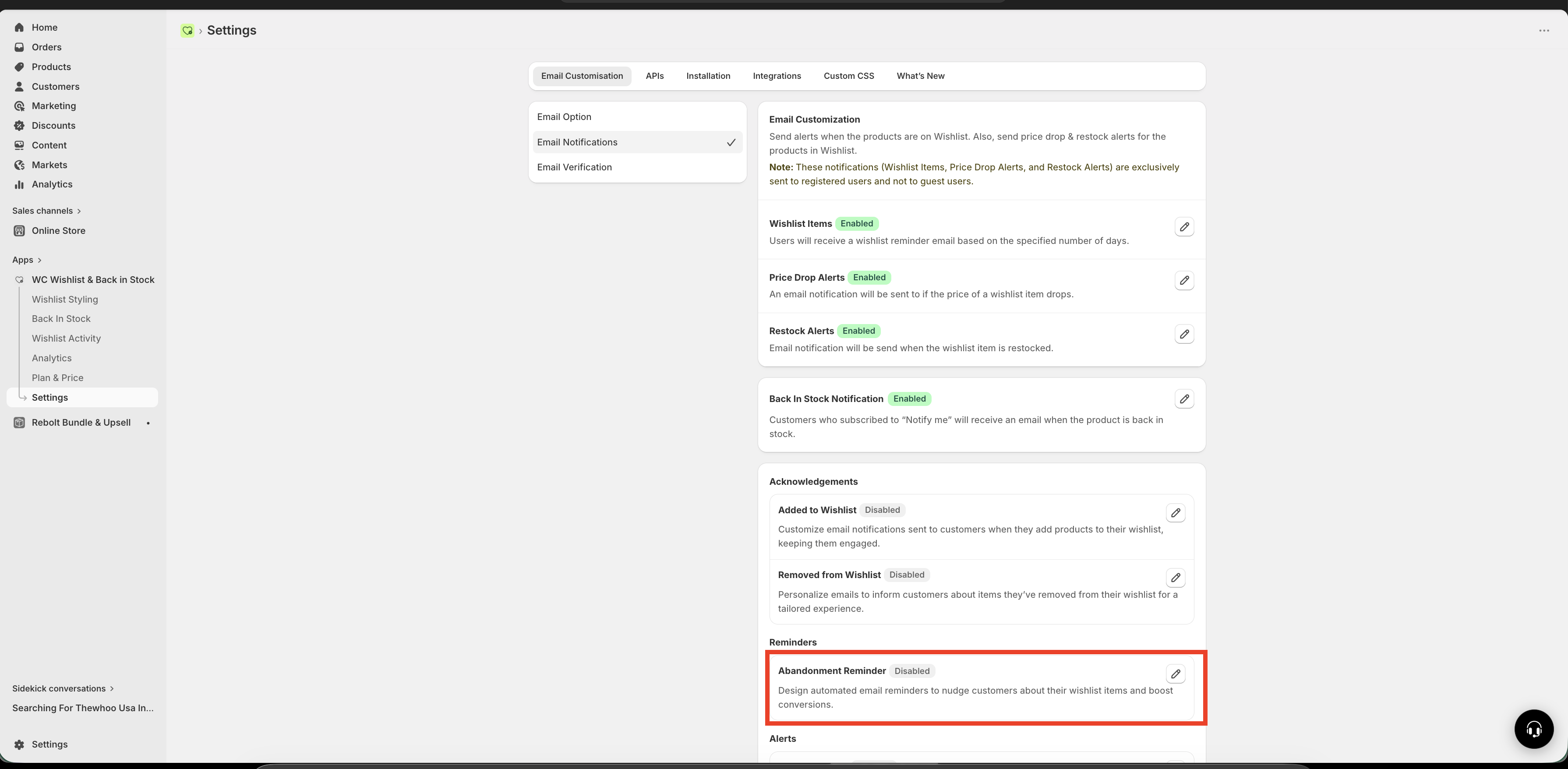
Enable the Abandonment Reminder toggle to start using this email.
Add a subject line that feels personal and gives the customer a reason to return.
Select how many days of wishlist inactivity should pass before the email is sent.
Add customer and product variables so each email feels relevant and includes the saved items automatically.
Review the email carefully, then save so your new settings apply to future reminder emails.
Settings explained
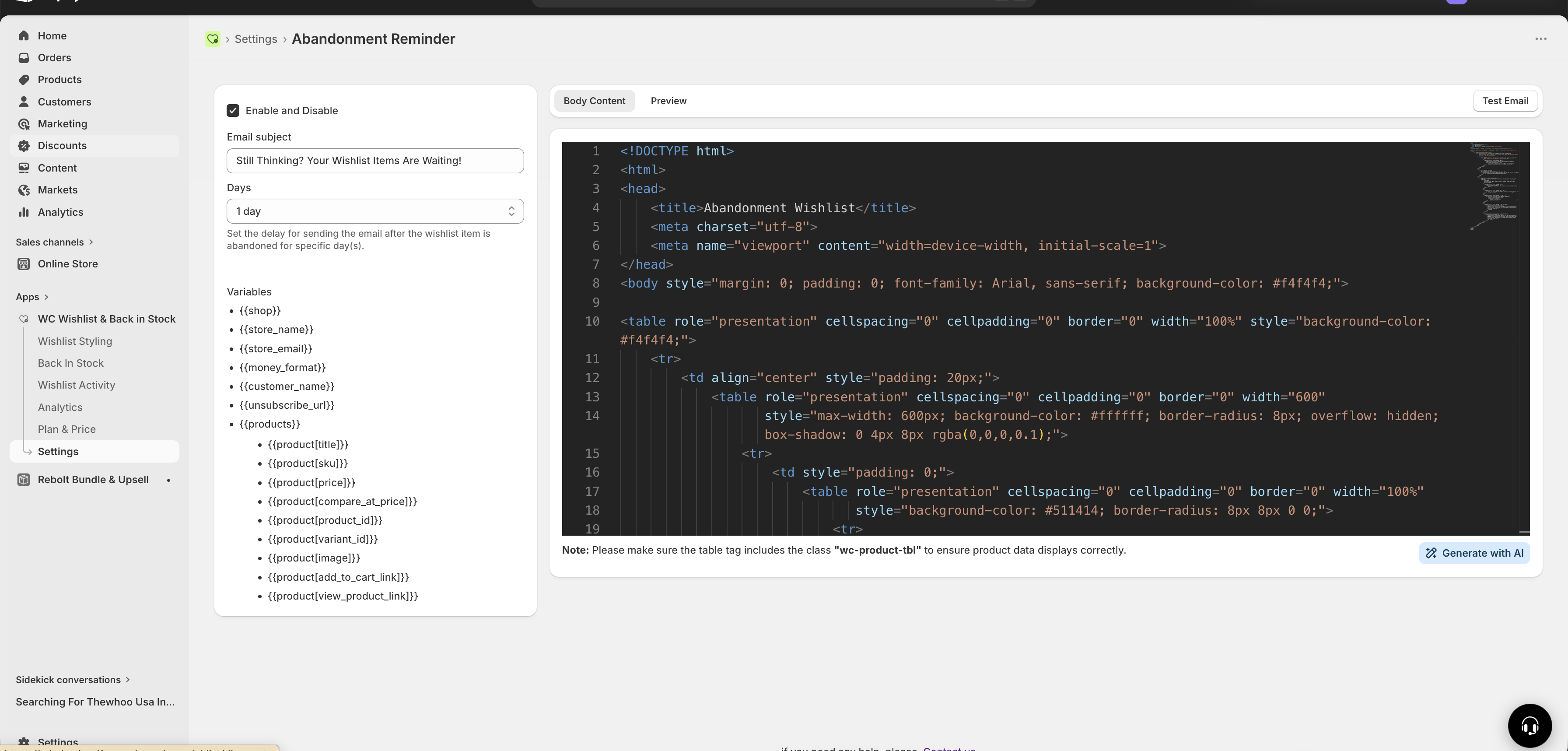
Enable / Disable
Use this toggle to turn the Abandonment Reminder email on or off.
Enabled: Customers will receive the reminder after the selected inactivity period.
Disabled: No abandonment reminder emails will be sent.
Email subject
Your subject line is the first thing customers see, so it should feel relevant, personal, and easy to understand. Good subject lines remind shoppers what they left behind without sounding too aggressive.
Examples:
Still Thinking? Your Wishlist Items Are Waiting!Don't Forget Your Saved Favorites 💚Your Wishlist Is Waiting For You 🛍️{{customer_name}}, your saved items miss you
Subject lines that mention saved items or use the customer’s name often perform better because they feel more personal and specific.
Reminder delay (days)
Choose how long the app should wait after the customer’s wishlist becomes inactive before sending the reminder.
Available options:
1 day
3 days
7 days
General guidance:
1 day: Best if your store has fast purchase decisions or frequent repeat visits.
3 days: A strong default for most stores. It gives customers a little time, while the products are still fresh in their mind.
7 days: Better for stores with longer consideration cycles, such as higher-priced or research-heavy purchases.
For most stores, 3 days is the best starting point. It balances timing and intent without feeling too early or too late.
Available email variables
You can personalize the Abandonment Reminder with store, customer, and product variables. These variables automatically pull in real data when the email is sent.
Common variables include:
Variable | What it inserts |
|---|---|
| The customer’s name |
| The product name |
| The product image |
| The current product price |
| The original price, useful for showing savings or sale pricing |
If your store supports additional email variables, you can use them here as well. Use variables carefully and preview the final email layout to make sure everything reads naturally.
Best practices for higher recovery rates
Keep the message focused
The customer already showed interest by saving products. Your email should help them return quickly, not introduce too much extra copy. A short message with the saved items and a clear return path usually works best.
Use a clear reason to come back
Your subject line and email copy should answer one question: Why should I come back now? That reason might be convenience, saved favorites, limited stock, price drops, or simply not missing out on wanted items.
Choose the right delay for your store
Think about how long your customers usually take to make a purchase decision. If shoppers buy quickly, send sooner. If your products require more consideration, give them more time before the reminder.
Make sure product details are visible
Images, titles, and prices make the email easier to scan and more persuasive. Customers should immediately recognize the products they saved.
Avoid over-sending
If you use multiple reminder emails, space them out so customers do not feel overwhelmed. Each email should have a different purpose in the journey.
If your timing is too aggressive, customers may ignore the reminder or see it as unnecessary. If your timing is too late, they may have lost interest entirely. Start with 3 days, then adjust based on engagement.
Example email strategy
Here is a simple approach many stores use:
Wishlist Items Reminder: Send shortly after products are saved.
Abandonment Reminder: Send after 3 days of inactivity.
Optional campaign email: Follow up later with a promotion or product-focused message if appropriate for your brand.
This gives you multiple chances to recover interest without repeating the exact same message.
When to use this email
You want to recover potential sales from inactive wishlists.
You want customers to revisit products they already liked.
You want an automated re-engagement email without manual follow-up.
You want to increase conversions from wishlist activity.
Troubleshooting and common questions
The reminder only sends after the customer’s wishlist has been inactive for the delay you selected. If the customer returned before that time passed, or if the reminder is disabled, the email will not send.
Yes. This email works well alongside the Wishlist Items Reminder and other customer retention emails, as long as your timing is spaced appropriately.
Inactivity means the customer has not returned in a way that resets the reminder timing for their wishlist activity. The selected delay determines when the abandonment reminder becomes eligible to send.
Keep it short, specific, and customer-friendly. Mention saved items, favorites, or a reason to come back. Personalization with the customer’s name can also help.
Recommended setup
Status: Enabled
Delay: 3 days
Subject style: Personal and product-focused
Email content: Include customer name, product image, product title, and current price
This setup is a strong starting point for most stores and is easy to refine as you learn what your customers respond to.
Need help?
If you are not sure which file to edit, or you would rather have us handle the installation, contact our support team:
Email: [email protected]
Live chat: available from the app admin
Free onboarding 1:1 call