
Omnisend integration — multi-channel wishlist automation
Overview
The Omnisend integration connects your wishlist activity to Omnisend so you can automatically reach shoppers across email, SMS, and push notifications. When someone adds an item to their wishlist, removes it, waits too long to buy, or becomes eligible for a price or stock alert, that activity can be sent to Omnisend and used to trigger targeted campaigns.
This makes it easier to follow up at the right moment with messages based on real shopping intent instead of sending the same campaign to everyone.
What you can do with the Omnisend integration
After you connect Omnisend, wishlist activity from your store is shared with Omnisend as automation triggers. You can use those triggers to build more relevant campaigns and recovery flows.
Send welcome-style messages when a shopper saves an item
Recover interested shoppers who leave wishlist items behind
Notify customers when saved items drop in price
Send back in stock alerts for wishlisted products
Create urgency campaigns for items that are running low in stock
Build customer segments based on wishlist behavior
Combine email, SMS, and push in a single workflow
The best-performing automations usually match the event to the message. For example, use a short urgency message for low stock, a value-focused message for price drops, and a reminder sequence for abandoned wishlists.
Supported wishlist triggers
Once the integration is enabled, the following wishlist events can be used in Omnisend automations.
Item Added to Wishlist — Great for confirmation messages, product follow-up, and intent-based nurturing
Item Removed from Wishlist — Useful for re-engagement or alternative product recommendations
Price Drop on Wishlist Item — Ideal for price drop campaigns and limited-time conversion pushes
Wishlist Item Back in Stock — Best for restock alerts and fast follow-up messages
Wishlist Item Low in Stock — Helps create urgency for highly interested shoppers
Wishlist Reminder — Encourages customers to come back to products they saved
Abandoned Wishlist — Re-engages shoppers who showed intent but did not return
Before you start
Make sure you have:
An active Omnisend account
Access to your Omnisend API keys
Wishlist tracking enabled in your store
You may need the appropriate permissions in Omnisend to view or generate API keys.
Set up the Omnisend integration
Go to Apps → WC Wishlist & Back in Stock → Settings → Integrations → Omnisend.
Turn on the Omnisend connection so wishlist events can be sent from your store.
In Omnisend, open Account → Settings → API Keys, then generate a new key or copy an existing Public API Key if your team already uses one for this integration.
Return to the Omnisend integration settings in the app and paste your API key into the field provided.
Click Save. After saving, supported wishlist events will begin syncing to Omnisend automatically.
How the integration works
After setup, customer wishlist actions are passed to Omnisend in real time or near real time, depending on the event. You can then use those events to:
Start automation workflows
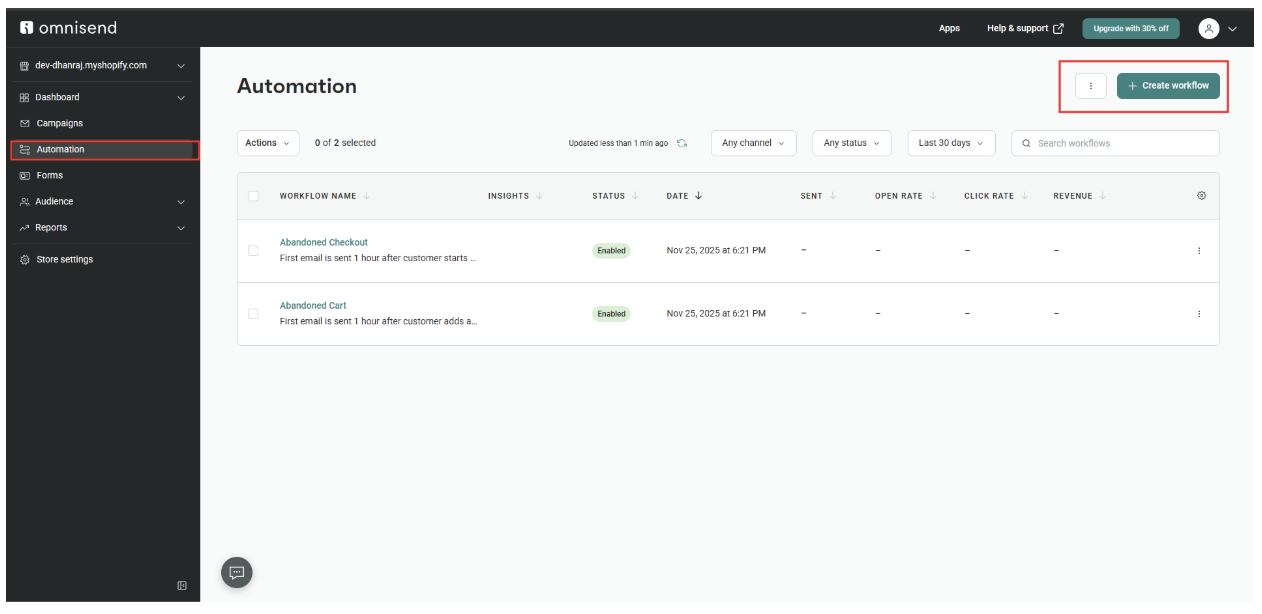
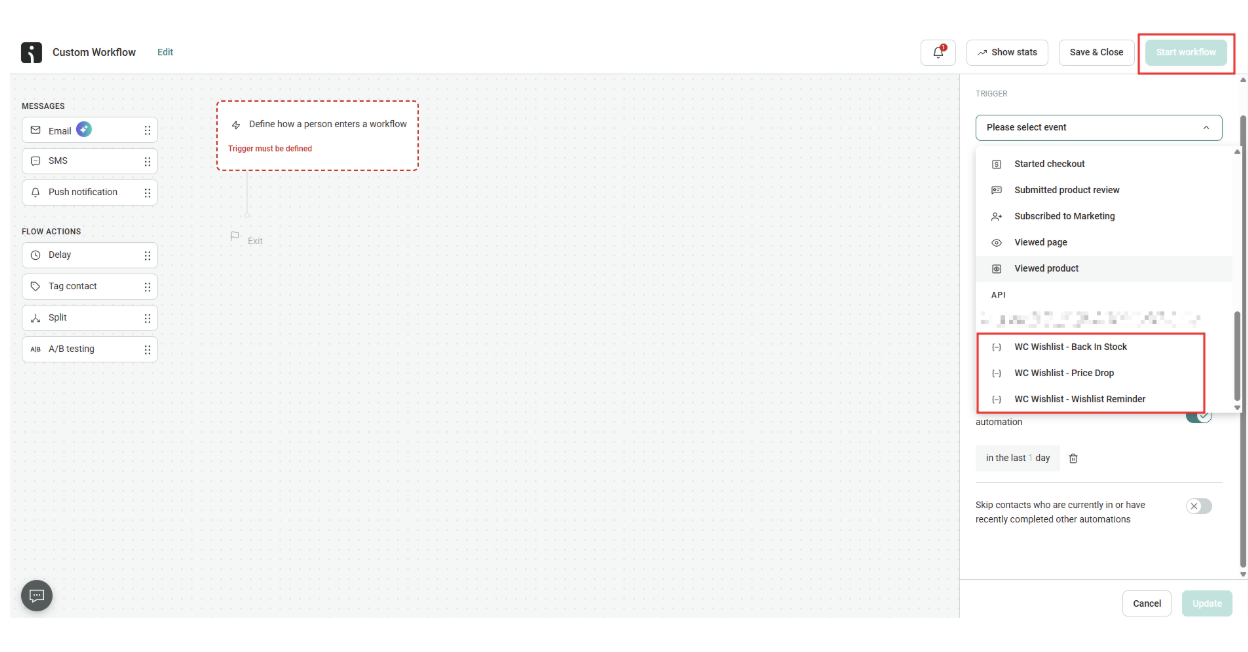
Filter audiences by wishlist behavior
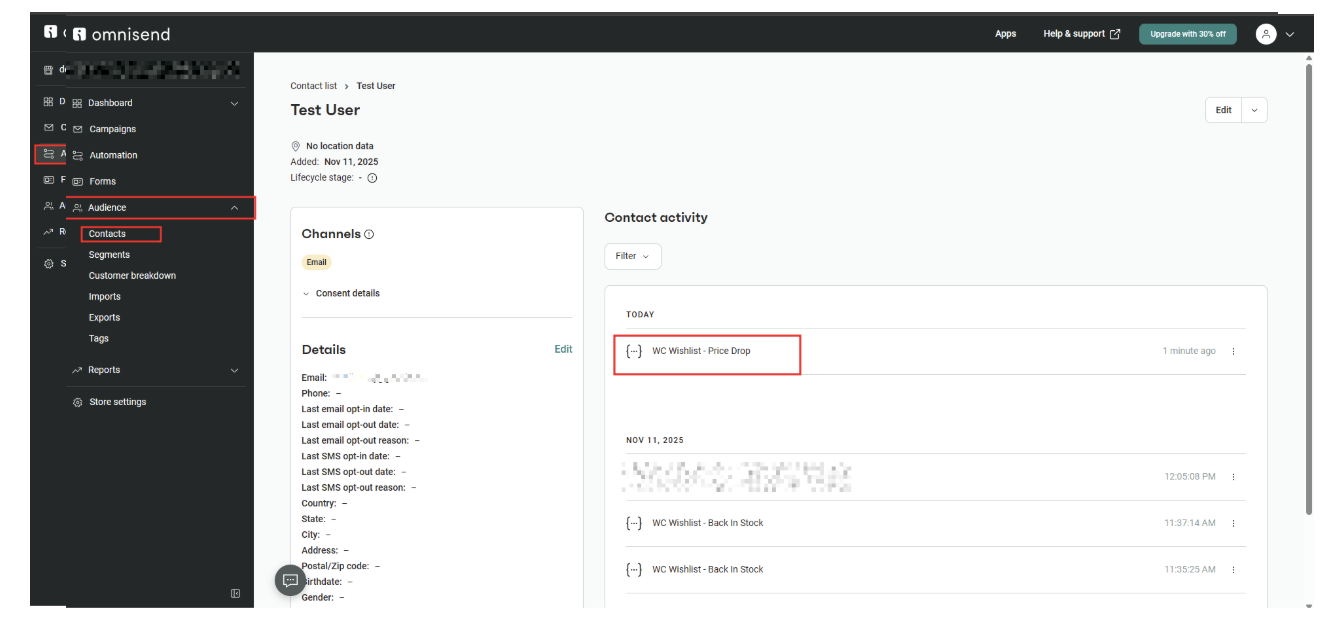
Personalize campaign timing and messaging
Build recovery journeys for shoppers who showed purchase intent
For example, if a customer saves a product and that product later drops in price, you can automatically send a price drop email followed by an SMS reminder if they do not purchase.
Best use cases
Back in stock automations
When a customer saves a product that later becomes available again, you can trigger an immediate restock message. This is especially useful for high-demand products or frequently sold-out items.
Price drop campaigns
Send a targeted message when the price of a wishlisted item falls. Since the shopper already showed interest, these campaigns often perform better than broad discount emails.
Low stock urgency flows
For products that are almost sold out, send a quick reminder that encourages action before inventory runs out.
Wishlist reminder sequences
Use reminders to bring shoppers back to products they saved but have not revisited. A simple sequence can include an initial reminder, a follow-up benefit message, and a final urgency message.
Abandoned wishlist recovery
Reconnect with shoppers who built a wishlist but did not return. This works well for stores with longer buying cycles, gift shopping, or products customers compare over time.
A strong abandoned wishlist flow often works best when the first message reminds the shopper what they saved, the second highlights product benefits or reviews, and the third adds urgency such as low stock or a price change.
Recommended automation ideas
Item added to wishlist: Send a confirmation email with product benefits and related items
Back in stock: Send an email immediately, then an SMS reminder a few hours later
Price drop: Send a price-focused message with the updated offer and product link
Low stock: Send a short urgency message to customers who already saved the item
Wishlist reminder: Follow up after a few days if the shopper has not returned
Abandoned wishlist: Create a multi-step recovery flow for highly interested shoppers
Tips for better results
Keep restock and low stock messages short and timely
Use product-specific content instead of generic promotional copy
Prioritize channels based on urgency: email for details, SMS or push for speed
Test timing between messages so customers are reminded without being overwhelmed
Segment shoppers by behavior, such as frequent wishlisters or price-sensitive customers
Troubleshooting
First, confirm the Omnisend integration is enabled in Apps → WC Wishlist & Back in Stock → Settings → Integrations → Omnisend. Then verify that your API key is correct and has not been replaced or removed in Omnisend.
If everything looks correct, save the integration again and trigger a fresh wishlist action in your store, such as adding an item to a wishlist, to confirm syncing is active.
Make sure your automation in Omnisend is built around the correct wishlist event. Also check that the workflow is turned on and that your audience meets all automation conditions.
Generate a new API key in Omnisend → Account → Settings → API Keys, then replace the old key in the app and save again. Avoid copying extra spaces before or after the key.
Use Wishlist Reminder if you want to follow up with customers who saved products and need a nudge. Use Abandoned Wishlist if you want a stronger recovery flow for shoppers who showed intent but did not return.
Best practice
To get the most value from this integration:
Connect Omnisend using a valid API key
Turn wishlist behavior into targeted automations instead of general campaigns
Match the message to the shopper’s action
Use urgency carefully for low stock and restock events
Review performance regularly and refine timing, channels, and copy
When set up well, the Omnisend integration helps you turn wishlist activity into timely, relevant customer outreach that improves conversions without increasing manual work.
Need help?
If you are not sure which file to edit, or you would rather have us handle the installation, contact our support team:
Email: [email protected]
Live chat: available from the app admin
Free onboarding 1:1 call