
Email History — track every wishlist email sent to your customers
Overview
Email History shows every wishlist-related email your store has sent through the app. Use it to confirm that messages were sent, check when they went out, and understand whether a message was delivered, is still waiting to send, or needs attention.
This page is especially useful when:
a customer says they did not receive a wishlist email
you want to confirm a Back in Stock or Price Drop alert was sent
you need to review reminder emails or scheduled reports
you are checking whether your email automation is working as expected
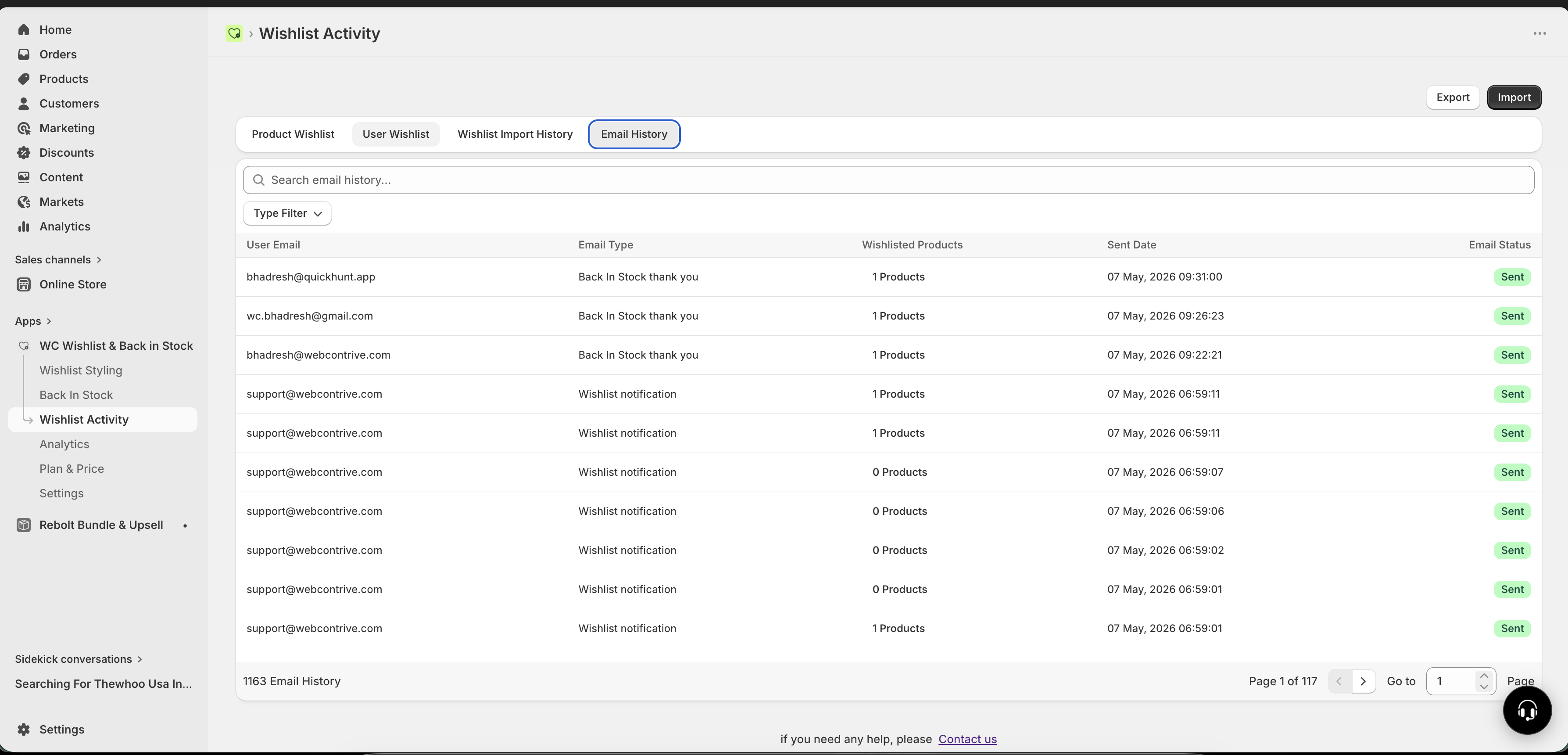
Email History is your best first stop when troubleshooting customer email questions. Before changing any settings, check whether the email appears here and review its status.
How to access Email History
Open the page from:
Apps → WC Wishlist & Back in Stock → Wishlist Activity → Email History
What Email History tracks
Every email triggered by the app is logged here automatically. Depending on the features you use, you may see entries such as:
Wishlist Reminder — reminder emails for products a customer saved to their wishlist
Price Drop Alert — notifications sent when the price of a wishlisted product goes down
Restock Alert — alerts sent when an out-of-stock wishlisted product becomes available again
Back In Stock Alert — notifications sent to customers who subscribed with Notify Me
Back In Stock Thank You — follow-up confirmation after a restock notification
Add Wishlist Email — confirmation sent when a customer adds a product to their wishlist
Remove Wishlist Email — confirmation sent when a customer removes a product from their wishlist
Low Stock Email — alerts when a wishlisted product is close to selling out
Abandonment Reminder Email — re-engagement emails for inactive wishlist customers
Weekly / Monthly Report Email — scheduled reports about wishlist performance
Wishlist Notification — general wishlist activity notifications
The exact email types shown in your store may vary based on which features are enabled in your app settings.
What each log entry shows
Each row in Email History gives you the key details for one email event.
Available fields
User Email — the email address the message was sent to
Email Type — the kind of message sent, such as Back in Stock Alert or Price Drop Alert
Wishlisted Products — how many products were included in that email
Sent Date — the exact date and time the email was sent or queued
Email Status — whether the email was sent successfully, is pending, or failed
Understanding email statuses
Sent — the email was successfully handed off for delivery
Pending — the email is queued and has not gone out yet
Failed — the email could not be sent successfully
A Sent status confirms the email was sent from the app. Final inbox placement still depends on the customer’s email provider, spam filtering, and the email address used.
How to interpret each status
If the status is Sent, the app completed its part of the process. If the customer still cannot find the email, ask them to check spam, promotions, or other filtered folders.
If the status is Pending, wait and check again shortly. Some emails may appear here before they are fully processed.
If the status is Failed, review your email configuration and the workflow that should have triggered the message.
How to use Email History to troubleshoot
Look for the customer’s email in the log to confirm whether a message was created for that person.
Make sure you are reviewing the correct kind of notification, such as a Back in Stock Alert, Price Drop Alert, or Wishlist Reminder.
Check whether the message is marked as Sent, Pending, or Failed so you know whether it went out successfully.
Use the Sent Date to verify when the email was triggered and whether it matches the customer’s report or the expected automation time.
Review the product count to confirm the email contained the expected wishlist items.
Common troubleshooting scenarios
A customer says they never received a Back in Stock email
Search for the customer’s email address in Email History
Confirm that a Back In Stock Alert appears in the log
Check whether its status is Sent, Pending, or Failed
If it shows Sent, ask the customer to check spam or filtered folders
If no log entry appears, the notification may not have been triggered yet or the customer may not have subscribed successfully
You want to verify that a price drop campaign is working
Look for recent Price Drop Alert entries
Check the sent date to confirm they were triggered after the price change
Review the customer email addresses and product counts for accuracy
You see failed emails
Identify whether the failures affect one email type or multiple types
Review the email settings connected to your wishlist notifications
Check whether the issue is temporary or ongoing by comparing timestamps
If you notice multiple failed emails across different notification types, treat that as a broader email delivery issue rather than a one-off customer problem.
Best practices
Use Email History whenever a customer reports a missing email before making changes to notification settings
Review recent entries after enabling a new wishlist email workflow to confirm it is running properly
Check failed emails regularly so small delivery issues do not become larger customer support problems
Compare the email type and sent date against the customer action that should have triggered it
What Email History does not tell you
Email History confirms what the app sent and when it sent it, but it does not guarantee that a customer opened the email or saw it in their main inbox.
Inbox placement depends on the customer’s email provider
Spam or promotions filtering can affect visibility
An email marked Sent does not always mean it was read
Frequently asked questions
If an email does not appear in Email History, it usually means the notification was not triggered, the customer did not complete the required action, or the related feature is not enabled in your store.
Pending means the email has been queued but has not finished sending yet. In many cases, this status updates shortly after processing completes.
No. Sent means the app successfully sent the email. It does not confirm that the customer opened it or saw it in their main inbox.
Yes. Email History includes reminder emails, alerts, follow-up messages, and scheduled wishlist report emails when those features are active in your store.
Need more help?
If you need help getting the wishlist button to appear correctly, contact our team:
Email: [email protected]
Live chat: available from the app admin
Onboarding: book a free 1:1 onboarding call