
Show wishlist count for social proof
Overview
Showing how many shoppers have added an item to their wishlist can create powerful social proof. When customers see that other people are saving a product, it reinforces that the item is popular and worth considering.
The wishlist count feature adds that visibility by displaying the number of saves next to your wishlist button or icon on product pages and collection pages.
Use wishlist counts to highlight popularity and encourage more shoppers to save — and later purchase — your products.
What the wishlist count looks like
When enabled, the count appears near the wishlist button or wishlist icon.
On product pages
❤️ Add to Wishlist (47)On collection pages
❤️ 23The exact appearance depends on your wishlist button style and placement settings, such as:
Icon only
Icon + text
Button position on the page or product card
The feature only changes how the count is shown. Your store’s theme and your wishlist styling settings determine the final visual layout.
Where you can show the count
Product pages
The wishlist count can appear next to or below the wishlist button on an individual product page. Shoppers see it while viewing a specific item.
Collection pages
The wishlist count can also appear on product cards in collection grids, helping shoppers spot popular products while browsing.
You control these locations separately, so you can enable the count on:
Product pages only
Collection pages only
Both product and collection pages
How to enable wishlist count on product pages
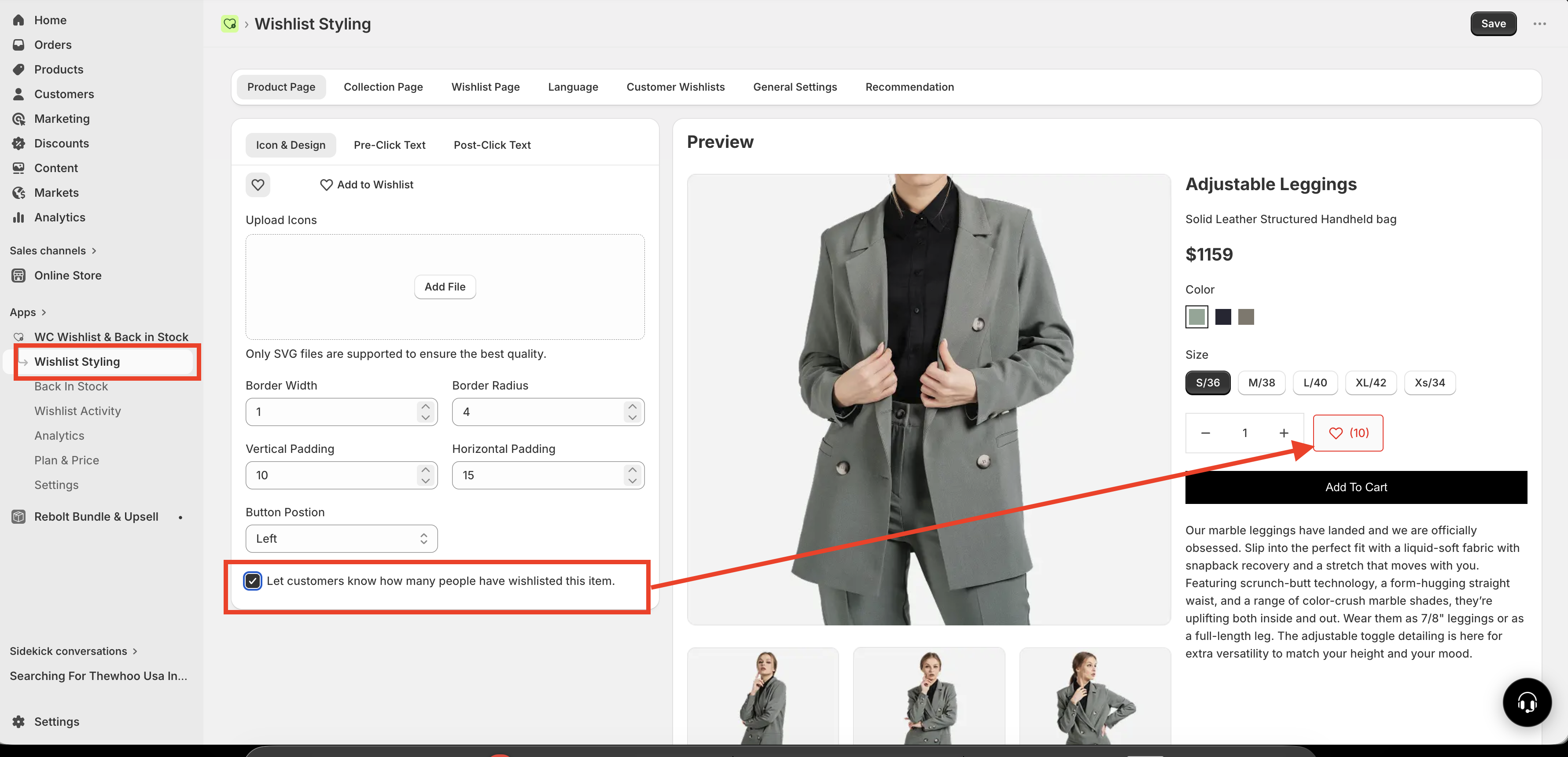
In your Shopify admin, go to Apps and open WC Wishlist & Back in Stock.
Open Wishlist Styling, then select Product Page.
Scroll to the Show Wishlist Count section.
Turn on Let customers know how many people have wishlisted this item.
Save your changes, then open a product page on your storefront to confirm the count appears as expected.
How to enable wishlist count on collection pages
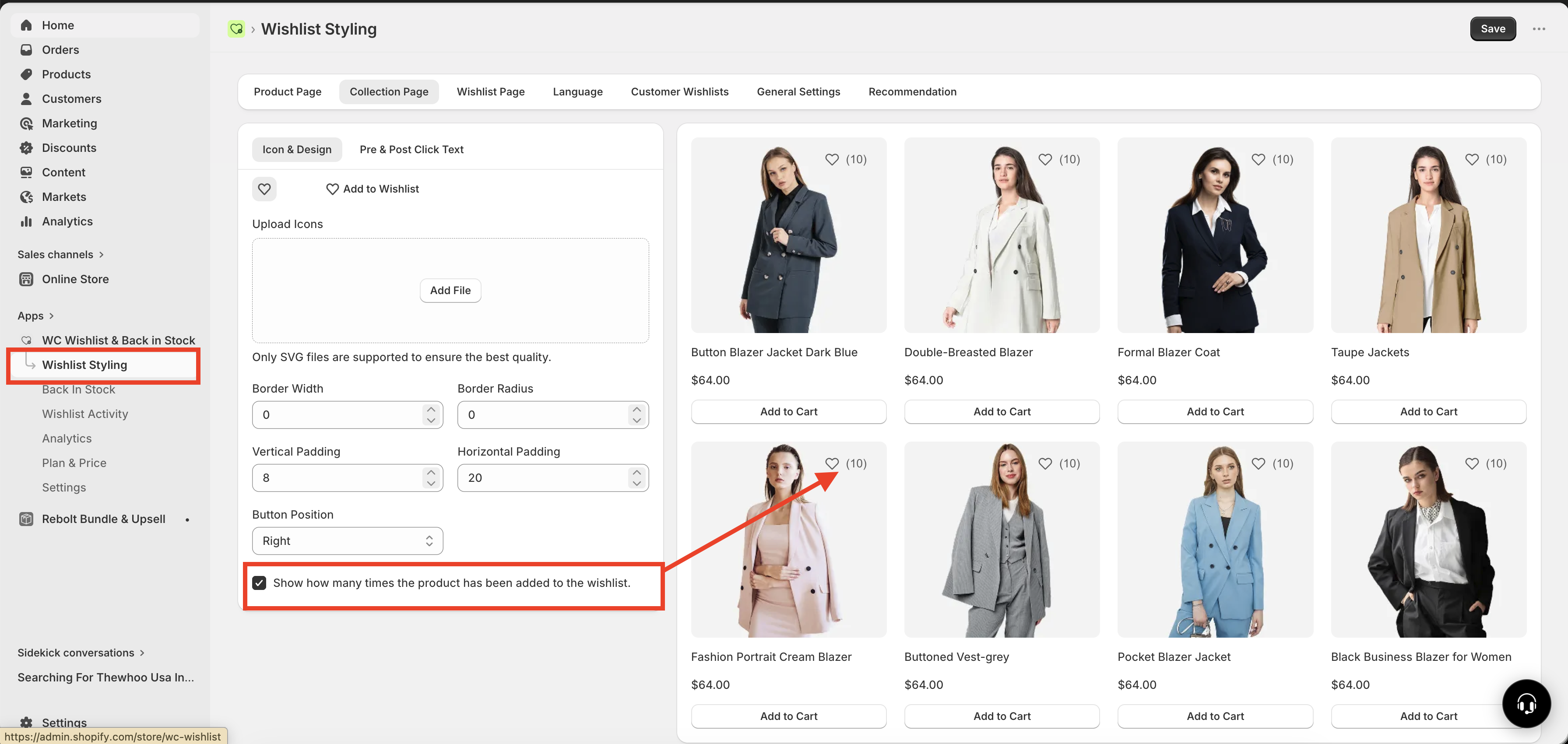
In your Shopify admin, go to Apps and open WC Wishlist & Back in Stock.
Open Wishlist Styling, then select Collection Page.
Scroll to the Show Wishlist Count section.
Turn on Let customers know how many people have wishlisted this item.
Save your changes, then view a collection page on your storefront to check how the count looks on product cards.
Best practices
Wishlist count works best when the number shown adds confidence and momentum for shoppers. Use it strategically to maximize its impact.
Show counts on products that already have strong engagement
Use it on best sellers, trending items, seasonal products, or products featured in campaigns
Check both desktop and mobile layouts after enabling it
Make sure the count does not crowd the wishlist button or product card design
If you are just starting out, enable wishlist count first on your most popular products or highest-traffic pages. This usually creates a stronger social proof effect than showing very low numbers across your entire store.
When not to use wishlist count
In some cases, displaying a very small number may not add much value. For example, showing a count of 1 or 2 may feel neutral instead of persuasive.
If many products in your store have very low wishlist activity, consider waiting until more saves have built up before making wishlist counts widely visible.
If needed, you can also use custom theme styling or custom CSS to control how the count appears. This may help if you want to reduce visual clutter or hide low counts in certain layouts.
How to check that it’s working
After enabling wishlist count, verify the feature on your storefront:
Open a product that has already been wishlisted
Confirm the count appears near the wishlist button or icon
Check a collection page if you enabled the feature there too
Review the layout on both desktop and mobile
If a product has not been wishlisted yet, there may be little or no visible social proof benefit until customers begin saving it.
FAQ
Yes. Product page and collection page settings are controlled independently, so you can enable wishlist count in one location without enabling it in the other.
The count follows the button style and placement you are using, so its appearance depends on your wishlist styling settings and your theme layout.
Wishlist count works best when the number is high enough to create clear social proof. Popular products usually benefit more than new or low-traffic products.
Yes. If you want the count on both product pages and collection pages, enable it in both sections under Wishlist Styling.
Need more help?
If you need help getting the wishlist button to appear correctly, contact our team:
Email: [email protected]
Live chat: available from the app admin
Onboarding: book a free 1:1 onboarding call