
Klaviyo integration — sync wishlist data for Back in Stock and Price Drop flows
Overview
Klaviyo is the most powerful email integration available in Wishlist Club. Once connected, Klaviyo takes over the delivery of Back in Stock and Price Drop emails — letting you use Klaviyo's full template builder, A/B testing, analytics, and flow logic to create best-in-class notification emails.
Once connected, Klaviyo becomes the system that sends your Back in Stock and Price Drop emails for wishlist items.
What this integration does
Back in Stock emails: Notify shoppers when a product saved to their wishlist is available again.
Price Drop emails: Notify shoppers when the price of a wishlisted product decreases.
More targeted marketing: Build Klaviyo flows around high-intent shoppers who have already shown interest in specific products.
Before you start
Make sure you have:
An active Klaviyo account
Access to your Klaviyo API keys
Access to Wishlist Club settings in your store admin
Have your Klaviyo public and private API keys ready before you begin so you can complete setup in one pass.
Set up the Klaviyo integration
In Wishlist Club, go to Settings → Integrations → Klaviyo.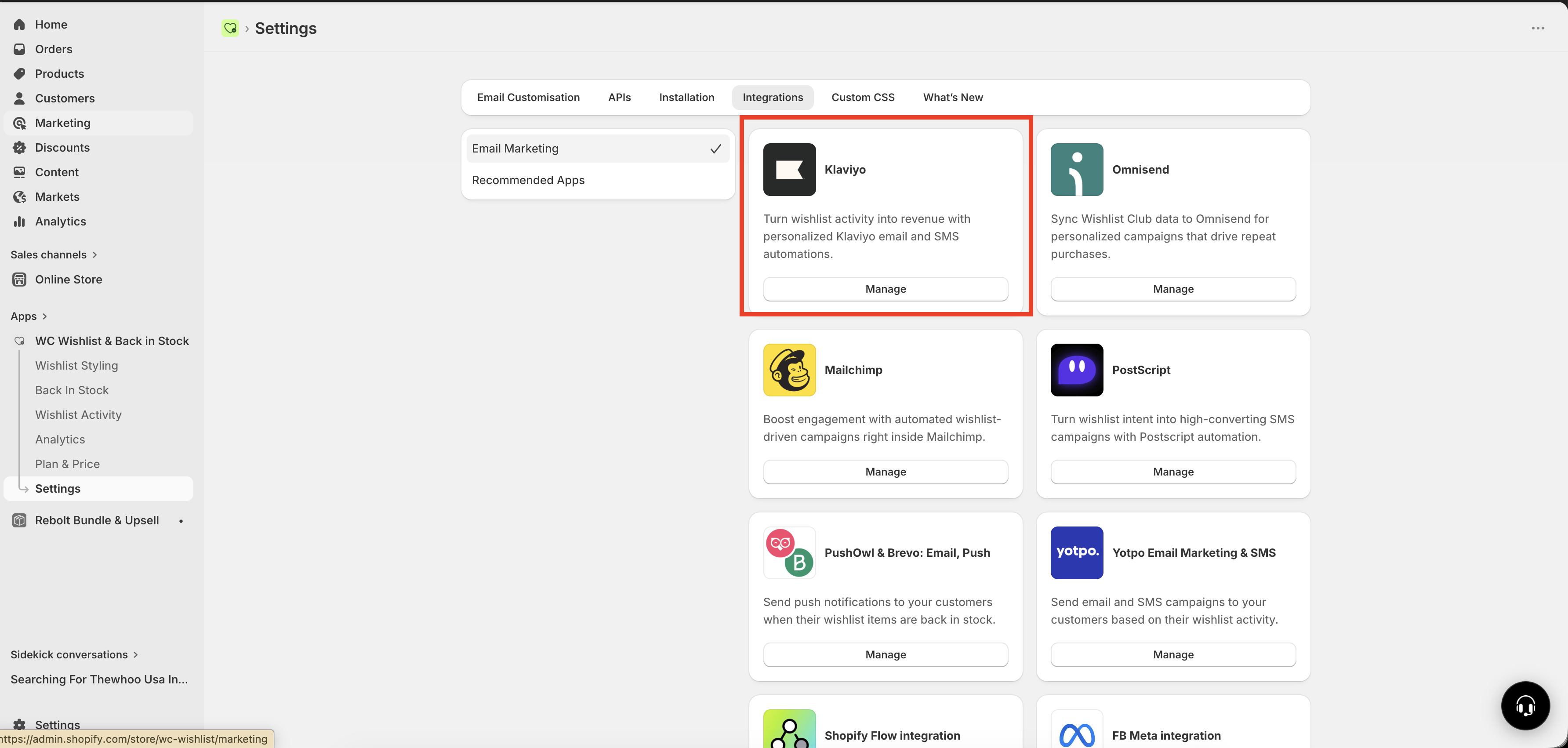
Click Set up, then enable Connect.
Copy your Klaviyo public API key and paste it into the public key field in Wishlist Club.
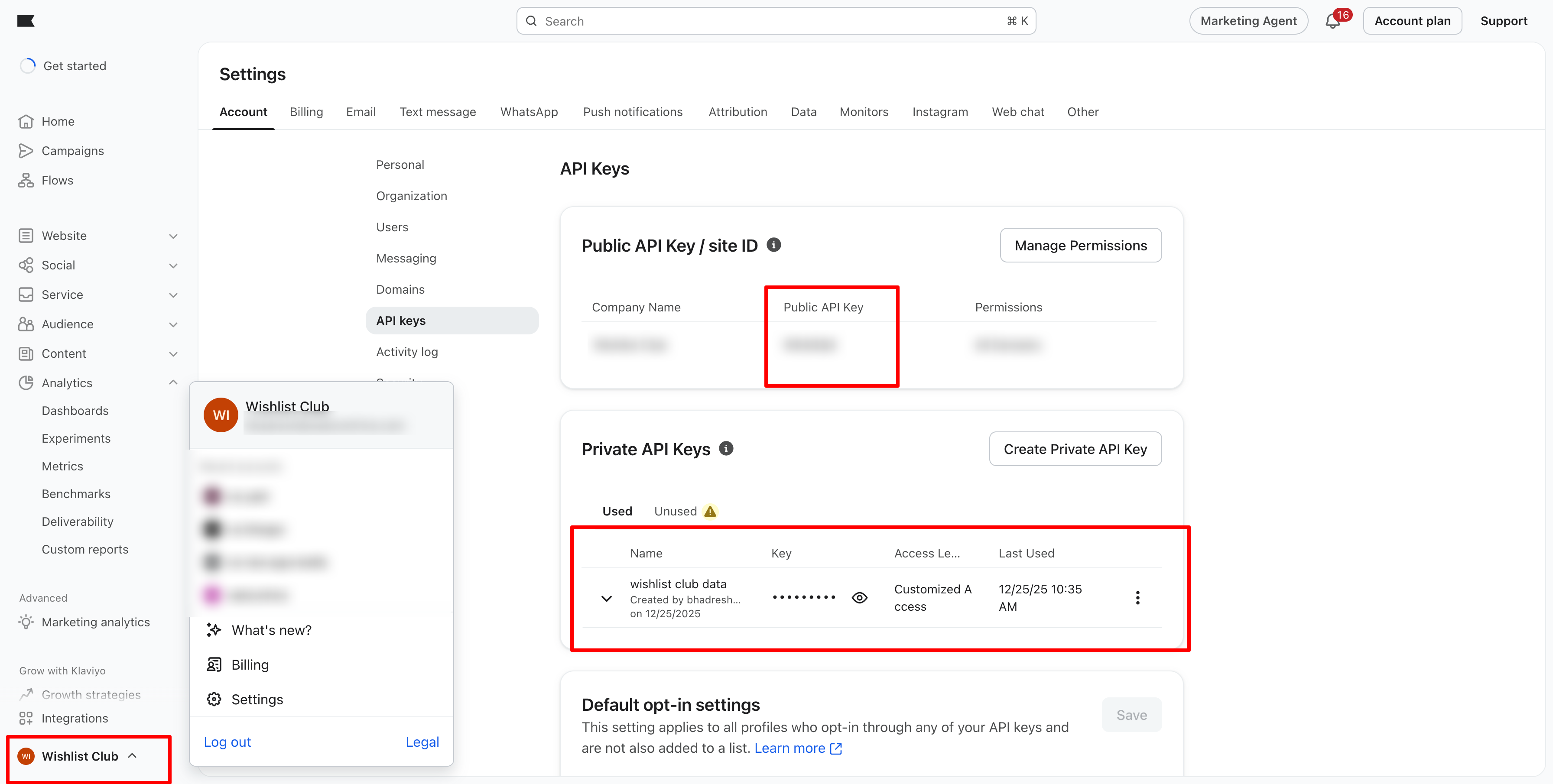
Copy your Klaviyo private API key and paste it into the private key field. Create a new if you don't have private key created.
Click Save to complete the connection.
Klaviyo may update its navigation over time, but your API keys are typically available in your account settings under API Keys.
What happens after you connect Klaviyo
After the integration is enabled, Wishlist Club will stop sending its own email notifications for:
Back in Stock
Price Drop
From that point on, those messages are expected to be sent through your Klaviyo flows.
This change is intentional and helps prevent customers from receiving duplicate emails from both Wishlist Club and Klaviyo.
Recommended next step: create or review your Klaviyo flows
Connecting the integration does not automatically guarantee that emails are being sent. You should review your Klaviyo flows to make sure your Back in Stock and Price Drop automations are active and configured the way you want.
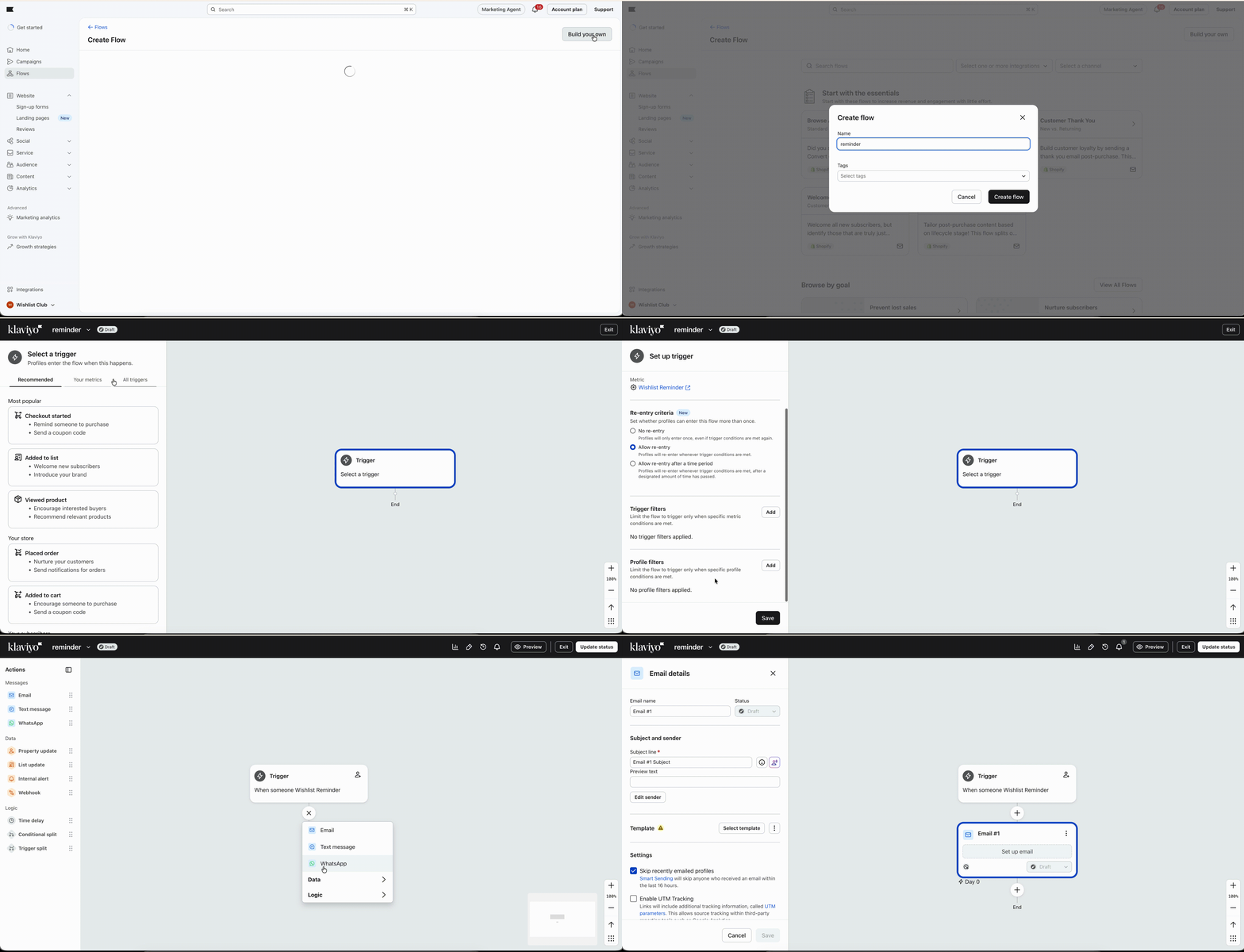
Confirm the correct trigger is being used
Check that the flow is turned on
Review email content and branding
Test the experience before relying on it for live shoppers
If you previously relied on Wishlist Club emails, test both Back in Stock and Price Drop scenarios after enabling Klaviyo so you can confirm your Klaviyo flows are working as expected.
Why merchants use this integration
Send emails from one place using Klaviyo
Keep branding and messaging consistent across campaigns
Build more advanced follow-up flows around wishlist activity
Reach shoppers when purchase intent is highest
Troubleshooting
Check your Klaviyo flows first. After connecting Klaviyo, Wishlist Club no longer sends Back in Stock or Price Drop emails directly. If your Klaviyo flows are not active or not configured correctly, customers will not receive those emails.
In Klaviyo, go to Account → Settings → API Keys. If you do not see the keys, make sure you have the necessary permissions in your Klaviyo account.
This usually happens when multiple email automations are active for the same event. Make sure Wishlist Club's direct notifications are no longer being used after Klaviyo is connected, and check Klaviyo for overlapping flows.
If your API keys are saved successfully and the Klaviyo connection is enabled in Wishlist Club, the integration is connected. The final check is to test your Klaviyo flows to confirm emails are actually being delivered.
Need help?
If you are not sure which file to edit, or you would rather have us handle the installation, contact our support team:
Email: [email protected]
Live chat: available from the app admin
Free onboarding 1:1 call