
Google Analytics 4 integration — track wishlist events and conversions
Overview
The Google Analytics 4 integration sends wishlist activity from WC Wishlist & Back in Stock to your Google Analytics 4 property as custom events. This helps you understand what customers are interested in before they buy, so you can measure the full journey from wishlist save to purchase.
Once connected, wishlist events appear alongside your existing GA4 ecommerce data, making it easier to report on product interest, remarketing opportunities, and conversion behavior.
This integration is useful if you want to measure customer intent earlier in the buying journey, not just completed purchases.
What this integration does
After setup, the app sends wishlist-related actions to GA4 so you can track how customers interact with saved products over time.
See how often customers add or remove products from wishlists
Identify products with strong interest before purchase
Measure how price drops and restocks affect engagement
Build reports that compare wishlist activity with purchases and revenue
Create GA4 audiences for Google Ads remarketing
Analyze how often wishlist activity leads to conversion
If you already track purchases in GA4, adding wishlist events gives you a clearer view of buying intent and helps you spot products customers want before they convert.
Events sent to Google Analytics 4
The integration sends the following wishlist events to your GA4 property.
Event | What it means |
|---|---|
Item Added to Wishlist | A customer saved a product for later, showing interest or purchase intent. |
Item Removed from Wishlist | A customer removed a saved product, which may indicate changed interest or comparison behavior. |
Price Drop on Wishlist Item | A saved item dropped in price, showing price-sensitive engagement. |
Wishlist Item Back in Stock | A saved product returned to stock, which can signal renewed purchase intent. |
Wishlist Item Low in Stock | A saved item is running low, which can create urgency-driven engagement. |
Wishlist Reminder | A reminder was sent for a saved item, helping measure return interest. |
Abandoned Wishlist | A customer showed purchase intent but did not continue to checkout or purchase. |
Before you start
To complete setup, you need access to your Google Analytics 4 property and its web data stream.
Your GA4 Measurement ID in the format
G-XXXXXXXXXXA GA4 Measurement Protocol API Secret
Permission to edit settings in both your store app and Google Analytics
Enter your Measurement ID and API Secret carefully. If either value is incorrect, wishlist events will not be delivered to GA4.
Set up the integration
In your Shopify admin, go to Apps → WC Wishlist & Back in Stock → Settings → Integrations → Google Analytics 4.
Turn on the Connect toggle to begin setup.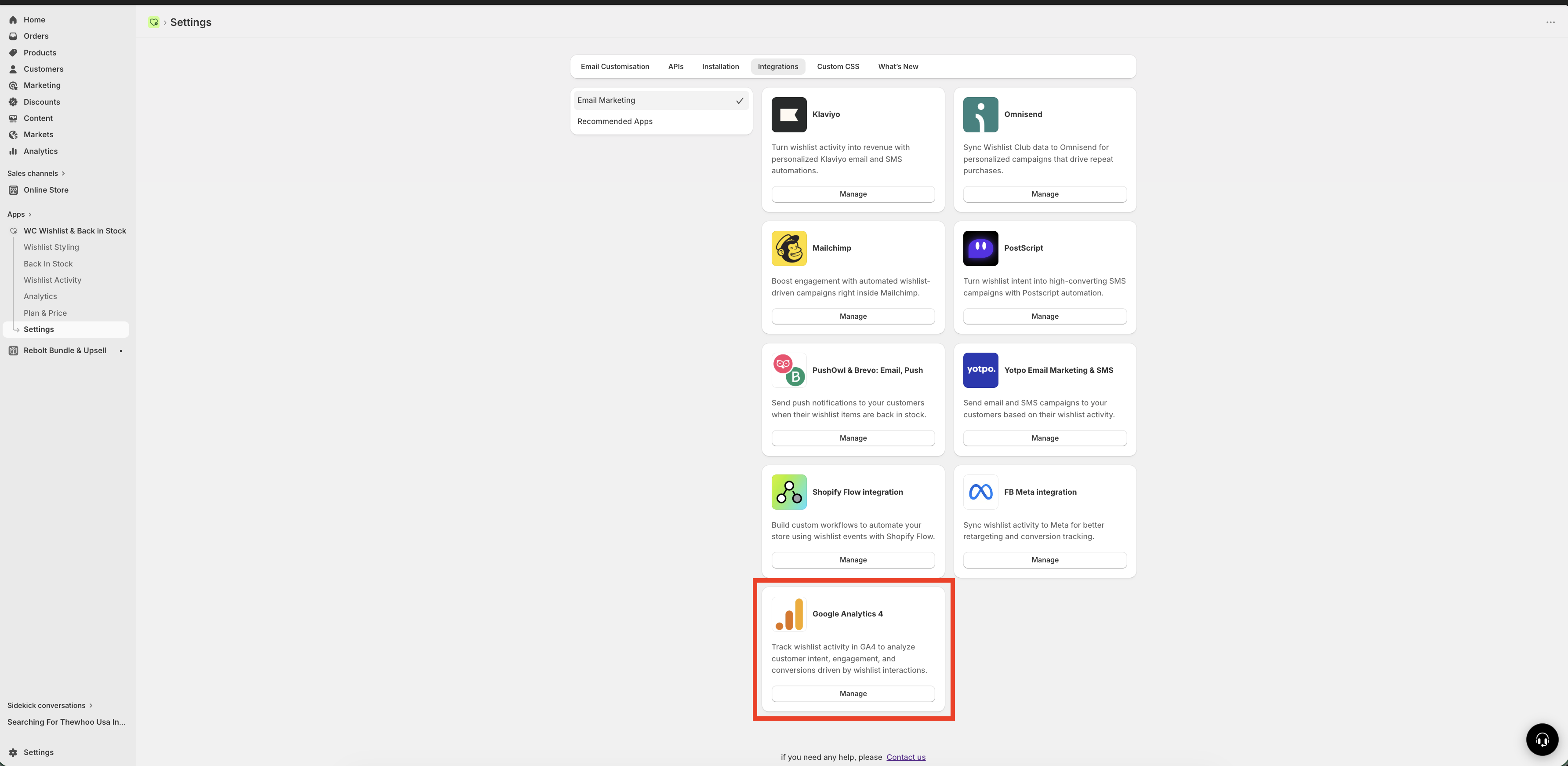
In Google Analytics, open Admin, then go to your Data Streams and select your website stream.
Copy the Measurement ID. It looks like G-XXXXXXXXXX.
Paste this value into the Measurement ID field in the app.
You can find Google’s instructions here: Find your GA4 Measurement ID.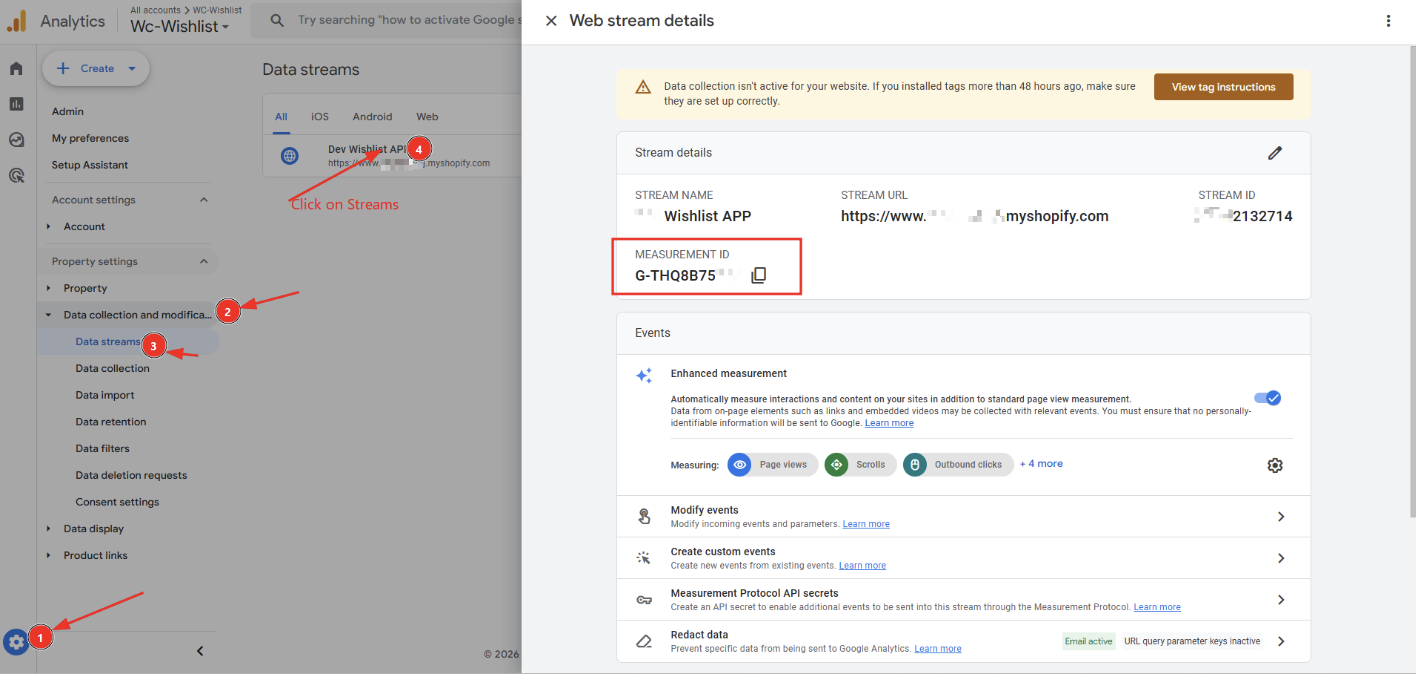
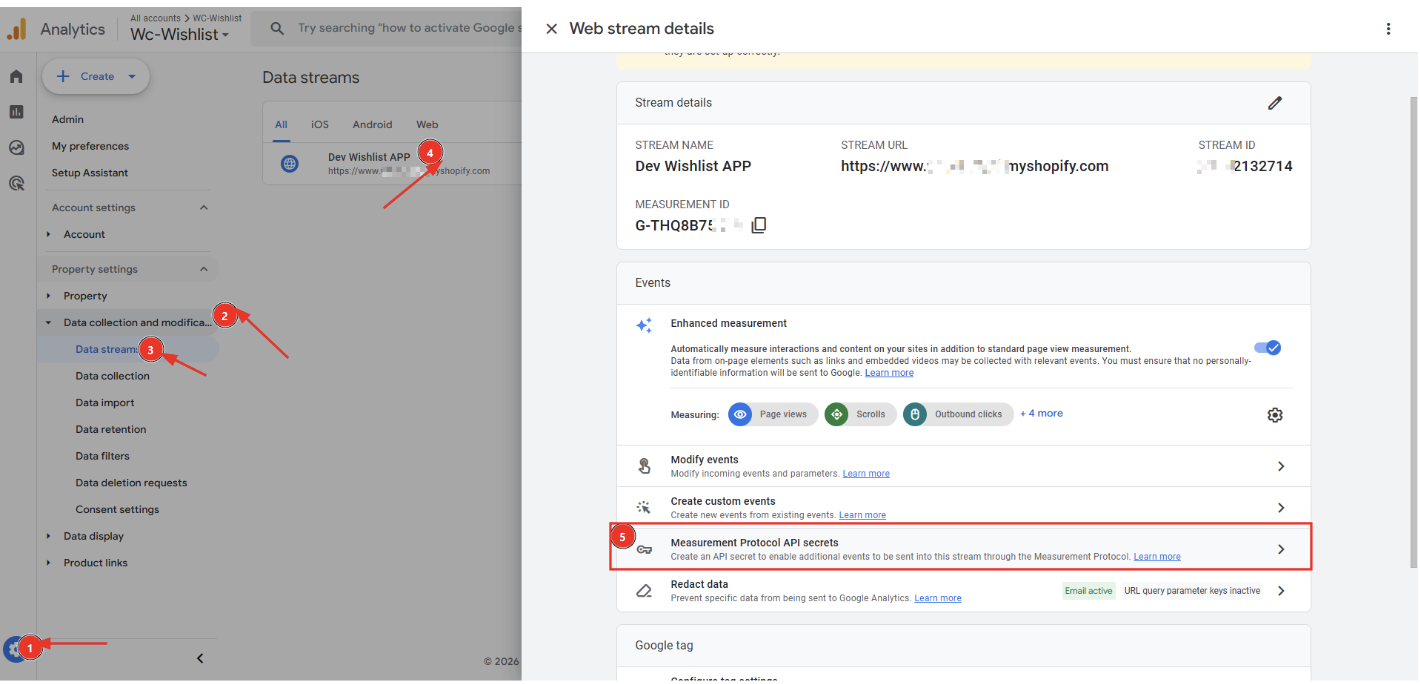
In Google Analytics, go to Admin → Data Streams → your web stream → Measurement Protocol API Secrets.
Create a new API Secret, then copy the Secret Value.
Paste this value into the API Secret field in the app.
Click Save in the integration settings.
After saving, new wishlist activity will begin sending to your GA4 property.
In Google Analytics, open Reports or Realtime after triggering a wishlist action in your storefront, such as adding a product to a wishlist.
If setup is correct, you should start seeing wishlist-related activity appear in GA4.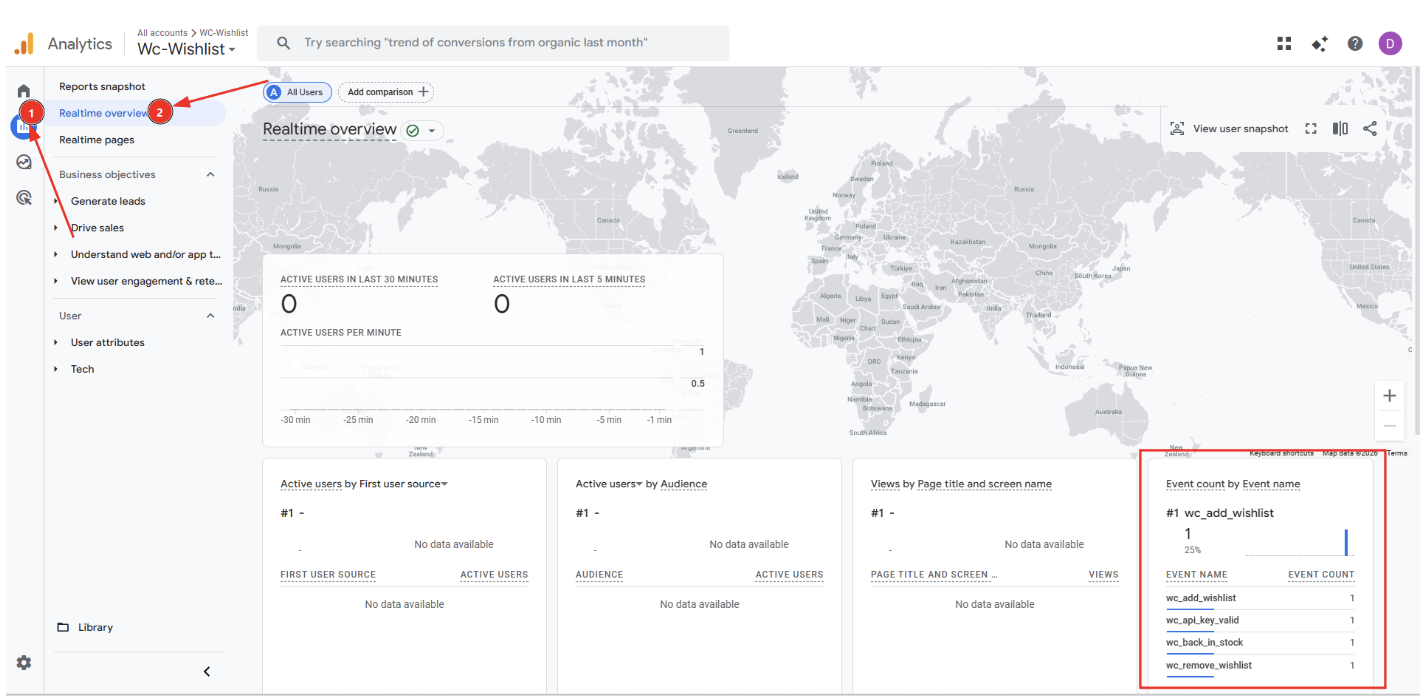
Best practices
Test the integration after setup by adding a product to a wishlist on your storefront
Use consistent GA4 property settings for your store so wishlist data and purchase data live in the same place
Create custom reports or explorations in GA4 to compare wishlist activity with purchases
Build audiences based on wishlist behavior for remarketing campaigns in Google Ads
Monitor high-interest products that are frequently wishlisted but rarely purchased
Products with lots of wishlist saves but low purchases can highlight pricing issues, stock concerns, or missing product information.
How to use wishlist data in GA4
Once events are flowing, you can use them in several practical ways:
Measure intent: Track which products attract interest before customers are ready to buy
Understand conversion paths: See whether customers who wishlist items are more likely to purchase later
Improve campaigns: Build audiences from wishlist behavior for retargeting in Google Ads
Spot product opportunities: Find products with strong engagement but weak conversion
Evaluate stock and pricing impact: Compare wishlist engagement with restock and price-drop activity
Troubleshooting
Check that the Measurement ID is correct and matches your website’s GA4 property
Confirm that the API Secret was copied correctly
Make sure the integration is enabled with the Connect toggle turned on
Trigger a fresh wishlist action after saving, such as adding an item to a wishlist
Check GA4 Realtime first, since standard reports may take longer to update
This usually means your store’s GA4 setup is working, but the wishlist integration is not fully configured. Review the app’s Google Analytics 4 settings and verify that both the Measurement ID and API Secret are saved correctly.
No. After you connect the integration, GA4 starts receiving new wishlist events going forward. Past wishlist activity is not backfilled.
Yes. Once wishlist events are available in GA4, you can use them to build audiences for remarketing and campaign targeting in connected Google Ads accounts.
What to expect after setup
After the integration is enabled, new wishlist actions from customers are sent to Google Analytics 4 automatically. You can then use those events in GA4 reports, explorations, audiences, and advertising workflows.
Reporting delays can happen in Google Analytics. If you do not see events immediately in standard reports, check the Realtime view first and allow additional processing time.
Need help?
If you are not sure which file to edit, or you would rather have us handle the installation, contact our support team:
Email: [email protected]
Live chat: available from the app admin
Free onboarding 1:1 call