
Add all wishlist items to cart in one click
Overview
Add all wishlist items to cart in one click lets customers move everything from their wishlist into the cart at once. This removes extra clicks, speeds up checkout, and is especially helpful for shoppers who save products for later and return when they are ready to buy.
When this feature is enabled, customers do not need to open each product one by one. Their saved items, including selected variants and quantities, can be added to the cart in a single action.
If you want customers to place larger orders faster, enable this feature together with the wishlist Quantity Selector so they can review quantities before sending everything to the cart.
What customers experience
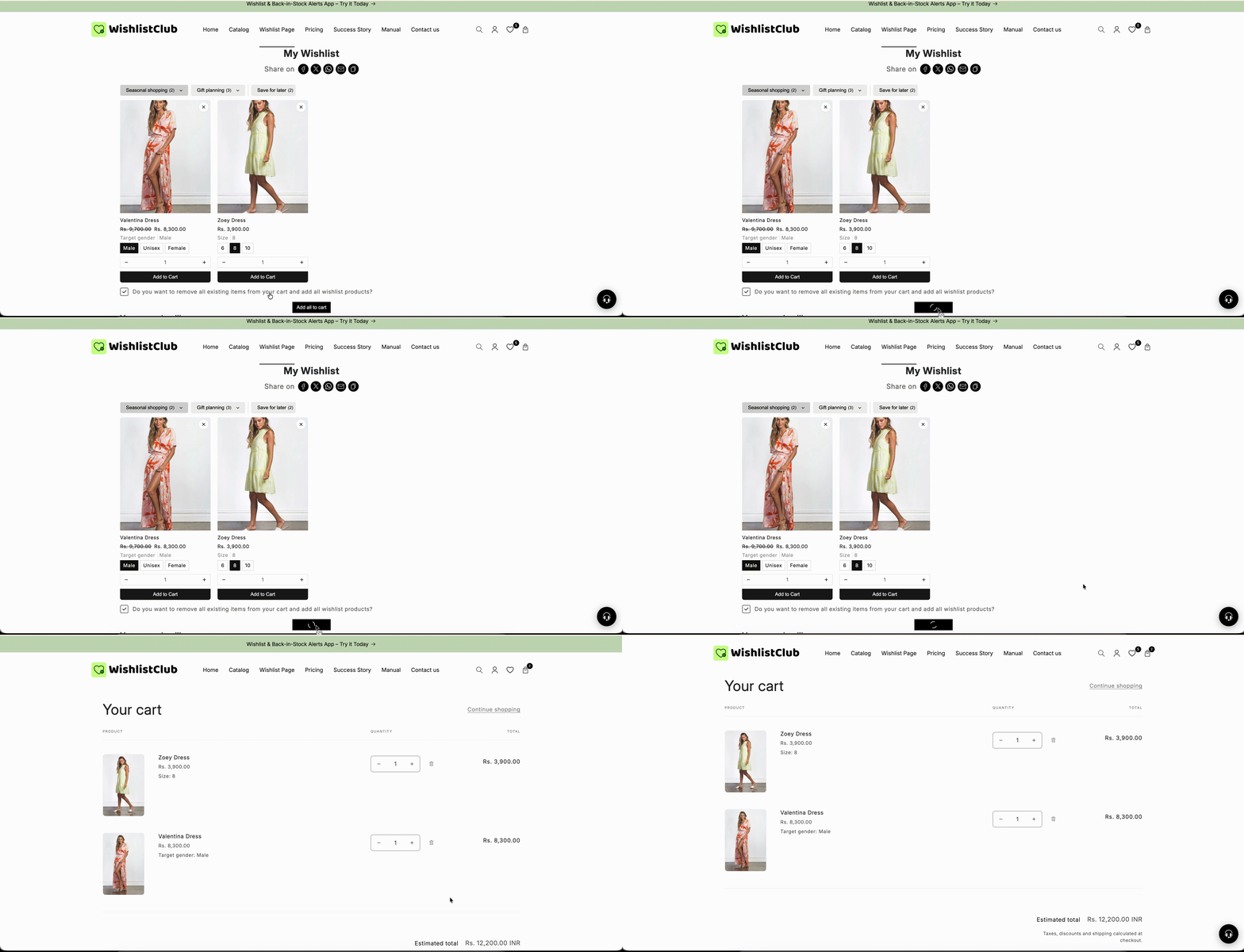
On the wishlist page, an Add All to Cart button appears near the top of the list when the feature is turned on.
When a customer clicks the button:
All available wishlist items are added to the cart in one go.
Saved variants are kept, such as size, color, or other product options.
Saved quantities are also used, if quantity selection is enabled on the wishlist.
After that, the customer is either sent to the cart, sent to checkout, or kept on the wishlist page, based on your redirection setting.
The final result also depends on product availability. If an item or selected variant is no longer available, it may not be added as expected.
How it works
Items are added in bulk
Instead of adding products one at a time, the customer can send their full saved list to the cart with one click. This is useful for repeat buyers, gift lists, seasonal shopping, and customers who use wishlists as a buying shortlist.
Variants and quantities are respected
If the customer saved a specific variant, that same choice is used when the item is added to the cart. If you allow quantity selection on the wishlist page, the selected quantity is also carried over.
Redirect behavior follows your store setting
After the click, the customer goes to one of the following places depending on your Add to Cart Redirection setting:
Cart — ideal when customers may want to review their order before checkout.
Checkout — best when you want the fastest path to purchase.
Stay on page — useful when customers may continue editing their wishlist.
Choose how the cart should behave
You can decide what happens to the customer’s current cart when they use Add All to Cart.
Keep existing cart items
The wishlist items are added on top of whatever is already in the cart.
Best for stores where customers often build a mixed cart over time.
Useful when customers browse multiple collections or return to finish a purchase later.
Clear the cart first
The customer’s current cart is emptied before wishlist items are added.
Best for stores where a wishlist usually represents one complete intended purchase.
Useful when customers typically buy saved items in a dedicated shopping session.
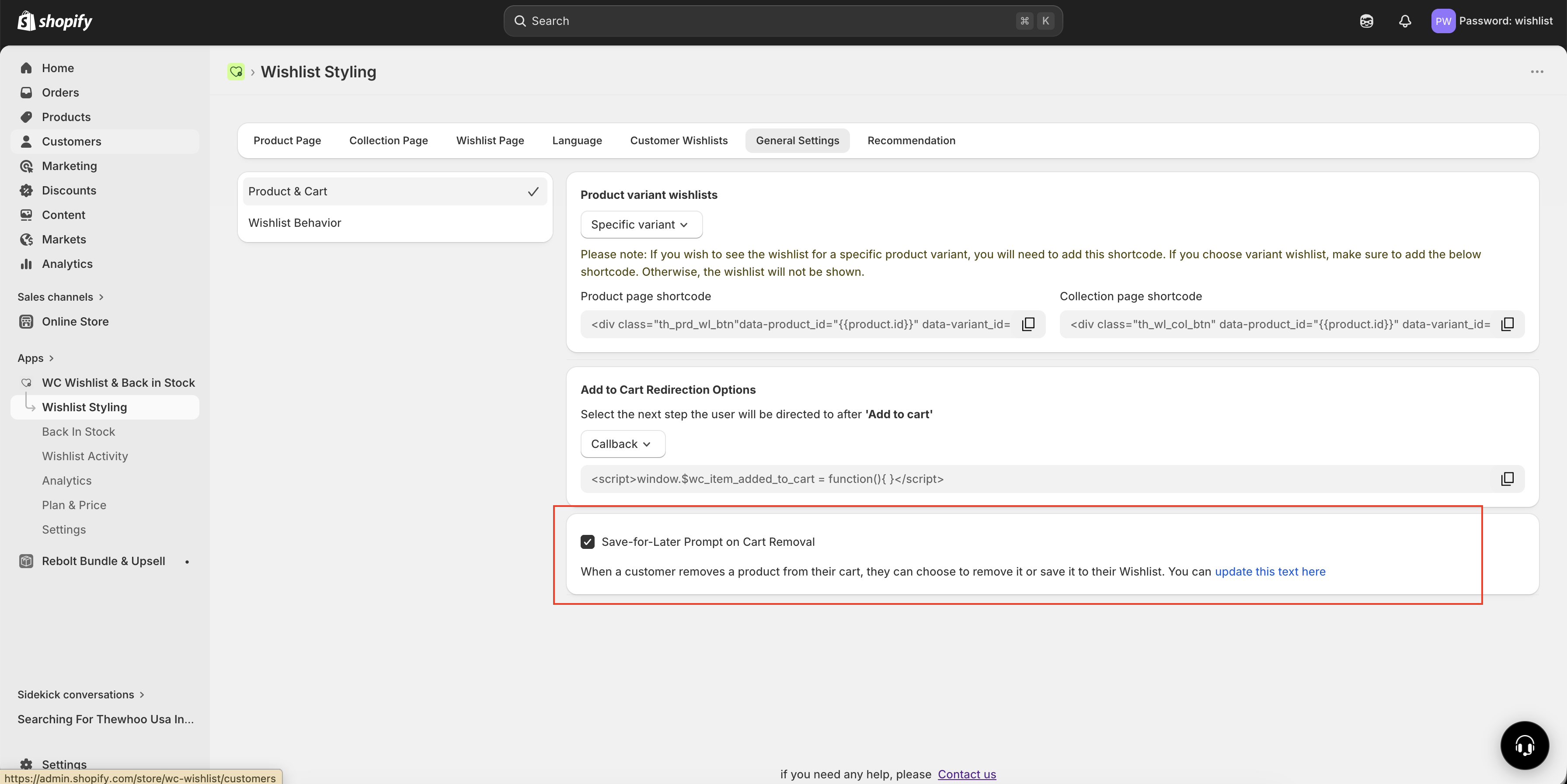
If you choose Clear the cart first, any products already in the cart will be removed before the wishlist items are added. Use this option only if that matches how your customers usually shop.
How to enable it
In your Shopify admin, go to Apps and open WC Wishlist & Back in Stock.
Open Wishlist Styling, then select Wishlist Page.
Scroll to the Add All to Cart section and switch it ON.
Select whether to Keep cart or Clear cart before adding wishlist items.
Go to General Settings and choose the Add to Cart Redirection destination: Cart, Checkout, or Stay on page.
Click Save so the button appears on your live wishlist page.
Recommended setup
For the best customer experience, use Add All to Cart together with the wishlist Quantity Selector.
This lets shoppers adjust how many of each product they want before moving everything into the cart.
Enable the Quantity Selector
Go to:
Wishlist Styling → Wishlist Page → Show Quantity Selector → ON
This setup works especially well for stores selling consumables, supplies, beauty products, stationery, baby items, or any products customers regularly reorder in multiple quantities.
When to use each redirect option
Redirect to Cart if customers usually review items, remove a few products, or apply discount codes before checking out.
Redirect to Checkout if you want the quickest buying flow for ready-to-purchase customers.
Stay on Wishlist Page if customers often continue editing their wishlist after adding items.
Best practices
Use Keep existing cart items if your customers often combine wishlist items with products they discover during browsing.
Use Clear the cart first only when a wishlist usually represents a separate, intentional purchase.
Enable the Quantity Selector so customers can control quantities before adding everything.
Test the full flow on your storefront after saving changes to confirm the button placement and redirect behavior match your expectations.
FAQ
Yes. The feature is designed to add all eligible wishlist items to the cart in one action, including saved variants and quantities where available.
That depends on your selected cart behavior. You can either keep the current cart items and add wishlist products on top, or clear the cart first and then add the wishlist items.
Yes, if you enable the Quantity Selector on the wishlist page. Customers can adjust quantities there before using Add All to Cart.
They will go to the Cart, Checkout, or remain on the Wishlist Page, based on your Add to Cart Redirection setting in General Settings.
It is most useful for stores where customers often save multiple products and come back later to purchase them together. It can be especially effective for repeat-purchase and consideration-heavy shopping journeys.
Need help?
If you are not sure which file to edit, or you would rather have us handle the installation, contact our support team:
Email: [email protected]
Live chat: available from the app admin
Free onboarding 1:1 call