
Upload a custom SVG icon for your wishlist button
Overview
The default wishlist icon is a heart, which works well for many stores. If your brand uses a different visual style, you can replace that heart with your own SVG icon.
This lets you match your wishlist button to your storefront design using a bookmark, star, bag, custom outline, or another simple icon shape.
You can also use different icons for different wishlist states, such as one icon before a customer adds an item to their wishlist and another after they do.
You upload your custom SVG icon once, and that same icon is used for both product pages and collection pages. There is not a separate custom icon upload setting for each page type.
After uploading the icon, you can still customize how the wishlist button appears separately on product pages and collection pages, including:
Icon color
Button layout
Whether the button shows icon only or icon with text
How custom icons work
Custom SVG icon upload is shared across your storefront wishlist buttons.
One uploaded SVG is used for both product pages and collection pages.
There is no separate upload option for collection pages and product pages.
You can still style the button differently in each location.
For example, you can use the same uploaded bookmark icon on both page types, then show it as icon only on collection pages and icon with text on product pages.
What is an SVG icon?
SVG stands for Scalable Vector Graphic. It is the best file type for interface icons because it stays sharp at any size, from small mobile buttons to high-resolution screens.
Compared with JPG or PNG files, SVG icons are better for wishlist buttons because they:
Stay crisp when resized
Load quickly when kept lightweight
Work well with icon color settings in the app
Before you upload
For the best result, prepare your SVG file carefully before adding it to the app.
Use a simple icon: Clean shapes are easier to read at small sizes.
Prefer a single-color design: The app applies your selected icon color to the SVG, so multi-color artwork may not display as expected.
Remove extra empty space: The icon should fill the SVG canvas neatly so it does not look too small or off-center.
Test at small sizes: Collection page buttons are often displayed at smaller sizes, so make sure the icon is still easy to recognize.
Keep the file lightweight: A smaller SVG loads faster. Under 10KB is a good target.
If your icon looks too small after upload, the most common cause is extra whitespace around the artwork inside the SVG file.
Upload a custom SVG icon
Use the custom icon setting to replace the default wishlist icon across both product pages and collection pages.
Go to Apps → WC Wishlist & Back in Stock → Wishlist Styling.
Go to Product Page to upload a custom SVG.
Add your SVG icon file for the wishlist button.
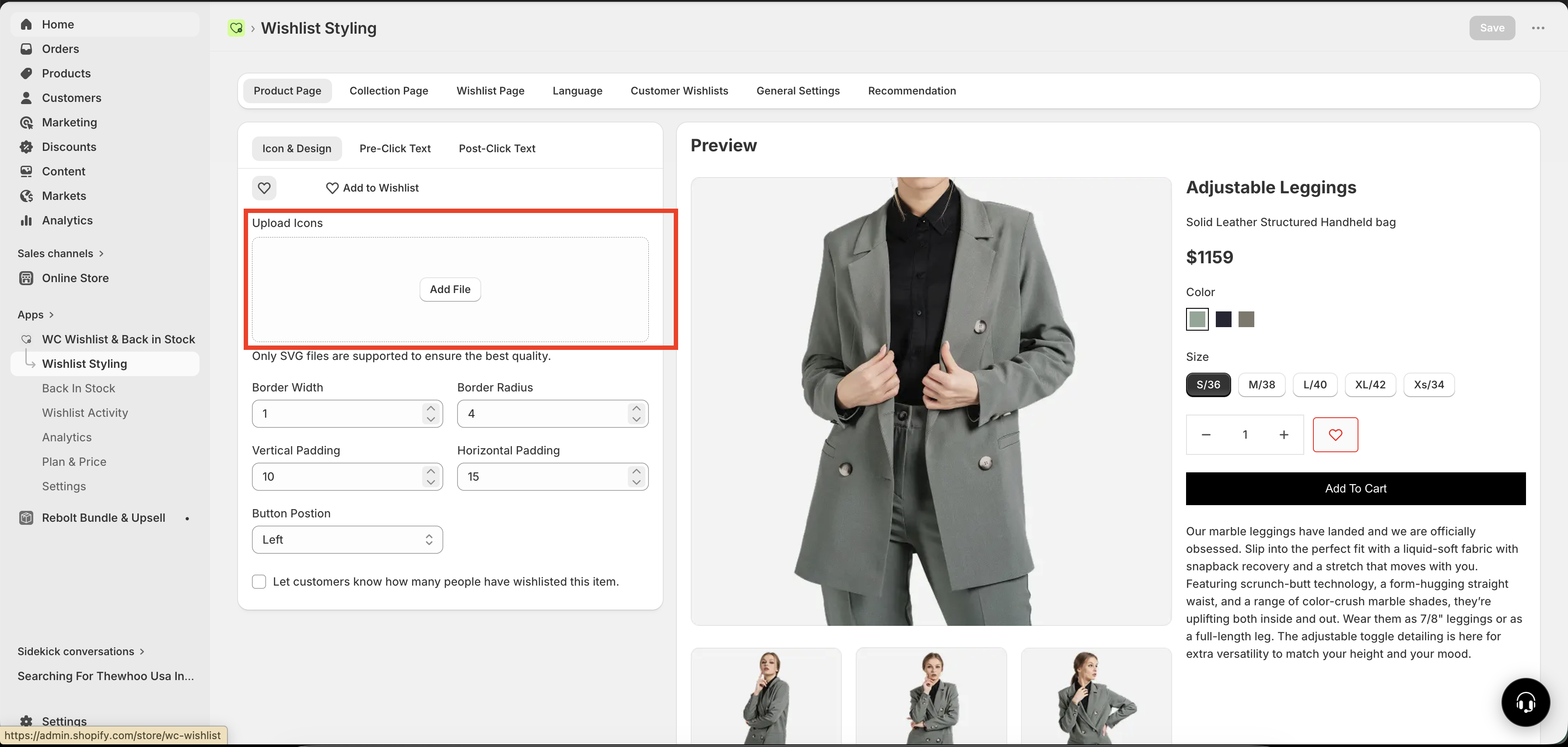
Save the setting so the uploaded icon is applied to your storefront.
The uploaded SVG is shared across both product pages and collection pages. You do not need to upload the same icon twice.
Customize the button separately on product and collection pages
Even though the uploaded icon stays the same across both page types, you can control the presentation separately for each one.
Product page settings
On product pages, you can adjust the wishlist button style for the individual product view. Depending on your theme setup and app settings, you can customize options such as:
Icon color
Button layout
Icon only or icon with text
Collection page settings
On collection pages, you can style the wishlist button separately for product grids and listing cards. Depending on your setup, you can customize options such as:
Icon color
Button layout
Icon only or icon with text
This means the icon file remains the same, but the look and layout of the wishlist button can be different on product pages and collection pages.
Example setup
Here is a common way to use this feature:
Upload one custom star icon
Show icon with text on the product page for a clearer call to action
Show icon only on collection pages to keep product cards clean
Use different icon colors for each page type if needed
Troubleshooting
That is expected. The app supports one custom SVG upload that is used for both product pages and collection pages.
No. There is no separate custom icon upload for each page type. The same uploaded icon is used in both places.
Yes. While the uploaded icon stays the same, you can customize the icon color, layout, and whether the button shows as icon only or icon with text separately for product pages and collection pages.
This usually happens when the SVG file contains too much empty space around the artwork. Edit the SVG so the icon fills the canvas more neatly, then upload it again.
Single-color SVGs usually work best. If your SVG includes multiple colors, fills, or styling inside the file, the app's color setting may not affect it the way you expect.
Best practices
Use a clear, simple shape that is still recognizable at small sizes.
Choose a single-color SVG when possible.
Preview the button on both product pages and collection pages after saving.
Use layout settings to optimize each page type instead of trying to upload different icons.
Need more help?
If you need help getting the wishlist button to appear correctly, contact our team:
Email: [email protected]
Live chat: available from the app admin
Onboarding: book a free 1:1 onboarding call