
Thank You Notification email after email verification
Overview
After a customer verifies their email address, the Thank You Notification is sent automatically to confirm that their subscription is now active. This email reassures the customer that verification was successful and sets clear expectations about what they will receive next.
This message supports both:
Wishlist notification subscriptions
Back in Stock (Notify Me) subscriptions
Keep this email enabled in most stores. It closes the loop immediately after verification and helps customers feel confident that their sign-up worked.
What this email does
When a customer clicks the verification link in your verification email, this email is sent automatically.
It confirms that:
Their email address has been verified successfully
Their notification subscription is now active
They will receive future alerts for relevant product activity
Depending on what they signed up for, this can include notifications when an item:
Comes back in stock
Becomes available again
Drops in price
How to set it up
Navigate to Apps → WC Wishlist & Back in Stock → Settings → Email Customization → Email Verification → Thank You Notification.
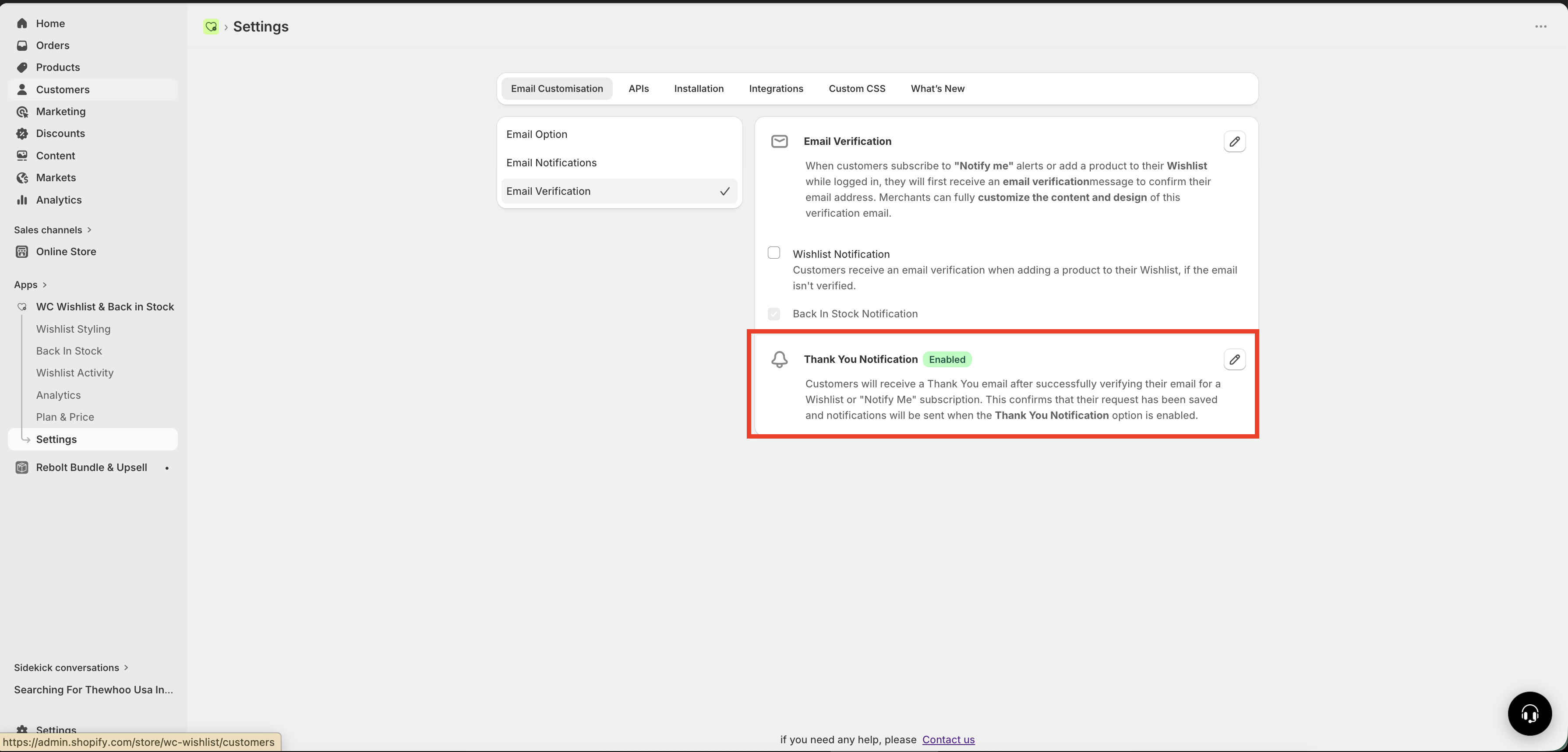
Turn the notification on if you want customers to receive a confirmation email right after verifying their address.
Choose a subject line that confirms success right away, such as Thanks for subscribing to notifications! or Your subscription is confirmed 🎉.
Keep the message short, clear, and reassuring. Let the customer know their subscription is active and what kind of alerts they can expect.
Save your changes, then complete a test signup and verification flow to make sure the message looks correct and arrives as expected.
Settings
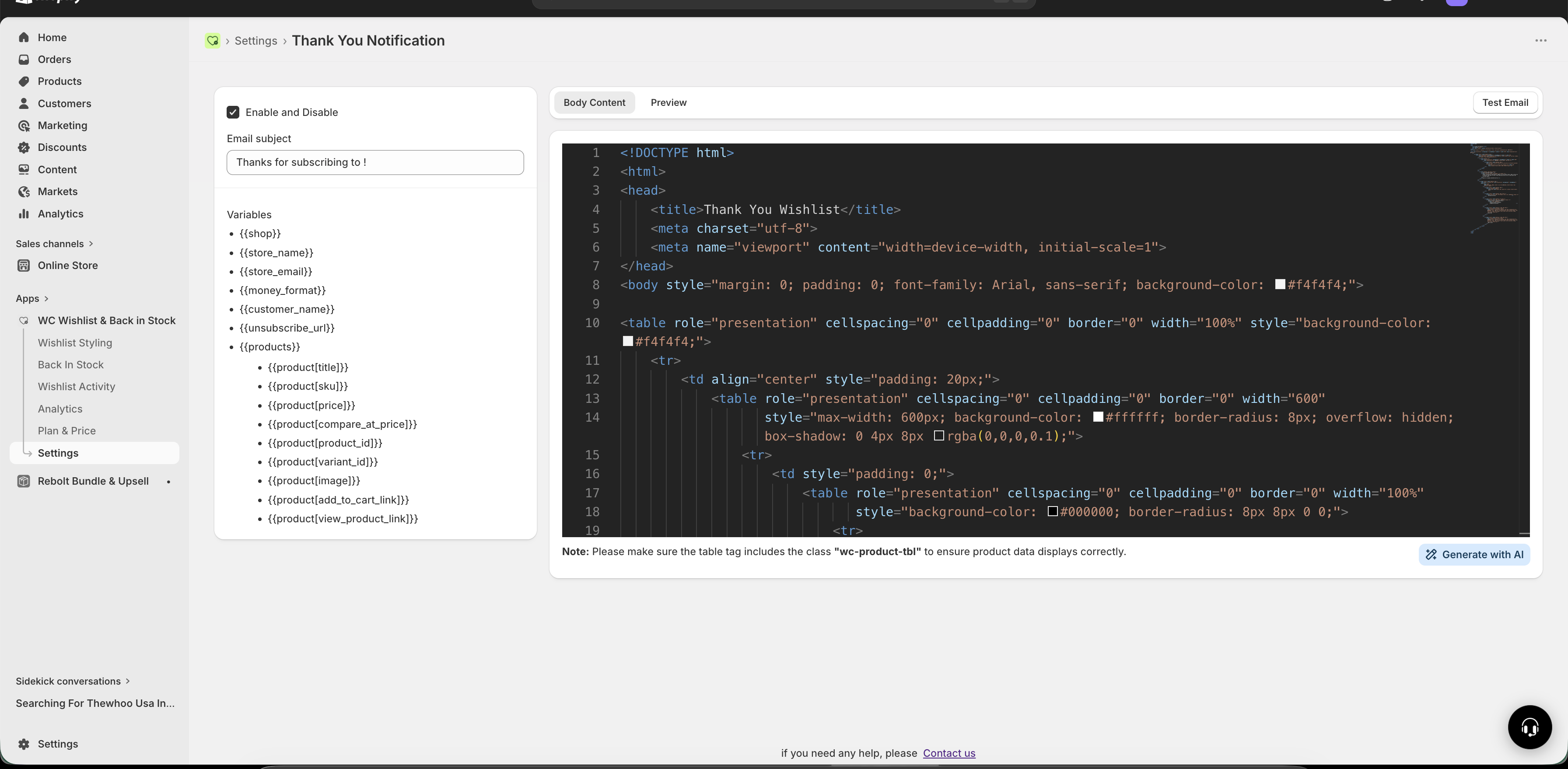
Enable / Disable
Use this setting to turn the Thank You Notification on or off.
Enabled: Customers receive a confirmation email after they verify their email address.
Disabled: Customers can still complete verification, but they will not receive a confirmation email.
Disabling this email will not stop the subscription from being activated. It only removes the follow-up confirmation message.
Email Subject
Your subject line should make the outcome obvious at a glance. Aim for a friendly, positive confirmation.
Good examples:
Thanks for subscribing to notifications!Your subscription is confirmed 🎉Wishlist notifications activatedYou're all set — we'll keep you posted!{{customer_name}}, you'll now receive product alerts
Recommended email structure
This email works best when it is short and reassuring. The customer has already taken action, so they mainly want confirmation that everything worked.
Recommended layout
Headline: Clearly confirm success, such as You're confirmed! or Subscription activated ✓
Short confirmation message: Tell the customer their email was verified and their subscription is active
What happens next: Explain what kinds of alerts they will receive
Product reminder: Include the product name, image, or price when relevant
Optional unsubscribe link: Give customers a simple way to manage their subscription
Focus on confirmation, not promotion. This email should feel helpful and trustworthy, not like a sales message.
What to include in the message
A strong Thank You Notification usually includes:
A clear confirmation that email verification was successful
A reminder of what the customer subscribed to
A simple explanation of what alerts they will receive
The product name and details, if relevant
A link to unsubscribe or manage preferences if needed
Example message
Subject: Your subscription is confirmed 🎉

Hi {{customer_name}},

Thanks for verifying your email address. Your subscription is now active for {{product[title]}}.

We'll let you know when this item is back in stock, available again, or drops in price.

Thanks,
{{store_name}}
Available email variables
You can personalize the email using these variables:
{{customer_name}}— Customer's name{{store_name}}— Store name{{product[title]}}— Subscribed product name{{product[image]}}— Product image{{product[price]}}— Current price{{product[view_product_link]}}— Product page URL{{unsubscribe_url}}— Unsubscribe link
If you use a product table in your HTML email template, include the wc-product-tbl class on that table. Without it, the product section may not display correctly.
Best practices
Keep it brief: Customers only need confirmation and a quick explanation of what happens next.
Use positive language: Make the message feel reassuring and complete.
Match your brand voice: Keep the tone consistent with your store's other emails.
Set expectations: Tell customers what kinds of notifications they will receive.
Test the full flow: Verify that the email is sent only after successful verification and that all variables display correctly.
When this email is especially useful
If customers often ask whether their signup worked
If you want to build more trust in your notification workflow
If you use double opt-in and want to confirm completion clearly
If you want to reduce confusion between verification and active subscription status
Troubleshooting
Check that the Thank You Notification is enabled in the email settings. Then test the full signup and verification flow again. Also confirm that the customer completed the verification step successfully.
Review your email content and make sure the variables are entered exactly as supported, including the correct brackets and spelling.
Remove anything not directly related to confirmation. This email is most effective when it focuses on success, expectations, and optional product details.
If your HTML template includes a product table, make sure the table uses the wc-product-tbl class.
Need help?
If you are not sure which file to edit, or you would rather have us handle the installation, contact our support team:
Email: [email protected]
Live chat: available from the app admin
Free onboarding 1:1 call