
Set up the wishlist page in new Shopify customer accounts
Overview
If your store uses Shopify’s new customer accounts, you can show the wishlist directly inside the customer account area. This adds a dedicated Wishlist page alongside the customer’s orders, profile, and other account pages, so logged-in shoppers can quickly view and manage saved products in one place.
To check which account experience your store uses, go to Shopify Admin → Settings → Customer accounts. If New customer accounts is enabled, this guide applies to your store.
Best way to add the wishlist page
The easiest and most reliable way to add the wishlist page to new customer accounts is through Shopify’s checkout and accounts customization area. When you add the app block there, Shopify automatically creates a Wishlist item in the customer account navigation.
This is the recommended setup because it places the wishlist exactly where customers expect to find it inside their account.
Before you start
Your store must be using new customer accounts.
The WC Wishlist & Back in Stock app must already be installed.
You need access to your Shopify admin with permission to customize checkout and customer accounts.
How to add the wishlist to new customer accounts
In Shopify Admin, go to Settings → Checkout, then click Customize.
In the customization editor, open the Apps panel on the top side.
Look for WC Wishlist & Back in Stock in the list of available app blocks.
Click Add to menu. Shopify will create a new Wishlist menu item in the customer account navigation.
Click Save in the top-right corner of the editor to publish the update.
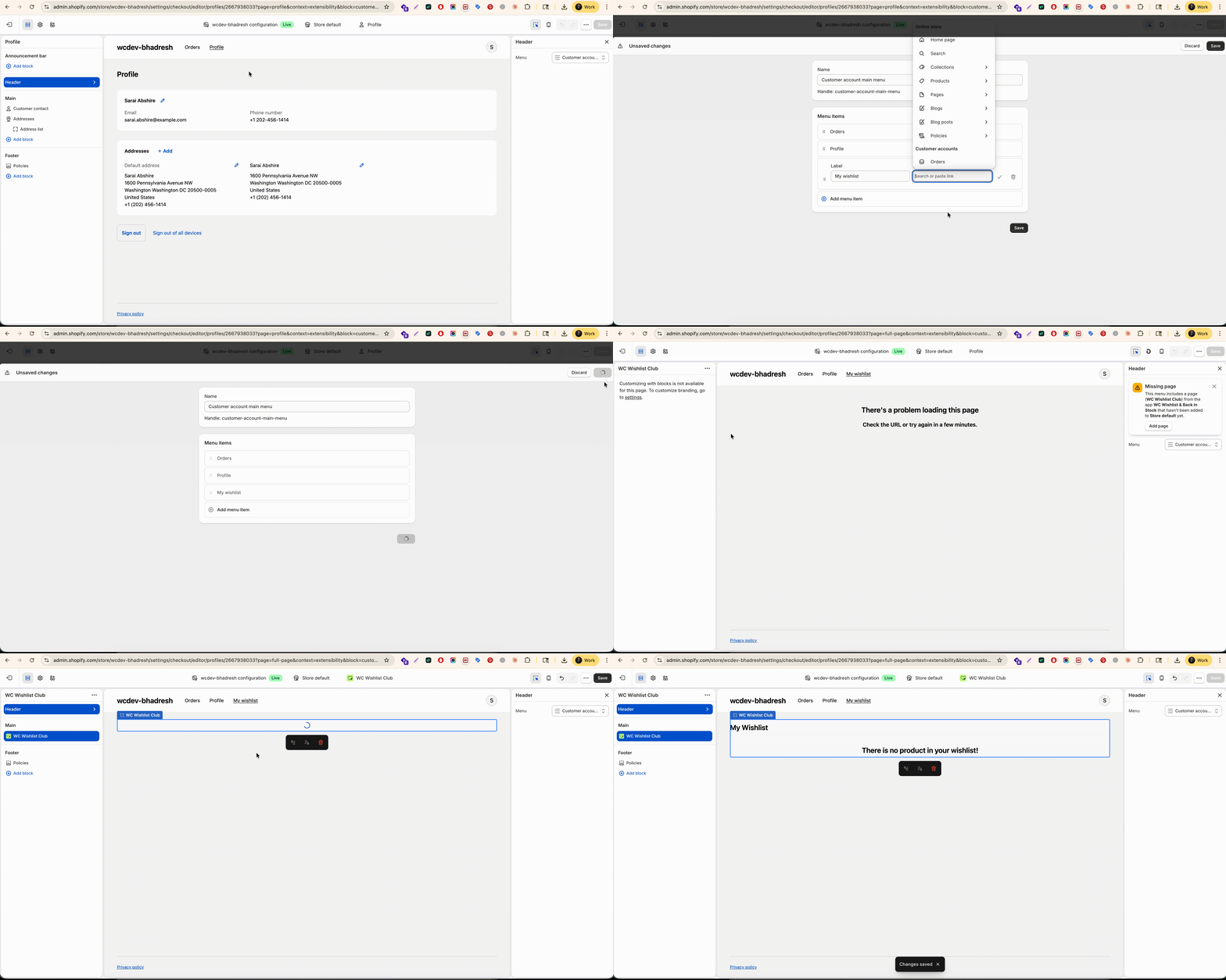
What customers will see
After you save the change, customers who sign in through Shopify’s new customer accounts will see a Wishlist item in their account navigation. From there, they can open their saved products, review wishlist items, and manage their selections without leaving their account area.
This creates a smoother shopping experience because customers can access their saved items from the same place they already use to check orders and account details.
Important notes
This setup is only needed for stores using new customer accounts. If your store uses classic customer accounts, customers can access the wishlist directly at /apps/wishlist/.
If a customer is not logged in, Shopify will ask them to sign in before they can access the wishlist from their account area.
How to confirm it worked
After saving the customization, test the setup from the customer side:
Open your storefront.
Sign in using a customer account.
Go to the customer account area.
Confirm that Wishlist appears in the account navigation.
Open it to make sure the page loads correctly.
If you do not see the Wishlist item right away, refresh the account page and make sure the customization was saved successfully in Shopify.
Troubleshooting
Make sure your store is using new customer accounts, not classic customer accounts. Then go back to Settings → Checkout → Customize and confirm that the WC Wishlist & Back in Stock app block was added and saved.
Confirm that the app is installed on the store and that you are editing the correct Shopify customization area. If the app is installed but still does not appear, refresh the editor and try again.
This is expected behavior. The wishlist inside new customer accounts is available to signed-in customers, so Shopify will prompt them to log in before they can view it.
You do not need this setup. Instead, customers can use the wishlist page directly at /apps/wishlist/.
Need help?
If you are not sure which file to edit, or you would rather have us handle the installation, contact our support team:
Email: [email protected]
Live chat: available from the app admin
Free onboarding 1:1 call