
Price Drop Alert email — notify customers when wishlist prices drop
Overview
Price Drop Alert emails are one of the most effective wishlist automations for turning saved items into sales. When a customer adds a product to their wishlist but waits to buy, a price drop can be the moment that prompts them to come back and complete the purchase.
With this email enabled, the app automatically sends a message to customers when the price of a wishlisted product is reduced in Shopify. The email highlights the new lower price, shows the previous price for comparison, and gives the customer a direct path back to the product.
Use this notification when you want to recover high-intent shoppers who were interested enough to save a product, but needed a better price to buy.
What this email does
When you reduce the price of a product in Shopify, the app detects the change and sends a Price Drop Alert email to customers who have that product in their wishlist.
Each email can include:
The customer’s name
The product name and image
The new price
The original price for comparison
A link to view the product
A direct add-to-cart link
The stronger the discount, the more likely customers are to return and buy. Small price changes may not create enough urgency on their own.
How to set up Price Drop Alerts
Navigate to Apps → WC Wishlist & Back in Stock → Settings → Email Customization → Email Notifications → Price Drop Alerts.
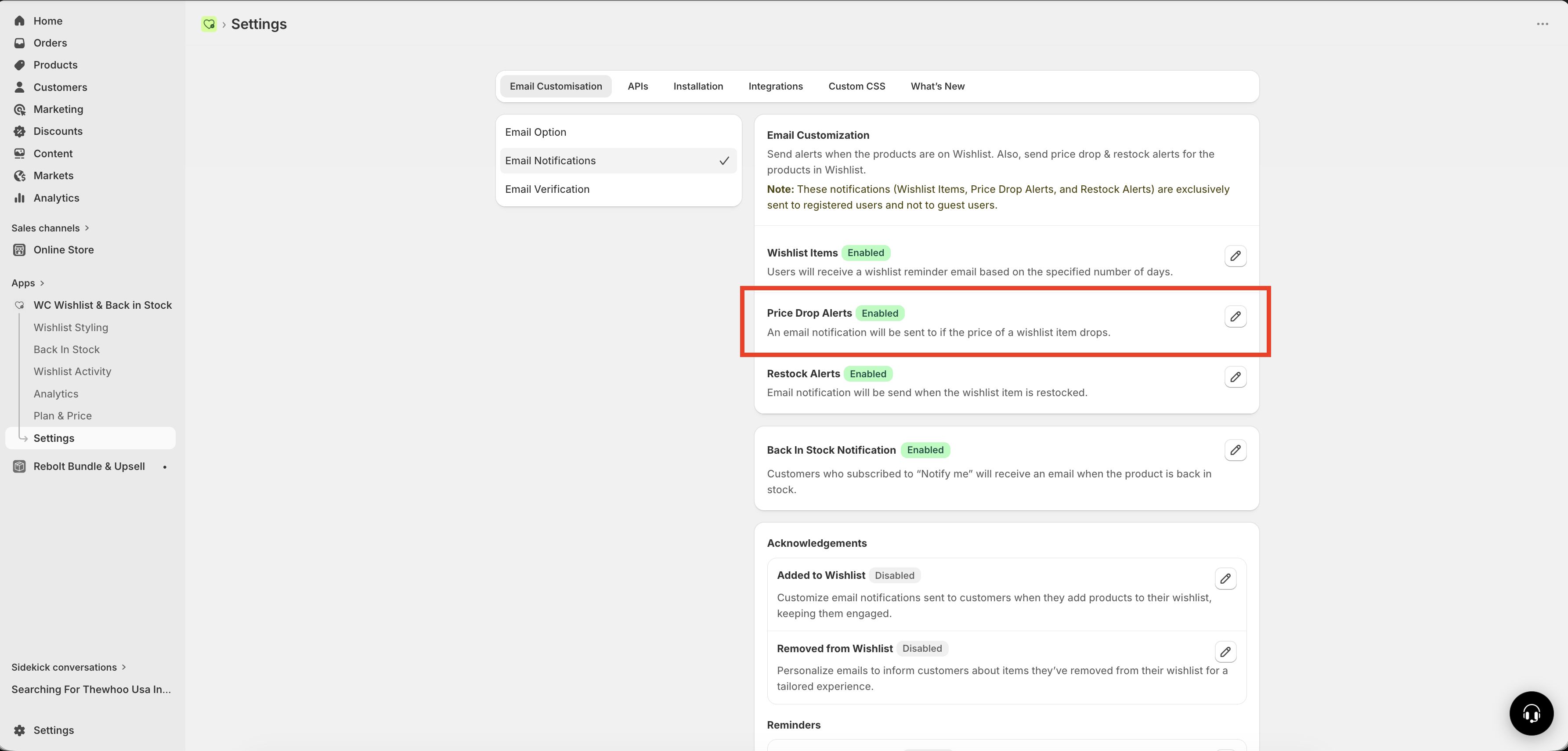
Turn the notification on using the Enable / Disable toggle.
Use a subject line that immediately tells the customer why the email matters. Focus on the price change and the product they saved.
Add product details, pricing, and a strong call to action. Use the available variables so each email is personalized automatically.
If you are editing the HTML template, make sure the product table includes the required class so product details display correctly.
Settings
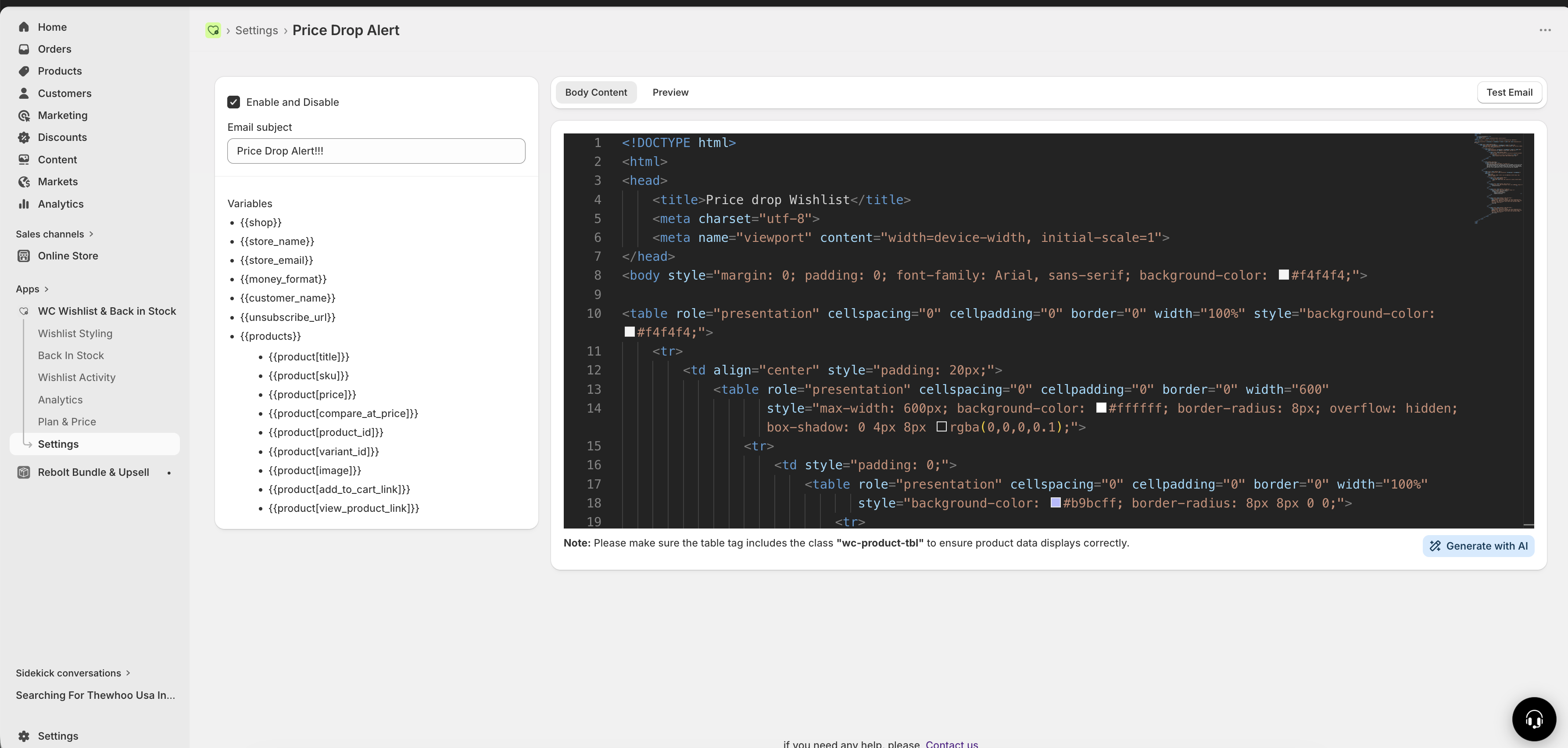
Enable / Disable
Use this setting to turn Price Drop Alert emails on or off. When enabled, emails are sent automatically after a qualifying product price reduction is detected.
Email subject
Your subject line should make the value clear right away. The customer should instantly understand that a saved item is now cheaper.
Recommended examples:
Price Drop Alert on Your Wishlist Item 💸
Good News! Your Wishlist Product Is Now Cheaper
A Product You Saved Just Dropped in Price
{{customer_name}}, great news — the price just dropped!
Keep subject lines short and specific. “Price dropped” usually performs better than a generic promotional line because it gives the customer an immediate reason to open the email.
Available email variables
Use these variables to automatically pull customer and product details into the email:
{{customer_name}}— Customer's name{{store_name}}— Store name{{product[title]}}— Product name{{product[image]}}— Product image{{product[price]}}— New reduced price{{product[compare_at_price]}}— Original price{{product[add_to_cart_link]}}— Direct add-to-cart URL{{product[view_product_link]}}— Product page URL{{unsubscribe_url}}— Unsubscribe link
Use {{product[price]}} and {{product[compare_at_price]}} together so customers can instantly see the discount. Showing both prices side by side makes the savings more persuasive.
Template requirement
If you are editing the HTML template, include the wc-product-tbl class on the product table. Without it, the product section may not render correctly in the email.
Best practices
Show the savings clearly. Display the original price next to the new price, ideally with the old price struck through.
Use action-focused button text. Calls to action such as “Shop Now,” “Grab the Deal,” or “Buy Before It’s Gone” work well.
Create urgency when relevant. If the price drop is part of a limited-time promotion, include the end date in the email body.
Keep the layout focused. The main goal is to bring the customer back to the product quickly, so avoid unnecessary text.
Lead with the product. Put the product image, name, and updated price near the top of the email.
Make it easy to buy. Include a clear product link or add-to-cart link so the customer can act immediately.
What makes a great Price Drop Alert
The best-performing Price Drop Alert emails are simple, direct, and visually clear. A customer should be able to answer these three questions within seconds:
Which item dropped in price?
How much cheaper is it now?
How do I buy it right away?
If your email answers all three clearly, it is much more likely to convert.
Suggested email structure
A subject line that highlights the price drop
A headline that confirms the item is now cheaper
The product image and product name
The old price and new price shown together
A strong button linking to the product or cart
A short closing line that reinforces urgency or value
Example message
{{customer_name}}, good news — one of your saved items just dropped in price.

{{product[title]}}
Was: {{product[compare_at_price]}}
Now: {{product[price]}}

Ready to grab it before it's gone?
View product: {{product[view_product_link]}}
FAQ
Customers who have saved the product to their wishlist and are eligible to receive email notifications.
The email is triggered automatically after the app detects that the product price has been lowered in Shopify.
Yes. Showing both prices makes the savings obvious and gives the customer a stronger reason to return.
Use direct, purchase-focused language such as “Shop Now,” “View Deal,” or “Add to Cart.”
Final recommendations
Price Drop Alerts work best when the message is timely, the savings are easy to understand, and the customer can get back to the product in one click. Keep the email focused on the product they already wanted, and make the lower price the hero of the message.
Need help?
If you are not sure which file to edit, or you would rather have us handle the installation, contact our support team:
Email: [email protected]
Live chat: available from the app admin
Free onboarding 1:1 call