
Postscript integration — wishlist-driven SMS campaigns
Overview
Postscript is an SMS marketing platform for Shopify stores. When you connect it with Wishlist Club, you can send text messages based on wishlist activity so shoppers hear about the products they care about at the right moment.
This integration helps you turn wishlist intent into revenue with timely SMS campaigns for restocks, price drops, low-stock urgency, and wishlist follow-ups.
Wishlist Club sends supported wishlist events to Postscript so you can use them in your SMS automations and customer journeys.
What you can do with the Postscript integration
Send SMS alerts when a saved item drops in price
Notify shoppers when a wishlist item is back in stock
Create urgency when saved items are running low
Remind shoppers about products they saved but have not purchased
Recover high-intent shoppers with wishlist-based SMS campaigns
Trigger follow-up messages when customers add or remove items from their wishlist
Wishlist-based SMS works best for high-intent moments. Start with back-in-stock and price-drop messages first, then add reminder and urgency flows once your core campaigns are live.
Supported wishlist triggers
Price Drop on Wishlist Item — Sends a text when the price of a saved product decreases
Wishlist Item Back in Stock — Sends a text when a saved item becomes available again
Wishlist Item Low in Stock — Sends an urgency message when inventory is limited
Wishlist Reminder — Re-engages shoppers who saved items but have not returned
Abandonment Wishlist — Targets shoppers who showed intent but did not buy
Item Added to Wishlist — Starts a confirmation or follow-up flow after a shopper saves an item
Item Removed from Wishlist — Can be used for re-engagement or preference-based messaging
Before you start
You need an active Postscript account
You need access to your Shopify admin and Wishlist Club settings
You need permission in Postscript to create API keys
Keep your Postscript Private API Key secure. Treat it like a password and only paste it into the Postscript integration settings inside Wishlist Club.
Set up the integration
In Shopify, go to Apps → WC Wishlist & Back in Stock → Settings → Integrations → Postscript.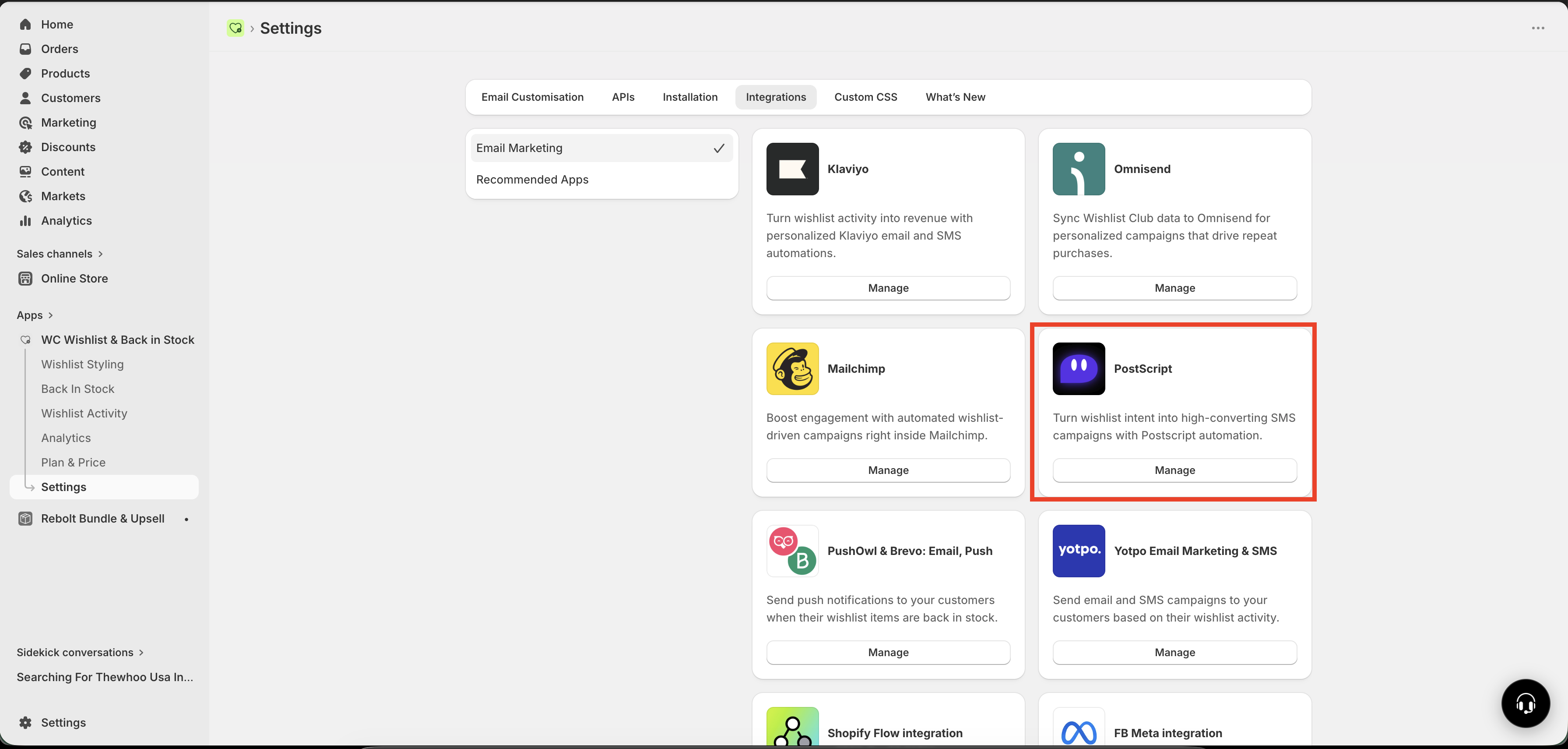
Turn on the Connect toggle to begin setup.
In Postscript, go to Shop Settings → API → Create Security Key Pair.
Generate a new key pair, then copy your Private API Key.
Return to the Postscript integration settings in Wishlist Club and paste the Private API Key into the API key field.
Click Save. Once saved, supported wishlist events can sync to Postscript and be used in your SMS automations.
How the integration works
After the connection is saved, Wishlist Club sends supported wishlist activity to Postscript in real time or near real time, depending on the event. You can then build automations in Postscript that use those events to send relevant SMS messages.
For example, if a customer saves a product and that item comes back in stock later, Postscript can trigger a text reminder to bring them back to your store.
Best ways to use wishlist-driven SMS
Back-in-stock alerts
Back-in-stock texts are one of the highest-converting wishlist campaigns because the shopper already showed purchase intent. Keep the message short, clear, and product-focused.
Price-drop messages
Use price-drop SMS to reach shoppers who were interested but waiting for a better price. These messages work especially well during promotions and limited-time sales.
Low-stock urgency campaigns
If a saved item is running low, send a simple urgency message to encourage action before the product sells out again.
Wishlist reminder flows
Not every shopper buys right away. Reminder campaigns help bring customers back to the products they saved, especially when paired with social proof, limited availability, or an active promotion.
Keep wishlist SMS messages focused on one product and one action. A direct message with a clear call to action usually performs better than a long promotional text.
Recommended setup strategy
Launch Back in Stock first for the fastest return
Add Price Drop next for promotion-driven conversions
Use Low in Stock carefully to add urgency without over-messaging
Build Wishlist Reminder flows for shoppers who need more time
Review message timing and frequency so customers do not receive too many texts
Tips for better SMS performance
Send messages quickly when the wishlist event happens
Use product-specific language instead of generic promotions
Make the value obvious: back in stock, lower price, or limited inventory
Keep messages concise and action-oriented
Test timing and wording to improve click-through and conversion rates
Troubleshooting
First, confirm that the Postscript connection is still enabled in Wishlist Club and that your API key was saved correctly. Then check whether the wishlist event you want to use is one of the supported triggers listed on this page.
If the integration was just enabled, create a fresh wishlist action such as adding a product to a wishlist and check whether that event appears in your Postscript setup.
Make sure you copied the Private API Key, not another key from Postscript. If needed, create a new security key pair in Postscript and update the value in Wishlist Club, then save again.
The integration sends wishlist events to Postscript, but your SMS delivery still depends on your Postscript setup, campaign logic, subscriber eligibility, and compliance settings. Check your Postscript automation rules and message eligibility settings to make sure the event can trigger a send.
Why SMS works so well for wishlist moments
Wishlist activity is a strong buying signal. When someone saves a product, they are telling you exactly what they want. SMS is especially effective for these moments because it is immediate, visible, and well suited for time-sensitive updates like restocks, price drops, and low-stock warnings.
That makes wishlist-driven SMS a strong channel for bringing interested shoppers back before intent fades.
Need help?
If you are not sure which file to edit, or you would rather have us handle the installation, contact our support team:
Email: [email protected]
Live chat: available from the app admin
Free onboarding 1:1 call