
Multiple wishlists — letting customers create and organize separate lists
Overview
Multiple wishlists let your customers create and manage separate saved-item lists instead of keeping everything in one place. This makes it easier for shoppers to organize products by purpose, such as gift ideas, seasonal shopping, room-by-room plans, or items they want to revisit later.
For example, a customer might keep one list for Birthday Gifts, another for Home Decor, and a third for Save for Later. The result is a cleaner shopping experience that encourages customers to come back and continue planning future purchases.
When this feature is enabled, customers can create multiple named wishlists directly from the wishlist page and choose where to save products.
What customers can do
Once multiple wishlists are turned on, customers can manage saved products in a more flexible way. On the storefront wishlist page, they can:
Create new wishlists with custom names
Switch between wishlists to view different saved items
Save products to a specific wishlist
Add the same product to more than one wishlist, if you enable that option
Delete a wishlist they no longer need without removing their other lists
Examples of how customers use multiple wishlists
Gift planning: separate lists for birthdays, anniversaries, and holidays
Seasonal shopping: summer items, Black Friday picks, or holiday favorites
Category-based organization: clothing, skincare, furniture, or tech
Project planning: wishlist collections for a nursery, office setup, or home renovation
How the feature works on your storefront
When a customer clicks the wishlist button on a product page, the app can let them choose which wishlist to save the product to. Depending on your current setup, the product may also be added to their default wishlist automatically.
On the wishlist page, customers can then move between their saved lists and manage each one separately.
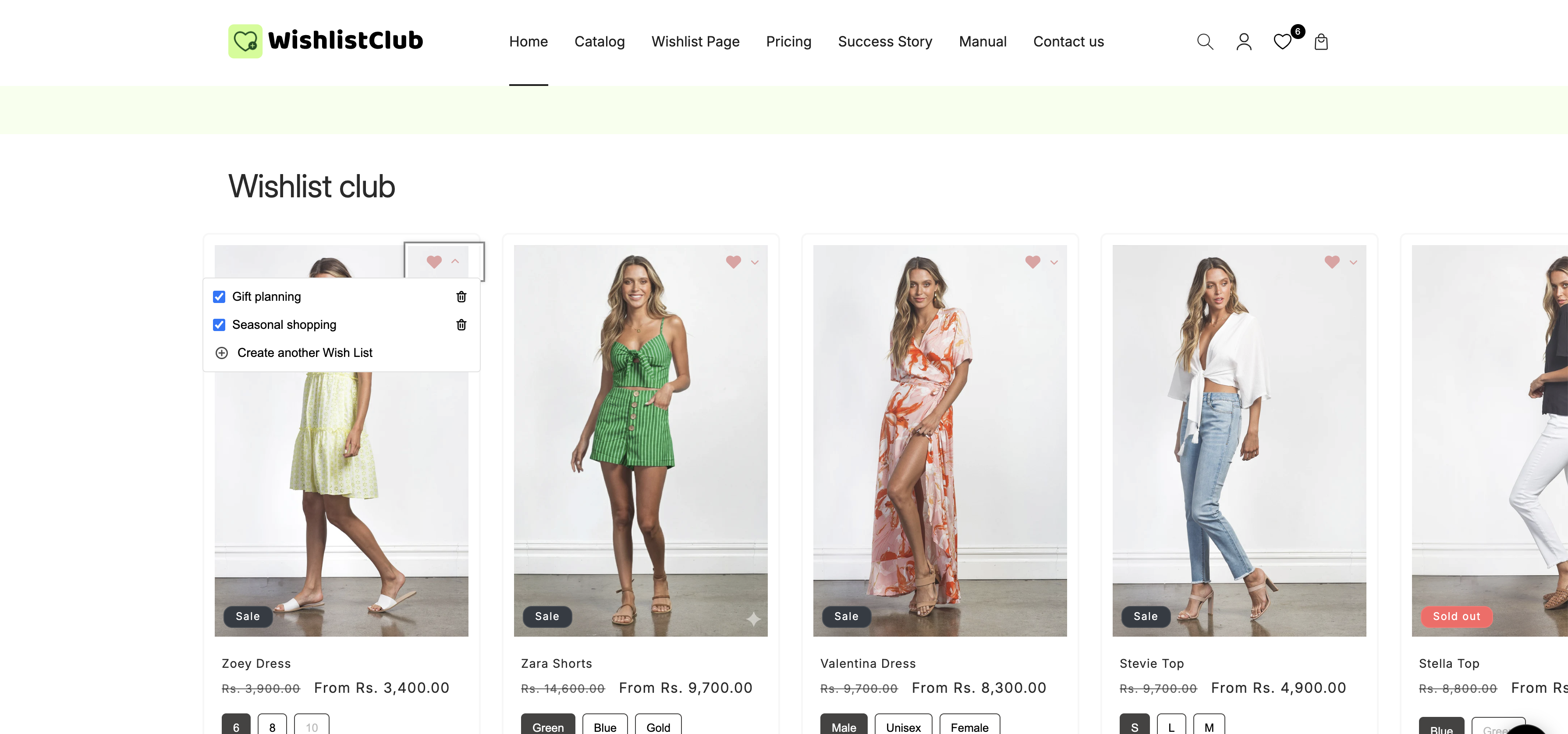
The exact storefront experience can vary slightly depending on your theme, button placement, and how your wishlist settings are configured.
How to enable multiple wishlists
In your Shopify admin, go to Apps and open WC Wishlist & Back in Stock.
Open General Settings.
Enable the Multiple Wishlists toggle.
If you want customers to use the same product in several lists, enable Same item to multiple lists.
Save the setting, then test the experience on your storefront to confirm it behaves the way you want.
Allow the same product in multiple wishlists
The Same item to multiple lists setting controls whether a customer can save one product into more than one wishlist.
This is especially useful when the same product fits multiple shopping plans. For example, a customer may want to add a candle to both Home Decor and Gift Ideas, or save a jacket in both Winter Essentials and Favorites.
If your customers often shop for gifts, events, or long-term projects, enabling this option usually creates a better experience because they do not need to choose just one list.
Best practices
Keep wishlist buttons easy to find: Make sure wishlist buttons appear clearly on product pages and collection pages where possible.
Test the naming flow: Create a few sample lists yourself to confirm customers can easily understand how to add and organize items.
Use customer-friendly defaults: A simple default list name such as My Wishlist is easier for first-time users to understand.
Enable multi-list saving when it fits your catalog: This works particularly well for stores selling gifts, fashion, home goods, beauty, or seasonal items.
Review the wishlist page on mobile: Many customers save items from mobile devices, so make sure list switching and list names remain easy to use on smaller screens.
Why multiple wishlists can improve engagement
Customers who organize products into separate lists often return more frequently because they are planning more than one future purchase. Instead of saving an item once and forgetting it, they build collections around specific needs and occasions.
This can lead to:
More repeat visits as customers come back to review their lists
Higher purchase intent for gift and seasonal shopping
More saved items per customer
A more personalized and useful wishlist experience
Multiple wishlists are especially effective for stores where customers shop with different goals in mind, such as gifts, home projects, outfit planning, or event preparation.
Frequently asked questions
Yes. Customers can create named wishlists such as Birthday Gifts, For the Bedroom, or Save for Later, making it easier to organize saved products by purpose.
No. Deleting one wishlist only removes that specific list. Other wishlists remain unchanged.
Yes, if you enable Same item to multiple lists in the Multiple Wishlists settings.
Go to Apps → WC Wishlist & Back in Stock → Wishlist Styling → General Settings, then scroll to the Multiple Wishlists checkbox.
Need help?
If you are not sure which file to edit, or you would rather have us handle the installation, contact our support team:
Email: [email protected]
Live chat: available from the app admin
Free onboarding 1:1 call