
Low Stock Alert email — create urgency before products sell out
Overview
The Low Stock Alert email helps you turn wishlist activity into sales by notifying shoppers when one of their saved products is close to selling out. When customers see that a product is running low, they are more likely to return and buy before it is gone.
This email is sent automatically when a wishlisted product reaches the stock level you set.
Best for: stores that want to create real purchase urgency for wishlisted products without manually monitoring inventory.
How it works
Once enabled, the app watches inventory for products customers have added to their wishlist. When a product’s available stock drops to or below your chosen threshold, the app sends a low stock email to customers who saved that item.
This gives customers a timely reminder that the product may sell out soon and encourages them to act while it is still available.
Set up the Low Stock Alert email
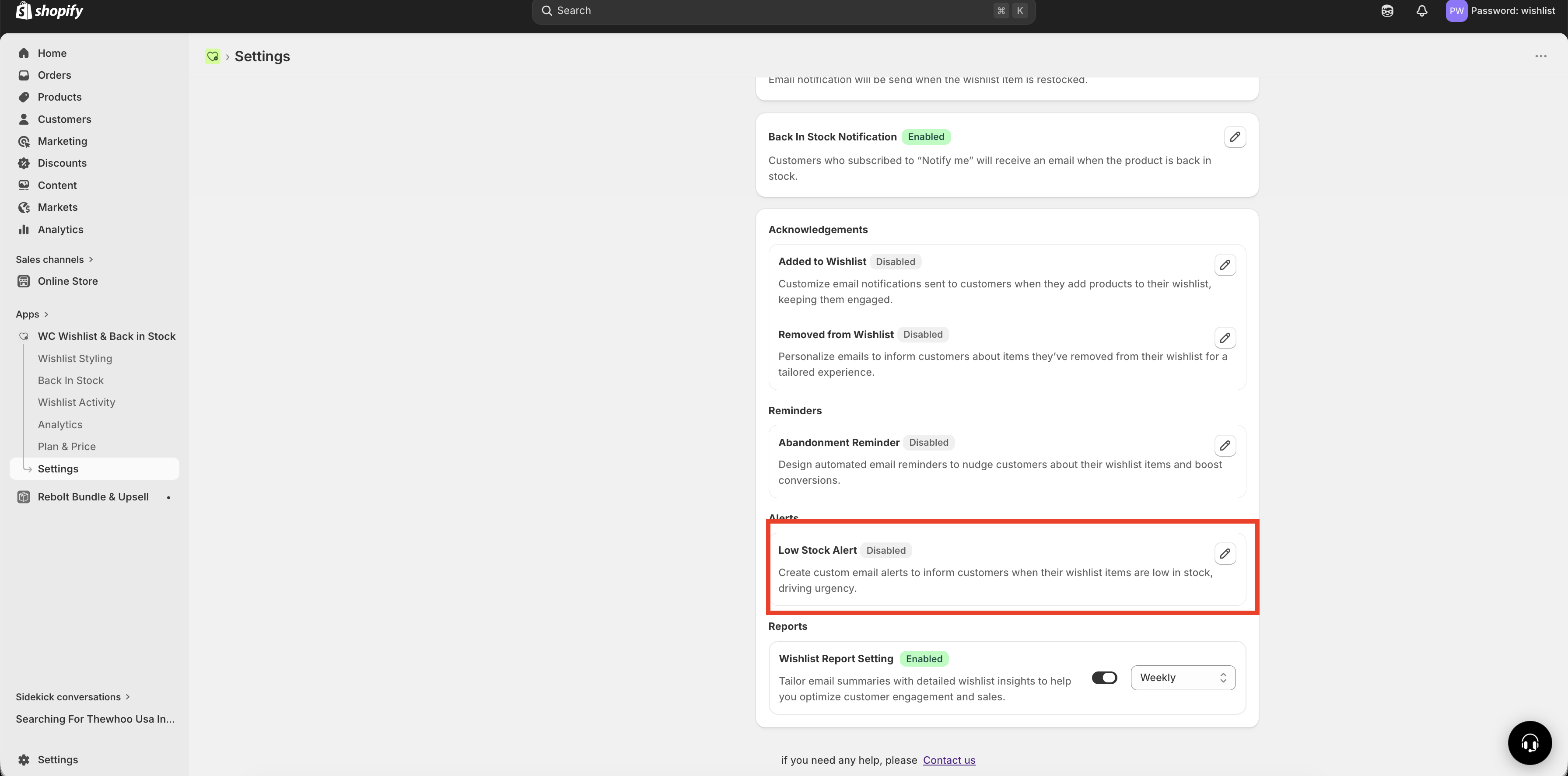
Go to Apps → WC Wishlist & Back in Stock → Settings → Email Customization → Low Stock Alert.
Turn on the Low Stock Alert email in Email Customization to allow the app to send these messages automatically.
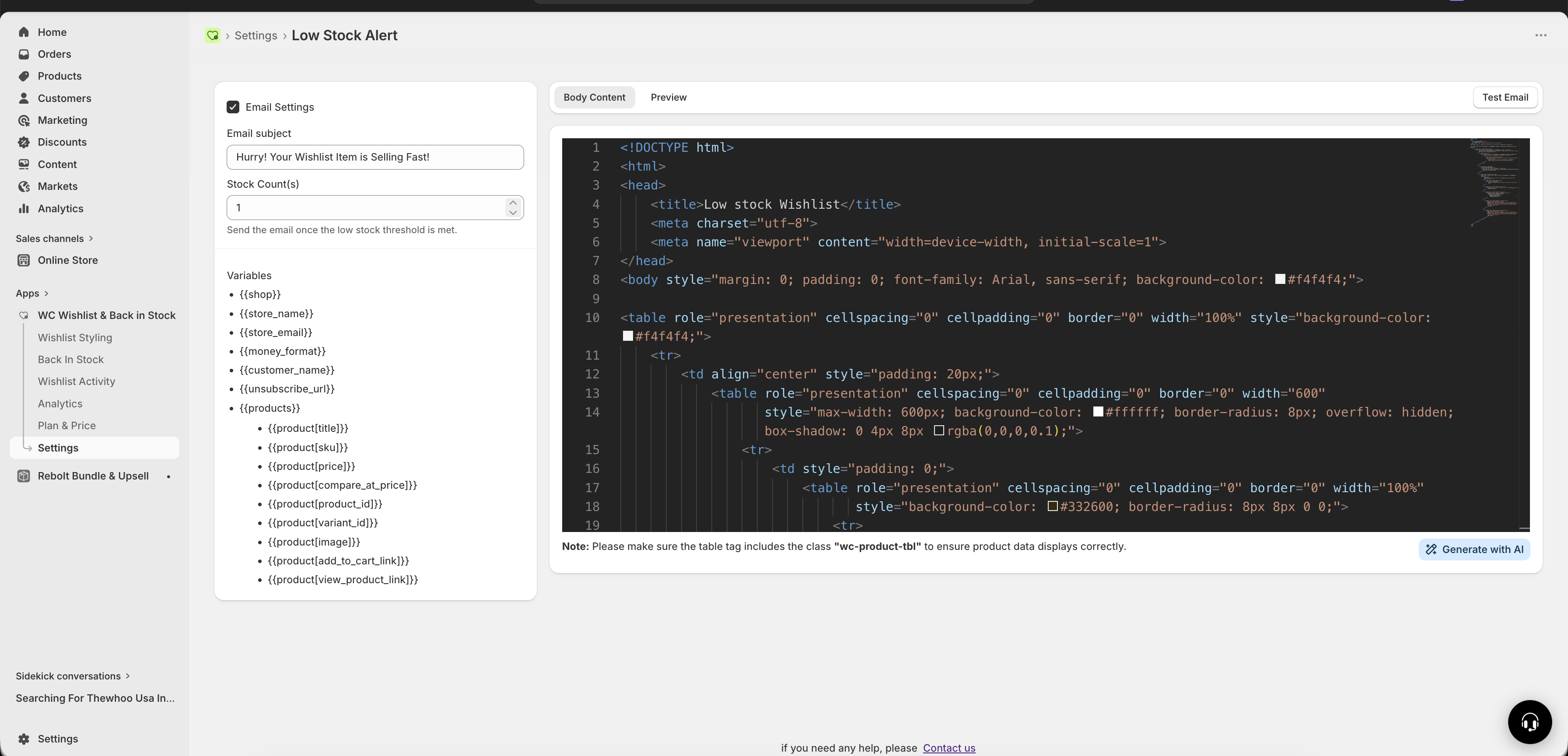
Use a subject line that tells customers the item is running low without sounding misleading. Good examples include Hurry! Your Wishlist Item Is Selling Fast, Only a Few Left, or {{customer_name}}, your saved item may sell out soon.
Choose the inventory number that should trigger the email. For example, if you enter 5, the email will send when stock drops to 5 or fewer units.
Add product details, pricing, and a clear call to action so customers can quickly return to the item and purchase it.
Make sure your email matches the real inventory situation. The message should feel trustworthy and reflect actual low stock levels.
Settings
Enable / Disable
Use this toggle to turn the Low Stock Alert email on or off.
Enabled: the app automatically sends low stock emails when products reach the threshold.
Disabled: no low stock emails are sent.
Email subject
Your subject line should create urgency while staying accurate. Keep it short, specific, and focused on the saved item.
Examples:
Hurry! Your Wishlist Item Is Selling FastLimited Stock Remaining ⚠️Your Saved Item May Sell Out Soon{{customer_name}}, only a few left!
Personalized subject lines can improve opens, but only use urgency if the product is genuinely low in stock.
Stock count threshold
This setting controls when the email is sent.
1— send when only 1 unit remains5— send when stock drops to 5 units10— send when stock drops to 10 units
Choose a threshold that makes sense for how your store manages inventory:
If a product usually carries high stock, a threshold like
10may still feel meaningfully low.If a product usually has smaller stock quantities, a threshold like
3or5may be more effective.
The best threshold depends on the normal stock level for each product. Use a number that reflects a real risk of selling out soon.
Available email variables
You can use the following variables in your email subject or body to personalize the message and show product details.
Variable | What it inserts |
|---|---|
| The customer’s name |
| Your store name |
| The product name |
| The product image |
| The current product price |
| The original or compare-at price |
| A direct add-to-cart link |
| A link to the product page |
| The unsubscribe link |
If you use a product table in your HTML email template, include the wc-product-tbl class so the product content displays correctly.
What to include in the email
A strong Low Stock Alert email should make it easy for customers to understand what is running low and act immediately.
Product name: remind the customer exactly which wishlist item is affected.
Product image: make the item instantly recognizable.
Current price: help the customer make a quick buying decision.
Clear urgency: mention that stock is limited or selling fast.
A direct action button or link: send customers straight to the product page or cart.
Best practices
Use low stock alerts only when inventory is genuinely limited.
Match the threshold to the typical stock level for that product category.
Keep the message focused on one action: returning to buy the saved item.
Use straightforward urgency such as Only a few left or Almost gone.
Include a visible product image and clear button or link.
Review your subject line and body so the tone feels urgent, not exaggerated.
Trust matters. If customers click through and find plenty of stock, the message can feel misleading. Real urgency performs better over time than exaggerated scarcity.
Writing tips for better results
Be specific: refer to the saved item directly instead of using vague language.
Keep it short: customers should understand the message within seconds.
Lead with urgency: put the low stock message near the top of the email.
Use a strong call to action: phrases like Buy now, View item, or Get it before it sells out work well.
Example message structure
You can use a structure like this when customizing the email:
{{customer_name}}, one of your wishlist items is running low.

{{product[title]}}
Current price: {{product[price]}}

Only a few may be left, so now is a great time to check out before it sells out.

View product: {{product[view_product_link]}}
Add to cart: {{product[add_to_cart_link]}}
When to use this email
The Low Stock Alert email works especially well for:
popular products that sell quickly
seasonal or limited-run items
products customers save and come back to later
stores that want to turn wishlist intent into faster purchases
Troubleshooting
Check that the Low Stock Alert email is enabled and that the product stock reached or dropped below the threshold you set. Also confirm that the customer had the product in their wishlist before the stock level changed.
Use a number that feels meaningfully low for your inventory. A threshold that is too high can reduce trust, while one that is too low may miss chances to bring customers back sooner.
Use the product page if customers may want to review product details first. Use add-to-cart links when you want the fastest possible path to purchase.
Need help?
If you are not sure which file to edit, or you would rather have us handle the installation, contact our support team:
Email: [email protected]
Live chat: available from the app admin
Free onboarding 1:1 call