
How to install and activate the app embed
Overview
Before your wishlist button or Back in Stock form can appear on your storefront, you must turn on the app embed in your Shopify theme. This is the most important setup step. If the app embed is not enabled, the app cannot load on your store and none of the storefront features will appear.
If the app embed is turned off, wishlist buttons, header icons, and Back in Stock features will not show anywhere on your store.
Install and activate the app embed
In your Shopify admin, click Online Store, then Themes. Find your live theme and click Customize.
In the theme editor, open App embeds. Depending on your theme, this may appear in the left sidebar or in the top navigation menu.
Look for WC Wishlist & Back in Stock in the list of available app embeds.
Switch the toggle to ON. This connects the app to your theme so storefront features can load.
Click Save in the theme editor. Your store is now ready for the next setup steps.
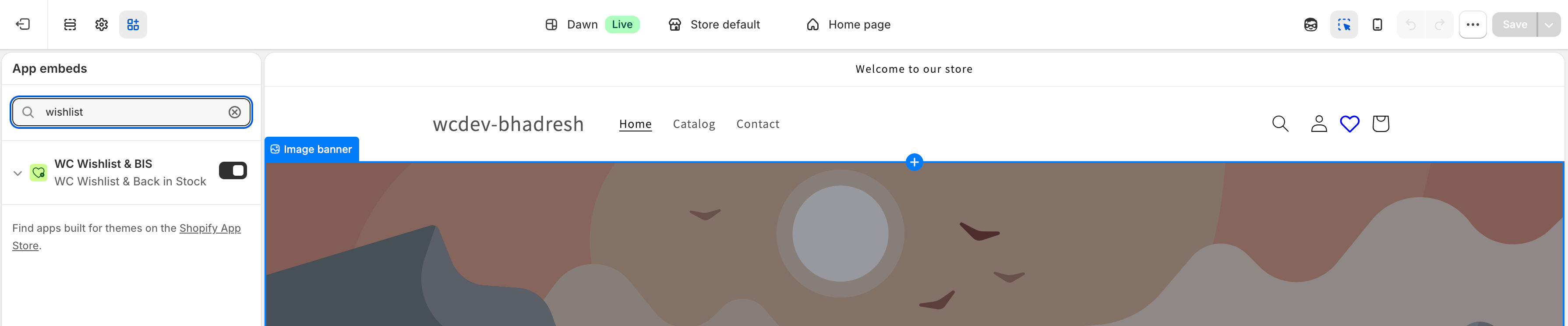
Open the active published theme before enabling the app embed. Turning it on in a draft theme will not affect your live storefront.
How to confirm it worked
After you save the app embed:
The app can load its storefront features across your theme.
On most Shopify 2.0 themes, the wishlist icon may appear automatically in the header.
You can move on to adding wishlist buttons to product pages, collection pages, and other supported areas.
Back in Stock features can now load on supported product pages.
For many modern themes, enabling the app embed is enough to make some default storefront elements appear automatically. If you do not see them right away, continue with the rest of your app setup.
Common issues
The most common reason is that the app embed was enabled in a draft theme instead of the live published theme. Go back to Online Store → Themes, confirm which theme is published, then enable the embed there and click Save.
If you change themes, you must enable the app embed again in the new theme. App embeds do not always carry over automatically when you publish a different theme.
Open the theme customizer for your active theme and look for App embeds in the sidebar or top menu. If you still do not see it, make sure the app is installed correctly and that you are editing an Online Store 2.0-compatible theme.
Turning on the app embed is required, but some storefront placements may also need to be enabled separately in the app settings. Once the embed is active, continue with the setup for product page buttons, collection page buttons, and header icons.
Important notes
Enable the app embed on your live theme, not only on a draft theme.
If you publish a new theme later, you will need to activate the app embed again on that theme.
If the embed is off, no wishlist or Back in Stock storefront features can appear.
Always click Save after turning the embed on. Leaving the editor without saving will undo the change.
What to do next
Once the app embed is active, continue with the rest of your storefront setup.
Add wishlist buttons to the product page, collection page, and other storefront areas.
Show the wishlist icon in your store header for quick customer access.
Let shoppers subscribe for restock alerts on out-of-stock products.
Need help?
If you still cannot get the app embed working, contact our team:
Email:
[email protected]Live chat: available from the app admin
Free onboarding: book a 1:1 setup call