
Email Verification — how it works for wishlist and Back in Stock
Overview
Email verification adds a confirmation step before any wishlist or Back in Stock notification is sent to a customer. It helps make sure notifications go to real, valid email addresses only.
This protects your sender reputation, reduces unnecessary email sends, and keeps your subscriber list cleaner over time.
Email verification affects when a customer becomes an active subscriber. Until the customer verifies their email address, their wishlist or Back in Stock subscription stays inactive.
How to enable this setting
Go to Apps → WC Wishlist & Back in Stock → Settings → Email Customization → Email Verification.
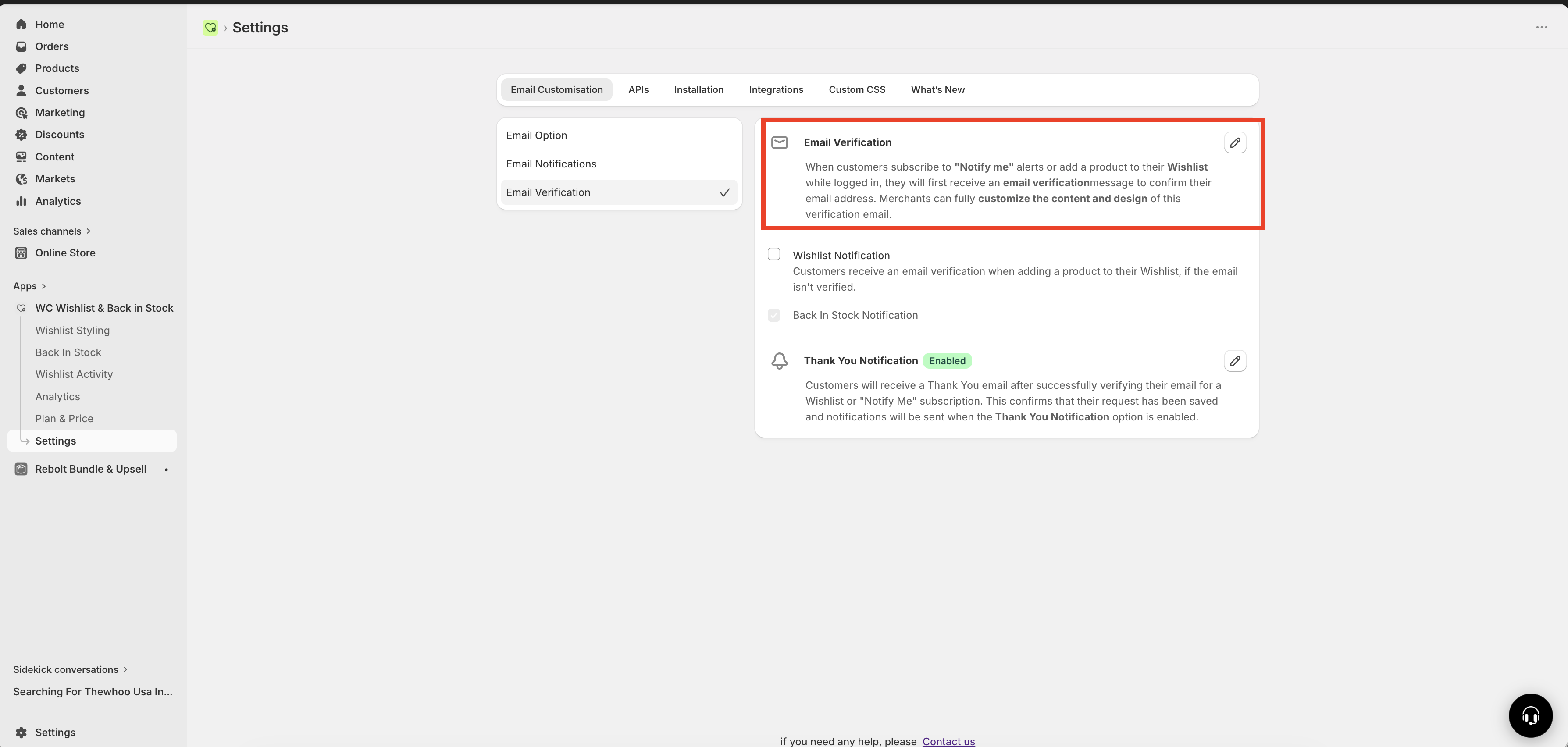
How email verification works
A customer either adds a product to their wishlist or clicks Notify Me on an out-of-stock product.
If the customer’s email address has not been verified yet, the app sends a verification email with a unique confirmation link.
The customer clicks the verification link in the email.
After verification, the customer becomes eligible to receive future notifications, such as wishlist reminders, price drop alerts, and restock alerts.
Once the email is verified, the customer also receives a Thank You Notification confirming that their subscription is active.
If a customer does not click the verification link, their subscription remains inactive and they will not receive wishlist or Back in Stock notifications tied to that subscription.
What gets verified
Wishlist notification verification
When this setting is enabled, customers who add products to their wishlist while logged in must verify their email before they can receive wishlist-related notifications.
This can include:
Wishlist reminders
Price drop alerts
Restock alerts for wishlisted products
Wishlist verification is optional. Enable it if you want stronger list quality and better protection against invalid email addresses. Leave it off if you want the smoothest possible wishlist experience with less friction for customers.
Back in Stock verification
Email verification for Back in Stock subscriptions is enabled by default and cannot be turned off.
This ensures that restock notifications are sent only to customers who genuinely want them and have access to the email address they entered.
Because Back in Stock notifications are often time-sensitive and high-intent, verification helps prevent missed sends, fake signups, and unnecessary pressure on your sender reputation.
What customers experience
From the customer’s point of view, the process is simple:
They sign up for wishlist or Back in Stock notifications.
They receive a verification email.
They click the confirmation link.
Their subscription becomes active.
They receive a thank-you confirmation email.
If they never confirm, they stay unsubscribed from those notification emails.
Customize the verification email
You can fully customize the verification email using the HTML Body Content editor.
Use this email to clearly explain:
Why the customer is receiving the email
What they need to do next
What happens after they verify
Required variable
Your verification email must include the verification link variable below:
{{verification_token_url}}— inserts the customer’s unique verification link
The {{verification_token_url}} variable is required. If it is missing from the email template, customers will have no way to verify their email address, and their subscriptions will remain inactive.
Best practices for the verification email
Use a clear subject line so customers immediately understand they need to confirm their email.
Explain what they signed up for, such as wishlist reminders or restock alerts.
Include a clear call to action, such as “Verify Email” or “Confirm Subscription”.
Keep the message short so the next step is obvious.
Mention that they will start receiving notifications only after verification.
For the best conversion rate, place your verification link high in the email and make the purpose unmistakable. Customers are more likely to complete verification when the email is brief and action-focused.
Recommended email content structure
A strong verification email usually includes these elements:
A short greeting
A sentence explaining the customer requested notifications
A prominent verification link or button using
{{verification_token_url}}A note that notifications will begin only after confirmation
A short reassurance that no action is needed if they did not request the subscription
Why this feature matters
Improves email list quality: only confirmed addresses become active subscribers.
Protects sender reputation: fewer invalid or mistyped email addresses receive mail.
Reduces complaints: customers must confirm they want notifications.
Supports better deliverability: a cleaner list can lead to more reliable inbox placement over time.
Common scenarios
Their subscription stays inactive. They will not receive wishlist reminders, price drop alerts, or restock notifications related to that unverified signup.
Their subscription becomes active, and they can receive future notifications that match what they signed up for. They also receive the Thank You Notification after verification.
Leave wishlist verification turned off. Customers can still use the wishlist normally, while Back in Stock verification remains required.
Enable wishlist verification so both wishlist-related signups and Back in Stock signups require confirmation before notifications are sent.
Troubleshooting checklist
If customers say they are not receiving notifications, check the following:
The customer clicked the verification link.
The verification email template still includes
{{verification_token_url}}.The customer is checking the same inbox they used when subscribing.
The signup belongs to a verified subscription, not an inactive one.
If notifications are not being delivered as expected, first confirm whether the subscription was ever verified. In many cases, the issue is not the notification itself — it is that the email address never completed verification.
Need help?
If you are not sure which file to edit, or you would rather have us handle the installation, contact our support team:
Email: [email protected]
Live chat: available from the app admin
Free onboarding 1:1 call