
Customize the wishlist page layout and settings
Overview
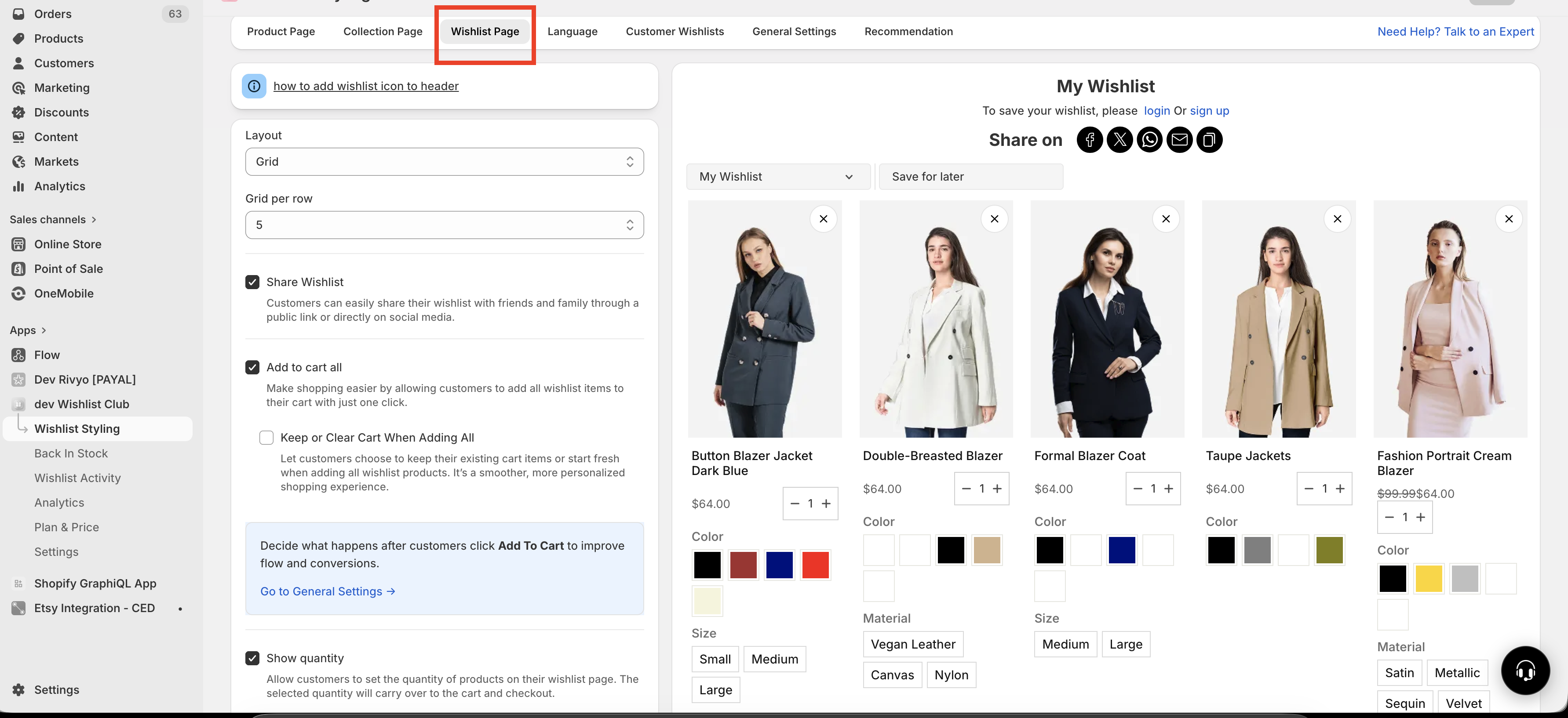
The wishlist page is where customers review the products they have saved and decide what to do next. A well-designed wishlist page makes it easier for shoppers to compare items, select the right variants, move products to cart, and share their list.
This page explains each setting available under Wishlist Styling → Wishlist Page so you can choose a layout and experience that fits your store.
Before you start
Before changing wishlist page settings, decide what matters most for your storefront:
Visual browsing: best for fashion, beauty, home decor, and other image-led catalogs
Detailed comparison: best for technical, configurable, or high-consideration products
Fast add-to-cart flow: best if customers often return to their wishlist when they are ready to buy
After making changes, open your storefront wishlist page and test it on both desktop and mobile. A layout that looks great on desktop may feel crowded on smaller screens.
How to access wishlist page settings
In Shopify admin, go to Apps and open WC Wishlist & Back in Stock.
Select Wishlist Styling.
Click Wishlist Page.
Update the settings you want, save your changes, then review the wishlist page on your storefront.
Choose a layout
Grid layout
Grid Layout displays saved products as cards, similar to a collection page. You can choose how many items appear in each row, typically from 2 to 5.
This layout works best when product images play an important role in buying decisions.
Best for:
Fashion and apparel
Beauty and cosmetics
Jewelry and accessories
Home decor and lifestyle products
Why choose grid layout:
Creates a modern, visual shopping experience
Gives product images more space
Feels familiar to customers who browse collection pages often
List layout
List Layout shows products in a vertical list with more room for details. This makes it easier for customers to scan information like variants, pricing, and product options.
This layout is usually better for stores where customers compare products before purchasing.
Best for:
Electronics
Tools and equipment
Furniture
Products with many selectable options
Why choose list layout:
Shows more product information at once
Makes comparing saved items easier
Works well when the wishlist is used as a decision-making list
Grid layout usually feels more visual and modern. List layout is usually better for comparison. If you are unsure, start with the layout that matches your collection pages so the shopping experience feels consistent.
Items per row
If you use Grid Layout, you can set how many products appear in each row.
2 per row: larger product cards, better for mobile-style presentation and image-heavy stores
3 per row: balanced layout for most stores
4–5 per row: shows more products at once, but cards become smaller and details may feel tighter
If you choose too many items per row, buttons, variant selectors, and product details may feel cramped—especially on smaller screens.
Enable the quantity selector
When Show Quantity Selector is enabled, customers can increase or decrease the quantity of a saved product directly from the wishlist page before adding it to cart.
The chosen quantity is carried into the cart, which removes an extra step and can speed up checkout.
To enable it:
Go to
Wishlist Styling → Wishlist Page.Turn
Show Quantity SelectorON.Save your changes and test the experience on the storefront.
Use the quantity selector if:
Customers often buy more than one unit of the same item
You sell consumables, supplies, or everyday essentials
You want to reduce friction between wishlist and cart
You may not need it if:
Most purchases are single-quantity items
Your wishlist page is intentionally minimal
You want fewer controls shown on each product card
Let customers choose product variants
You can allow customers to select or change a product variant directly on the wishlist page. This is useful for products with options such as size, color, material, style, or finish.
Instead of returning to the product page, customers can make their selection in the wishlist and then add the correct version of the product to cart.
Screenshot placeholder: Variant selector options on wishlist page
Variant display options
Default — Uses the app's standard variant selector style.
Swatch — Shows color or image swatches for a more visual selection experience.
Dropdown — Uses a compact dropdown menu to save space.
When to use each option
Default: a good choice if you want a simple setup that works across most product types
Swatch: best for products where appearance matters, such as apparel, cosmetics, paint, or decor
Dropdown: best for products with many options or when you want a cleaner, more compact layout
If customers commonly save products before deciding on size or color, enabling variant selection on the wishlist page can improve conversion by shortening the path to cart.
Best-practice setup recommendations
For visual brands
If your store relies heavily on product imagery:
Use Grid Layout
Choose 2 or 3 items per row
Enable Swatch variant display if color or pattern matters
Enable the Quantity Selector if shoppers often buy multiples
For comparison-heavy catalogs
If customers need to compare details before buying:
Use List Layout
Enable variant selection
Use Dropdown selectors if products have many options
Keep the page uncluttered so product details stay easy to scan
For mobile-friendly wishlists
If mobile traffic is important for your store:
Avoid overcrowded grid settings
Test whether 2 or 3 items per row feels more usable
Use Dropdown selectors if swatches take up too much space
Check that buttons and selectors are easy to tap
How to choose the right setup
Use these questions to guide your decision:
Do customers buy based on visuals? Choose grid layout.
Do customers compare features or options? Choose list layout.
Do products come in multiple variants? Enable variant selection.
Do shoppers often buy more than one? Enable the quantity selector.
Is mobile traffic high? Keep layouts spacious and selectors compact.
Troubleshooting and review checklist
After updating the wishlist page, review the storefront and confirm the following:
Products display cleanly with no overlapping text or controls
Variant selectors are easy to understand
Swatches match the product options customers expect
Quantity changes carry through correctly when items are added to cart
The page is easy to use on mobile devices
The layout matches the visual style of the rest of your store
Some settings may look different depending on your theme, product structure, and the number of variants each product has. Always test with real products from your catalog before finalizing the layout.
Frequently asked questions
Use grid layout if product images are the main selling point. Use list layout if customers need more detail to compare saved products.
Yes. When a customer changes the quantity on the wishlist page and then adds the item to cart, that quantity is carried into the cart.
Yes, if variant selection is enabled. Customers can choose the variant directly from the wishlist page instead of going back to the product page.
Swatch is best for visual options like color. Dropdown is best when space is limited or there are many variants. Default is a safe general-purpose option.
Test the page on desktop and mobile, confirm variant selection works correctly, and make sure quantities transfer properly when adding items to cart.
Recommended next steps
Once your wishlist page layout is configured, review the rest of your wishlist experience so it feels consistent from the first save to checkout.
Check how wishlist buttons appear on collection and product pages
Make sure wishlist actions are easy to understand
Review mobile spacing and button placement
Test the complete flow: save item → open wishlist → choose variant → adjust quantity → add to cart