
Added to Wishlist confirmation email
Overview
The Added to Wishlist email is a confirmation message sent shortly after a customer saves a product to their wishlist. It reassures them that their item was saved successfully and gives them an easy way to return to the product later.
Used well, this email does more than confirm an action — it keeps purchase intent high by reminding customers what they saved while the product is still fresh in their mind.
This email is best used as a light, helpful reminder. Keep the message friendly, visual, and focused on getting the customer back to the product quickly.
How to access
Go to Apps → WC Wishlist & Back in Stock → Settings → Email Customization → Added to Wishlist.
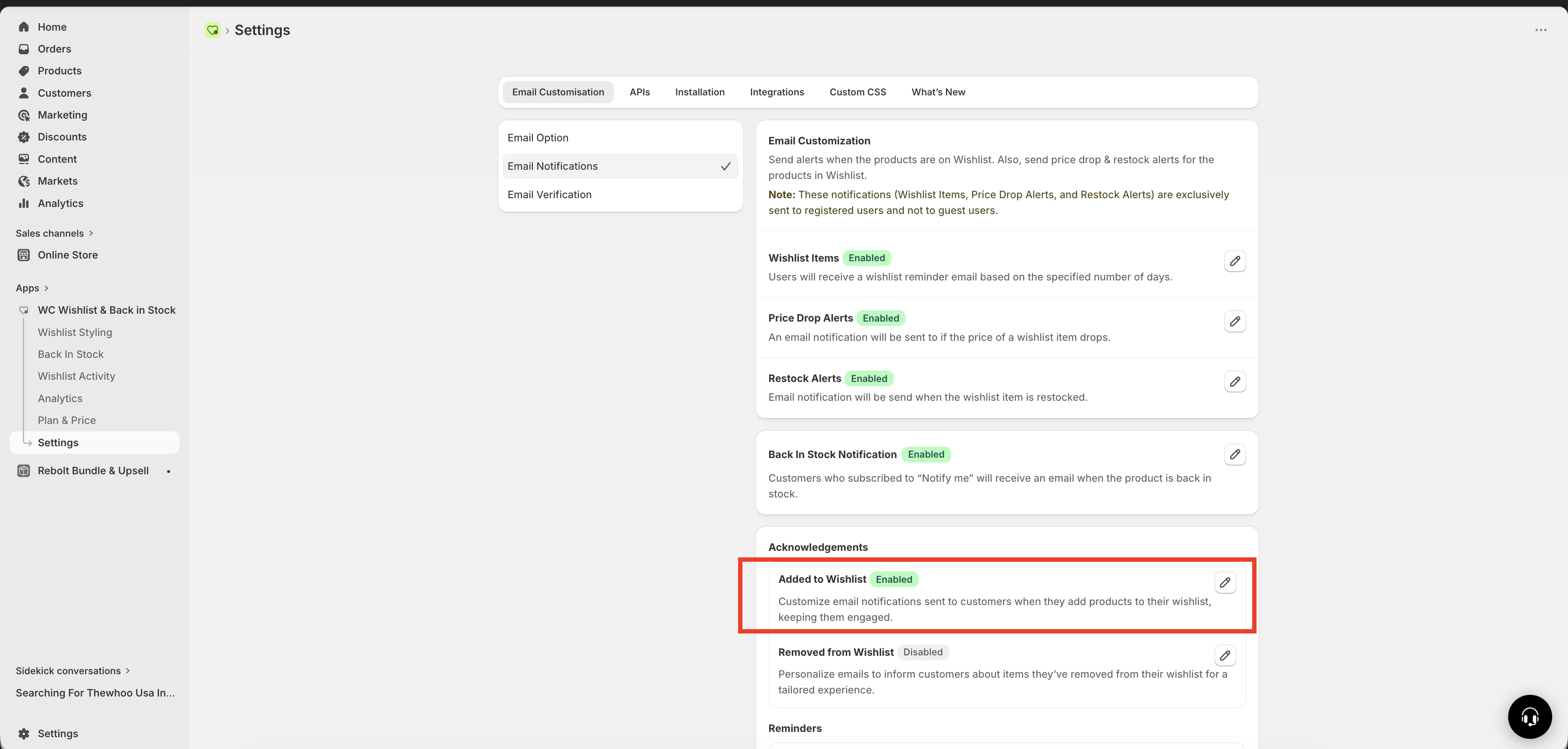
What this email does
When this email is enabled, customers receive a confirmation after adding a product to their wishlist. Depending on timing and the customer’s activity, the email can include one or more saved items.
The email can help you:
Confirm that the wishlist action worked
Reduce friction for customers who want to come back later
Encourage return visits with direct product and cart links
Keep high-intent shoppers engaged without being too aggressive
Best practices
Use a warm subject line: Make it feel like a helpful confirmation, not a system alert.
Add a short delay: A short send delay gives customers time to save multiple products before the email is sent.
Keep the content focused: Show the saved product clearly with image, price, and a direct action link.
Make it easy to buy: Include a strong call to action such as viewing the item or adding it to the cart.
Review the tone: Wishlist emails usually perform better when they feel personal and helpful rather than promotional.
A send delay of 5 to 30 minutes is usually the best choice. It avoids sending the email too early while the customer is still browsing, and it often results in a more complete email with all recently saved items.
Recommended setup
Turn on the Added to Wishlist email so customers receive a confirmation after saving products.
Use a subject line that sounds helpful and personal. Focus on confirmation and easy return, not urgency.
Select a delay that matches your shoppers’ behavior. If customers often save several items in one session, use a longer delay.
Check that product details, links, and variables display clearly and that the message is easy to scan on mobile.
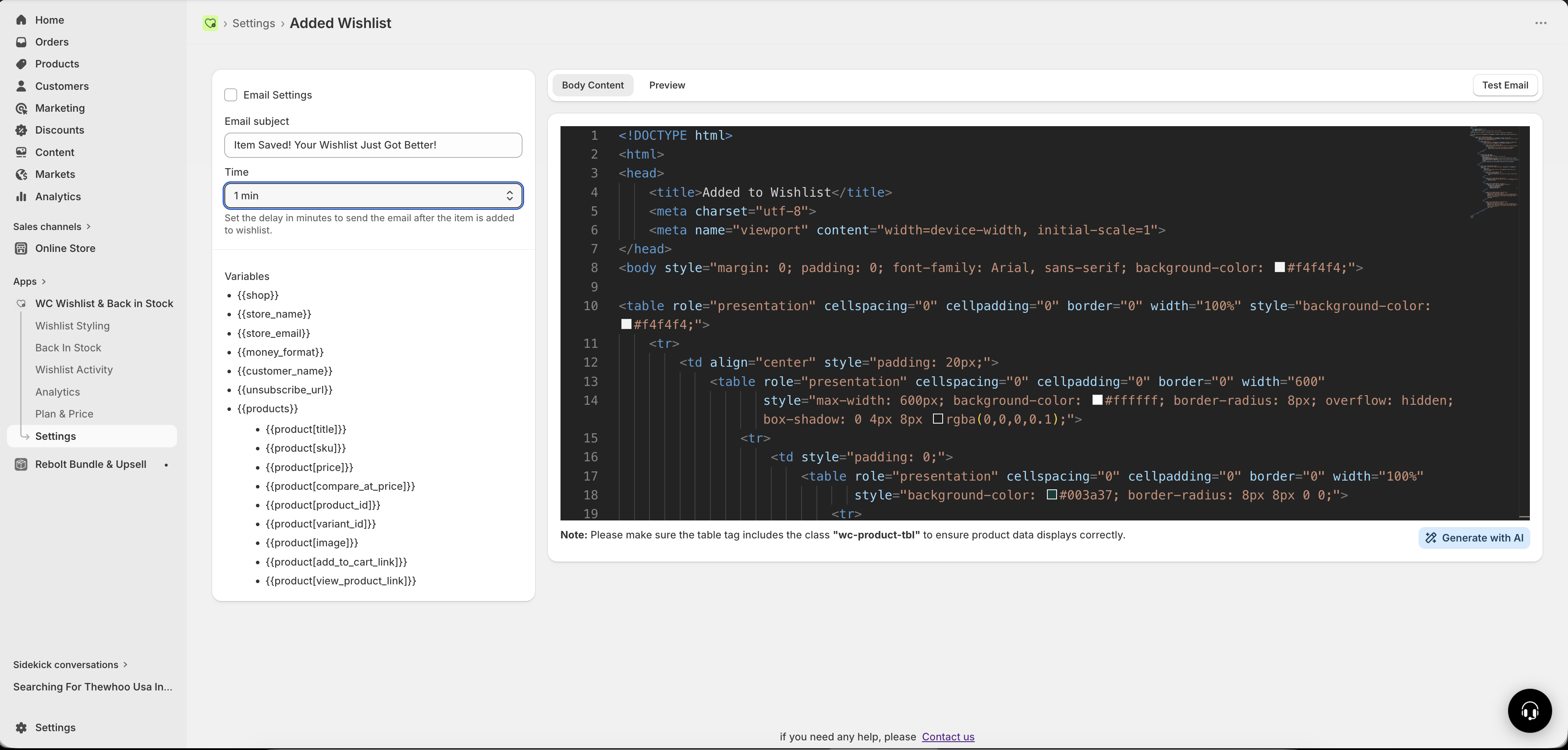
Settings
Enable / Disable
Use this setting to turn the email on or off.
Enabled: Customers receive a confirmation email after adding a product to their wishlist.
Disabled: No confirmation email is sent.
Email Subject
This is the subject line customers see in their inbox. A strong subject line should feel personal, clear, and inviting.
Good examples:
Item Saved! Your Wishlist Just Got Better ✨Your Wishlist Has Been Updated 💚Saved for Later — Don’t Miss Out!{{customer_name}}, you saved something great!
Avoid subject lines that sound too sales-heavy or vague. Customers should immediately understand that the email is about something they just saved.
Send Delay Timing
This controls how long the app waits before sending the email after a product is added to a wishlist.
Available options:
1 minute
5 minutes
30 minutes
A delay helps prevent emails from being sent instantly while the customer is still browsing and saving additional products.
Which delay should you choose?
1 minute: Best if you want near-instant confirmation.
5 minutes: A balanced option for most stores.
30 minutes: Best when customers often browse for longer and save multiple items in one session.
Available email variables
You can use variables to personalize the email and automatically pull in store, customer, and product details.
Store variables
{{shop}}— Shop domain{{store_name}}— Store name{{store_email}}— Store email{{money_format}}— Currency format
Customer variables
{{customer_name}}— Customer name{{unsubscribe_url}}— Unsubscribe link
Product variables
Use these inside the {{products}} loop to show saved product details.
{{product[title]}}— Product name{{product[price]}}— Current price{{product[compare_at_price]}}— Original price{{product[image]}}— Product image{{product[add_to_cart_link]}}— Direct add-to-cart link{{product[url]}}— Product page link
Example structure
A high-performing Added to Wishlist email usually includes:
A clear subject line
A short confirmation message
The saved product image and title
The current price
A clear button or link to view the item or add it to cart
Subject: {{customer_name}}, you saved something great!

Hi {{customer_name}},

You added the following item to your wishlist:

{{products}}
- {{product[title]}}
- {{product[price]}}
- View item: {{product[url]}}
- Add to cart: {{product[add_to_cart_link]}}
{{/products}}

Thanks,
{{store_name}}
If your brand voice is playful, this is a good place to use it. Just make sure the main action stays obvious: help the customer get back to the saved product quickly.
Tips for better results
Use product images: Visuals help customers instantly recognize what they saved.
Show current pricing: This makes the email more useful and actionable.
Keep copy short: Customers already showed intent by saving the item — they usually need a reminder, not a long explanation.
Use one primary action: Make your main button or link the clearest next step.
Test on mobile: Many wishlist interactions happen on mobile, so your email should be easy to read and tap on smaller screens.
Common mistakes to avoid
Sending the email too quickly while customers are still browsing
Using a generic subject line that looks automated
Including too much promotional copy and hiding the saved product
Forgetting to include a clear path back to the product or cart
Using variables incorrectly so product or customer details do not appear as expected
Always preview and test your email before relying on it in a live store. A broken variable or missing product link can turn a helpful reminder into a confusing customer experience.
When to use this email
This email works especially well if your store has:
Products customers often compare before buying
Longer consideration cycles
Repeat visitors who use wishlists to plan future purchases
High mobile traffic where customers may save now and return later
FAQ
Yes. When the email is enabled, it sends after a wishlist action based on the delay you selected.
A delay gives customers time to continue browsing and save more items. This usually creates a better customer experience and a more useful email.
Yes. You can use available variables such as {{customer_name}}, store details, and product information to make the email more relevant.
The main goal is to confirm the saved item and make it easy for the customer to return and purchase later.
Need help?
If you are not sure which file to edit, or you would rather have us handle the installation, contact our support team:
Email: [email protected]
Live chat: available from the app admin
Free onboarding 1:1 call