
Add the Notify Me button to your product pages (non-2.0 themes)
Overview
The Notify Me button lets customers sign up for a back-in-stock alert when a product or variant is unavailable. On non-2.0 Shopify themes, you need to add a small code snippet to your product page template before the button can appear.
Before you start, make sure you have already activated the app embed. If you have not done that yet, complete that step first in your setup guide before editing your theme code.
This guide shows you exactly where to place the snippet, how to turn the feature on in the app, and what to check if the button does not appear.
Before you begin
You need access to your Shopify theme code.
Your store must be using a non-2.0 theme.
The back-in-stock feature must be enabled in the app settings.
Editing theme code affects your storefront. If you are not comfortable making code changes, contact our support team and we can help install it for you.
Add the Notify Me button to your product page
In Shopify admin, go to Online Store → Themes.
On your current theme, open the actions menu and click Edit code.
Look for the product page file used by your theme. Common file names include:
product-form.liquidmain-product.liquidproduct-template.liquid
Your theme may use a different file name, but it will usually be the file that controls the product form or product page layout.
Inside that file, locate the section that displays the Add to Cart button.
The Notify Me button should be added directly below the Add to Cart button so it appears in the right place on the product page.
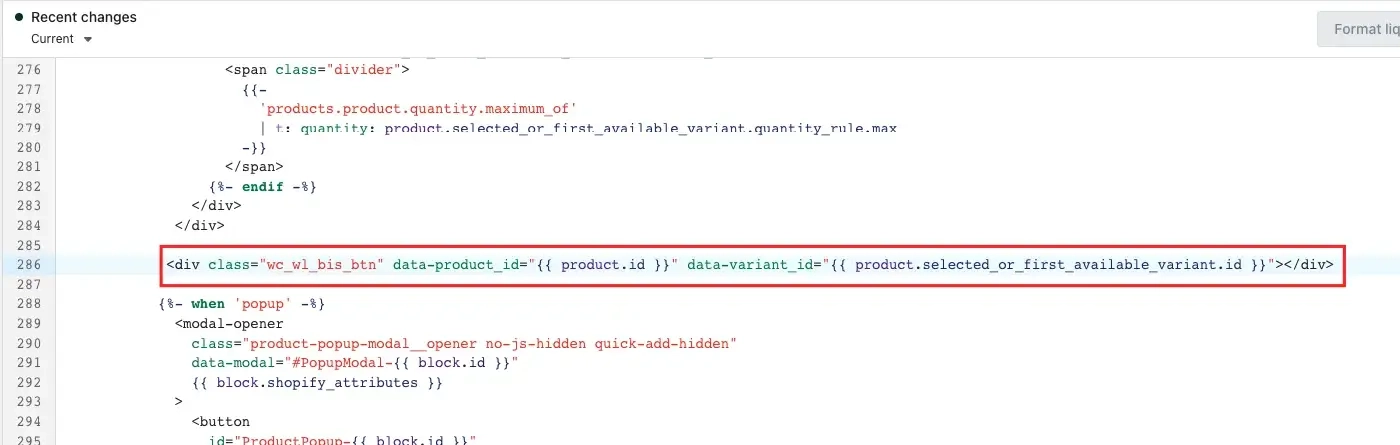
Add this code directly below the Add to Cart button:
<div class="wc_wl_bis_btn"
  data-product_id="{{ product.id }}"
  data-variant_id="{{ product.selected_or_first_available_variant.id }}">
</div>
Click Save in the code editor.
Turn on the product page button in the app
After adding the snippet to your theme, make sure the button is enabled in the app settings.
Go to:
Apps → WC Wishlist & Back in Stock → Back In Stock → Product Page
Then turn Enable Product Page Button to ON.
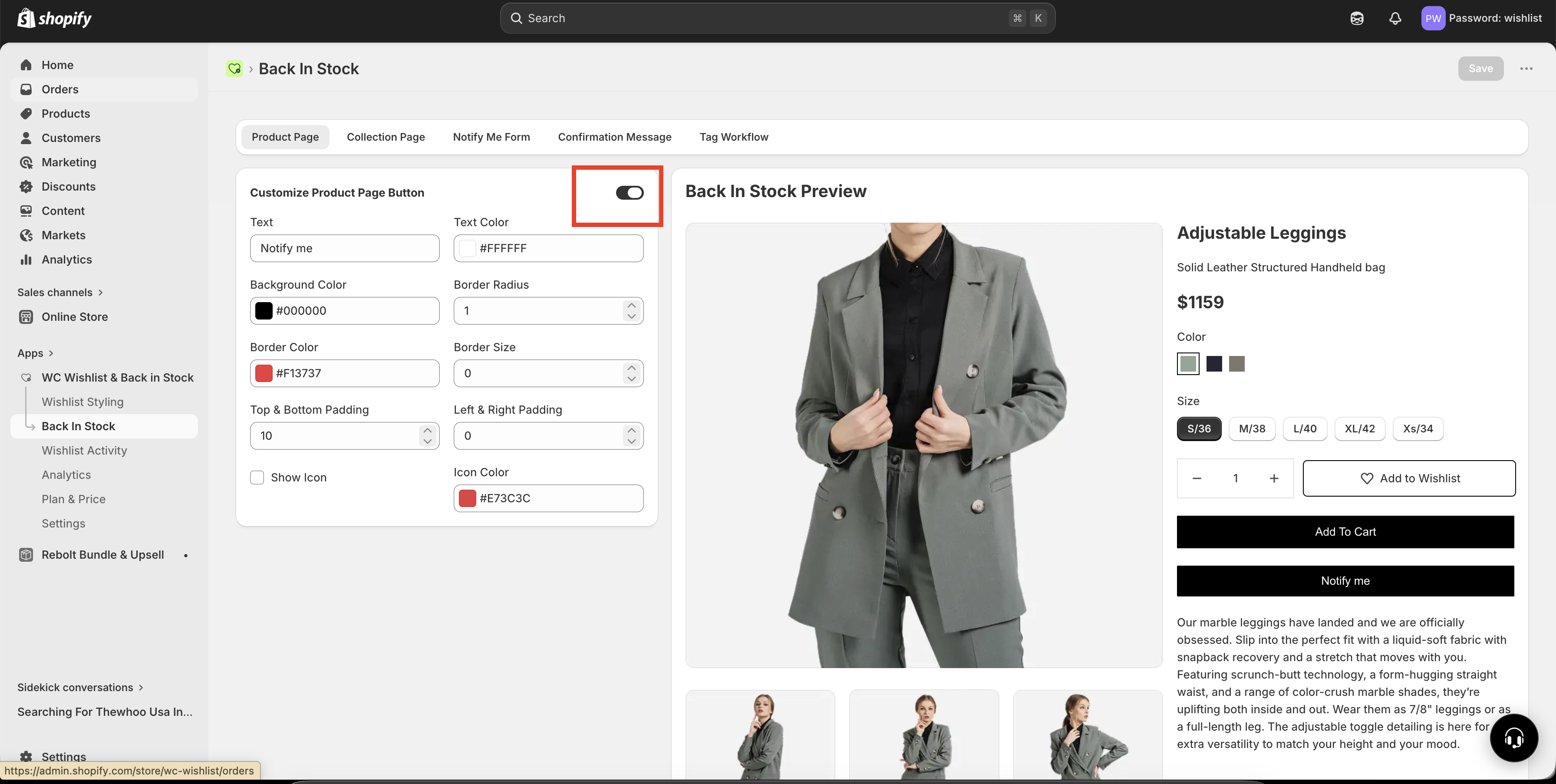
Both steps are required: adding the code to your theme and enabling the setting in the app. If either one is missing, the button will not appear.
When the Notify Me button appears
The button only shows when the product or selected variant is unavailable.
If a product is in stock, customers will continue to see the normal purchase option.
If a product or variant is out of stock, the Notify Me button can appear so customers can subscribe for a restock alert.
If your product has variants, the button behavior depends on the currently selected variant.
Important inventory requirements
If inventory tracking is not enabled in Shopify for the product or variant, the Notify Me button may not display correctly.
To check inventory tracking in Shopify:
Go to Shopify Admin → Products.
Open the product you want to check.
Open the variant, if applicable.
In the inventory section, make sure inventory tracking is enabled.
If Shopify does not know that an item is out of stock, the back-in-stock button cannot behave as expected.
Best placement tips
Place the snippet directly below the Add to Cart button for the clearest customer experience.
Test on a product that is actually out of stock so you can confirm the button appears.
If your theme has more than one product template, make sure you update the template used by the products you want to support.
If your store uses variant selectors, test different out-of-stock variants on the product page after installation.
Troubleshooting
Confirm that Enable Product Page Button is turned on in the app.
Make sure the product or selected variant is actually out of stock.
Check that inventory tracking is enabled in Shopify.
Make sure the snippet was placed in the correct product template file.
If your theme has multiple product templates, verify that you edited the one currently assigned to the product.
This usually means one of the following:
The products are using different templates.
Some products have inventory tracking enabled and others do not.
Only certain variants are out of stock.
That is common with older themes. If you are unsure which product file controls your Add to Cart area, contact our support team and we can help identify the correct file or install the snippet for you.
Need more help?
If you need help getting the wishlist button to appear correctly, contact our team:
Email: [email protected]
Live chat: available from the app admin
Onboarding: book a free 1:1 onboarding call